
SharePoint is the simplest corporate repository for information allowing people, with a few clicks, to have a table with all the information that they want quickly filter it and so much more. Of course it doesn't replace a "real" database, but you can go from zero to something working without knowing anything about development and that's a huge plus. 1
I've seen people developing some really complex workflows in SharePoint, but when it starts getting complex sometimes people find workarounds or do manual work when, for example, something changes in a list.
Power Automate can easily be combined with SharePoint to trigger an automation when a property in SharePoint changes, allowing us to define automations when something in the process changes.
If you think this is not useful, think about these:
- When your list of articles changes from "idea" to "draft", Power Automate can create the folder for you to put your ideas and images in.
- When a list of clients changes to "notify", an email can be sent automatically with the pre-defined format.
- When a date changes, a person can be notified of the change and its impact, like something being overdue for example.
Before we continue, remember that this works on files as well, since files in a document library have similar features to the lists themselves. If you don't know how to add properties to files, here's an article with the details.
The biggest advantage is that with the right strategy we can get and display the "before" and "after" of the changes. We can notify people by email saying "Status changed from Draft to Pending". It may look like a detail, but it provides a lot more context than a simple link to the SharePoint list.
There are a lot of possibilities, but the workflow is yours. I want to focus this article on the strategy and how it can be useful to you.
Why a trigger condition can't do this
A trigger condition is an expression that Power Automate evaluates against the trigger's output before it starts a run. If it returns false, the run never happens and never counts against your quota. That makes it the natural first place to look.
The catch is what the trigger output contains. It holds the item as it looks right now, after the edit, with no copy of how it looked before.
So a trigger condition can answer "is Status equal to Approved", because that only needs the current value. It cannot answer "did Status change", because that needs the previous value too.
The decision moves inside the run instead. The Flow starts, works out what changed, and ends early when the change wasn't yours.
Turn on versioning first
The comparison is built on version history. SharePoint stores a snapshot of the item each time it is saved, and the action diffs two of those snapshots. Without versioning there is nothing to compare, and the action fails.
Open your list or library, go to Settings, then Versioning settings, and set item or document version history to Yes.
Keep an eye on how many versions you retain. If your library keeps only the last few versions and an item is edited rapidly, the older snapshot the Flow wants may already be gone.
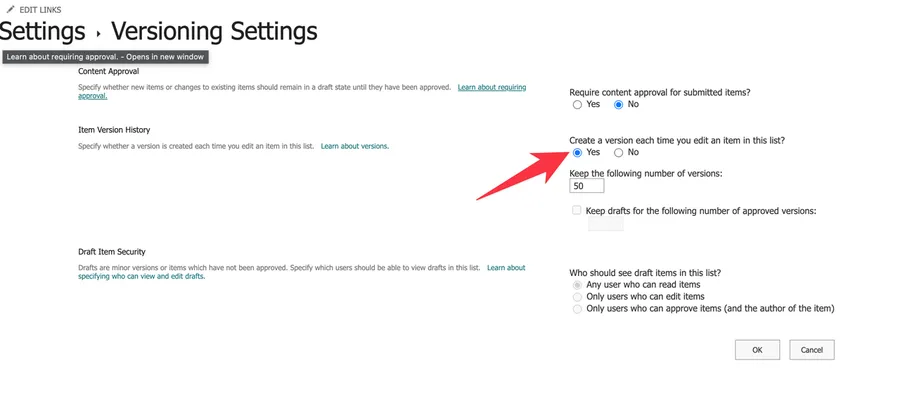
Ideally this is already on. If not, turning it on is a win by itself, because you get to recover information when you need it.
Use the "When an item or a file is modified" trigger
This trigger fires when an item or a file is modified, in either a list or a document library. That part is ordinary. What makes it the right choice here is two extra outputs it produces that no other SharePoint trigger produces.
- Trigger Window Start Token: a marker for where the last check finished.
- Trigger Window End Token: a marker for where this check finished.
Together they describe the slice of history the Flow is reporting on. You never read these values yourself, you pass them to the next action, which uses them to pick the two versions to compare.
Microsoft documents that the tokens are only available on the SharePoint "When an item or a file is modified" trigger.
The SharePoint "When an item is created or modified" trigger and the SharePoint "When a file is created or modified (properties only)" trigger do not, so start with this one.
Add the "Get changes for an item or a file (properties only)" action
This is the action that does the real work. It gets all the columns or file properties that changed between two points, and it lives in the SharePoint connector.
Four fields show up straight away:
- Site Address: the site holding the list or library.
- List or Library Name: the list or library itself.
- Id: the item's numeric ID, taken from the trigger output.
- Since: the Trigger Window Start Token from the trigger.
Until is not one of them. It sits under Advanced parameters, so open that dropdown to find it, then fill it with the Trigger Window End Token. It is easy to spend a while hunting for it on the main panel.
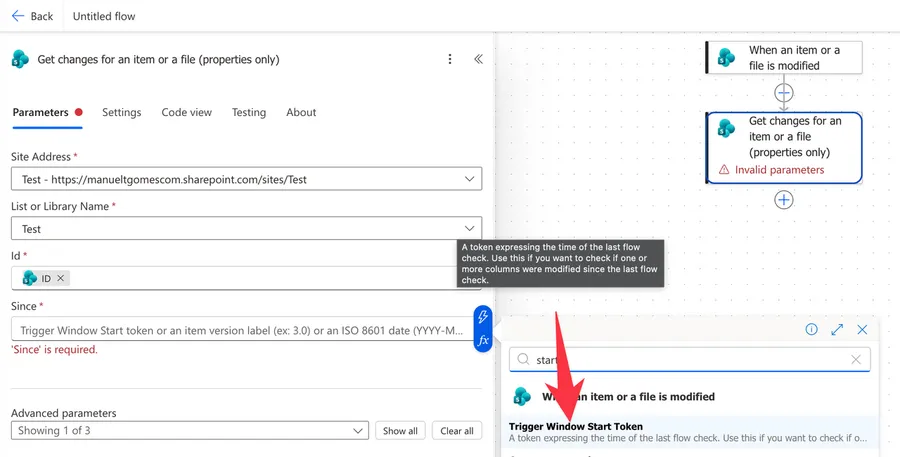
Take both tokens from the dynamic content panel. You can also type a value into Since yourself, because the field accepts an item version label such as 3.0 or an ISO 8601 date as well as the token. That is useful when you want the comparison to reach back to one specific version instead of to the last flow check.
The action returns the version range it compared, as SinceVersionId and SinceVersionLabel for the older version and UntilVersionId and UntilVersionLabel for the newer one, along with SinceVersionExisted and UntilVersionIsCurrent. After those comes ColumnHasChanged, which holds one true or false per column.
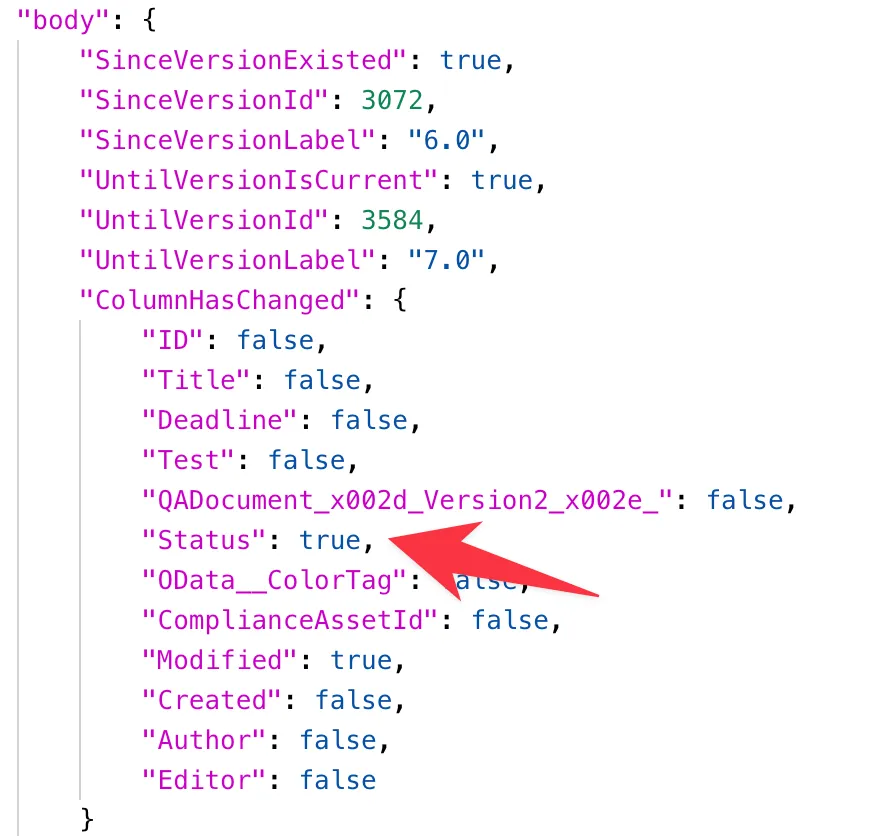
What's important here is to understand which column was changed and which version it came from, in case we want to revisit it later.
Check the column with a Condition
Add a Condition action straight after. On the left, drop the Has Column Changed: Status token.
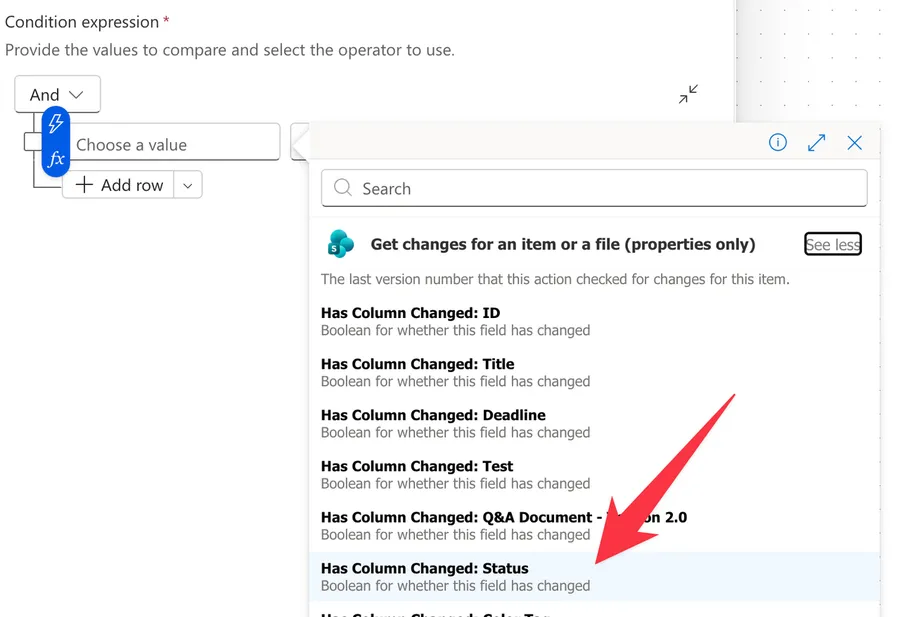
Set the operator to is equal to and the right side to true. Add that true through the fx expression editor rather than typing it as plain text, so you compare a boolean against a boolean.
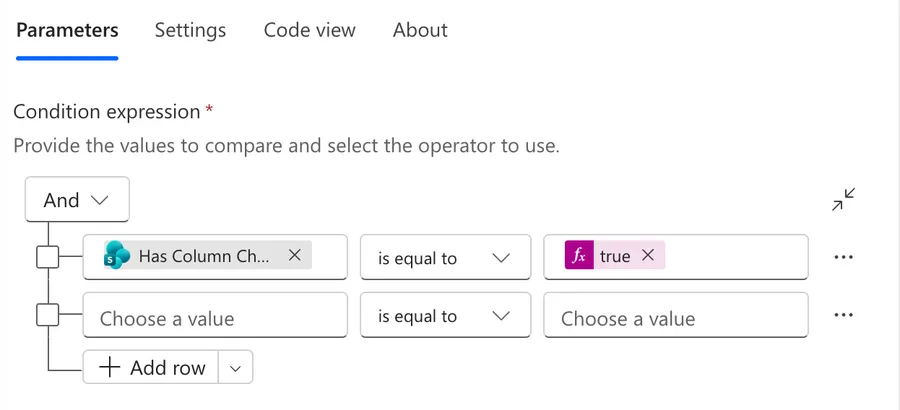
Put your real work in the If yes branch.
Leave the If no branch empty. When the column didn't move, the Condition falls through it and the run finishes right there, which is the early exit we were after. If you would rather see the reason spelled out in your run history, drop a Terminate action in that branch with a status of Succeeded, so the run ends green instead of looking like something went wrong.
If you would rather write the check as an expression, the boolean sits in a single object called ColumnHasChanged:
outputs('Get_changes_for_an_item_or_a_file_(properties_only)')?['body/ColumnHasChanged/Status']
outputs('Get_changes_for_an_item_or_a_file_(properties_only)'): reads the whole output of that action. The name is the action's display name with spaces replaced by underscores.?['body/ColumnHasChanged']: reaches into the object that holds one true or false per column. The?is safe navigation, so a missing key returns null instead of breaking the run./Status: the column you are testing.
To watch more than one column, wrap the checks in the "or" function, which returns true when at least one of its arguments is true:
or(
  outputs('Get_changes_for_an_item_or_a_file_(properties_only)')?['body/ColumnHasChanged/Status'],
  outputs('Get_changes_for_an_item_or_a_file_(properties_only)')?['body/ColumnHasChanged/DueDate']
)
What you get back, and what you don't
The action tells you that a column moved. It does not tell you what it moved from.
"Status changed" is enough to send a notification, but "Status changed from Draft to Approved" needs the old value too. For that, read the previous version yourself. There is a full walkthrough in Power Automate: How to get previous versions in SharePoint, and the SharePoint "Send an HTTP request to SharePoint" action reaches the version history endpoint directly.
The quick version of those articles is that you can ping SharePoint with a version number and get that version's values back. So, as I mentioned before, you have a SinceVersionLabel that you can use to get the previous value.
Now you have the information that you need to write a "Changed from X to Y".
When the Flow updates the list itself
If the Flow updates the same item it is watching, that update is a modification like any other, and the trigger fires again. The run count climbs on its own until Power Automate steps in and turns the Flow off.
The usual fix is a trigger condition that ignores edits made by the account the Flow runs as. This is the same trigger condition that couldn't detect a column change earlier, now doing a job it suits. Comparing an old value against a new one needs the previous version, which the trigger output doesn't carry. Knowing who made the edit needs only the current output, and that is already in there.
Open the trigger's Settings, add a trigger condition, and paste an expression like this one:
@not(equals(triggerOutputs()?['body/Editor/Email'], '<insertFlowAccountEmail>'))
triggerOutputs()?['body/Editor/Email']: safely reads the email of whoever last edited the item, and returns null instead of failing if the field is absent.equals(..., '<insertFlowAccountEmail>'): compares it to the account your connection uses.not(...): flips the result, so the Flow runs for everyone except that account.
Open a completed run and look at the trigger's raw outputs before you rely on the path. Lists and libraries expose the editor slightly differently, and copying the real path beats guessing it.
There is more on the topic in How to stop an infinite trigger loop in Power Automate.
Common mistakes
The action returns an error about versioning
Cause: versioning is off on the list or library, so there is no version history to read. This one fails on every run, not only the first.
Solution: turn versioning on in Versioning settings.
The first run on an existing item finds nothing
Cause: versioning is on, but the item has only ever been saved once, so there is no earlier snapshot to sit on the Since side of the comparison. The same thing happens when your retention settings have already pruned the version the Flow asked for. This one doesn't error, it comes back with SinceVersionExisted set to false.
Solution: give the item one more save before you test. If you want the Flow to be defensive about it, check SinceVersionExisted before you trust anything in ColumnHasChanged.
More columns report as changed than you edited
Cause: Power Automate checks the list on an interval rather than instantly, and Microsoft documents that a single run may gather more than one change. Several quick edits collapse into one window, and every column touched inside it reports true.
Solution: read the result as "did my column move during this window", which is exactly the question your Condition is asking. When you need per-edit precision, compare SinceVersionLabel and UntilVersionLabel and walk the version history between them.
The expression returns null instead of true or false
Cause: the keys inside ColumnHasChanged use the column's internal name, not the name you see in the list. A column displayed as "Q&A Document - Version 2.0" is stored as QADocument_x002d_Version2_x002e_, where _x002d_ is the hyphen and _x002e_ is the period.
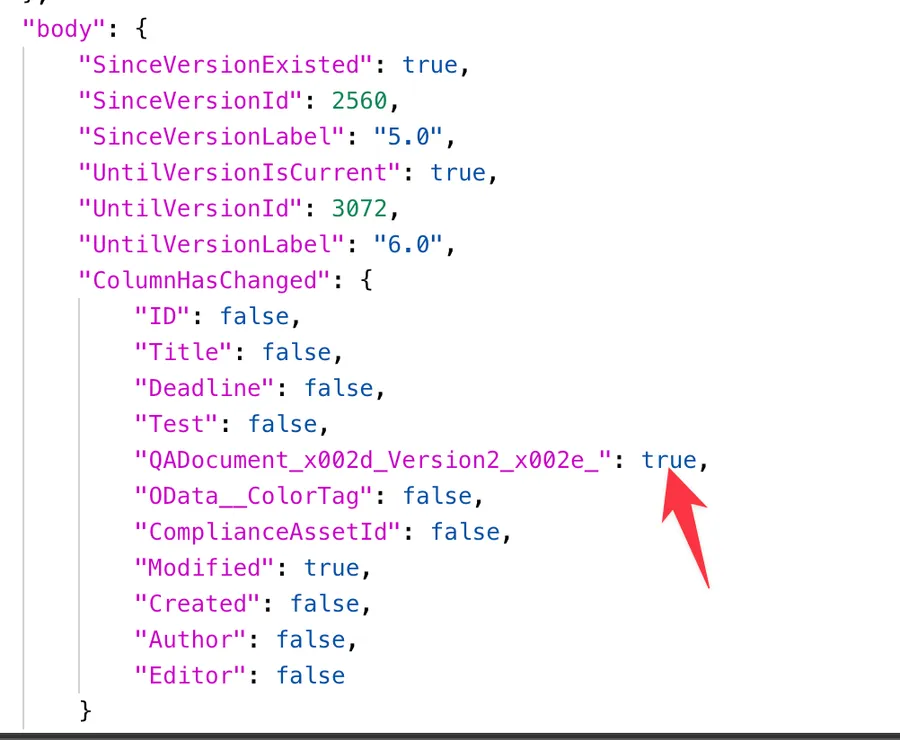
Solution: open a completed run, expand the action's raw outputs, and copy the key exactly as it appears there. Picking the Has Column Changed token from dynamic content sidesteps the problem entirely, because the picker shows the friendly name and fills in the encoded one for you.
Nothing reports as changed after a file upload
Cause: the action reports column changes only. Replacing a document's contents without touching its metadata is a file content change, which it does not cover.
Solution: watch a property that does move, such as Modified, or store your own marker in a helper column and compare against that.
Final Thoughts
This strategy works quite nicely. With a few actions you can get the changes that were made in SharePoint, pull the previous values, and show both in a report.
I like it a lot because too often we get told about a change but not about what was there before. Mistakes happen, so being able to recover an earlier value quickly is an amazing feature.
Photo by Mitchell Luo on Unsplash


No comments yet
Be the first to share your thoughts on this article!