
The "Terminate" action is one of those actions that "don't make sense." You drop it in, pick a status, and the Flow stops. That's it. You are triggering a "Terminate" action, meaning that the Flow will stop there, even forcing a failure if you want. That's what I mean by "don't make sense," but it's quite useful, as we'll see in the article.
Let's go through where to find it, how to use it, and some of the mistakes I see most often.
Where to find it?
You can find it in the "Control" section of Power Automate, but as always, search for it. It's quicker.
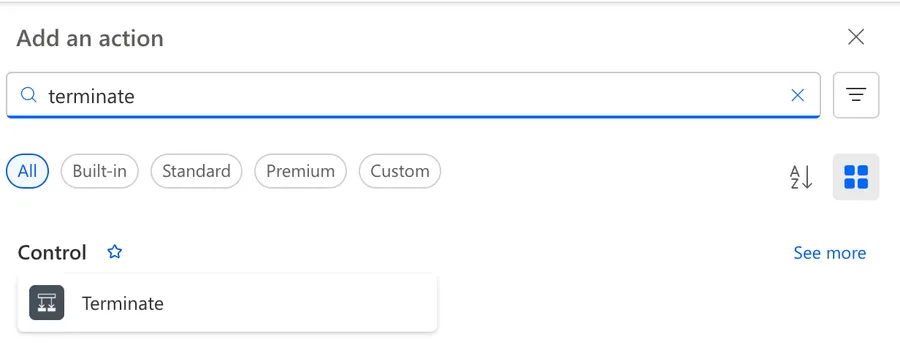
Here's what it looks like.
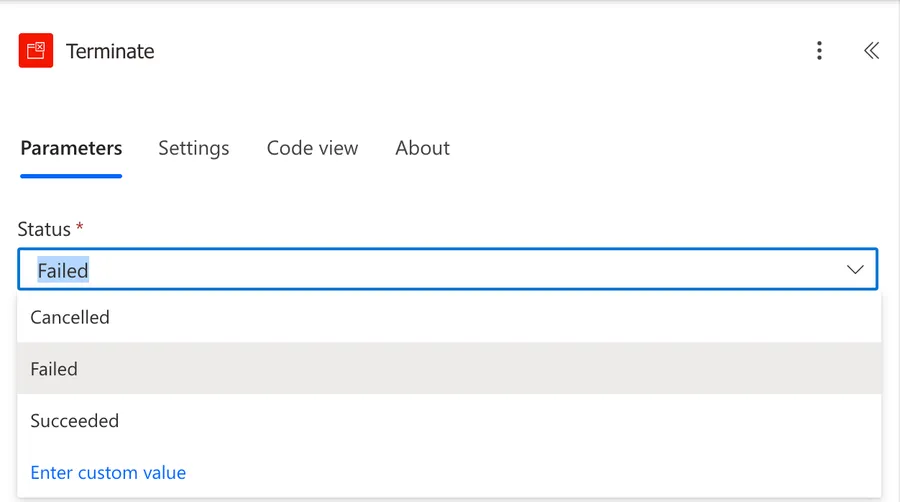
Now that we know how to find it, let's understand how to use it.
Usage
The "Terminate" action has one mandatory parameter, the Status, and depending on what you pick, you may get extra fields to fill in.
Status
You have three options:
- Succeeded - The Flow stops and the run history shows it as a success.
- Failed - The Flow stops and the run history shows it as a failure.
- Cancelled - The Flow stops and the run history shows it as cancelled, typically used while testing or when a business condition says "don't continue, but this isn't an error either."
Pick the one that matches what really happened. The run history filters by status, so if you mark a real failure as "Succeeded," whoever is monitoring the Flow will not see the issue.
Code and Message (Failed only)
When you pick "Failed," two extra fields appear:
- Code - A short identifier for the error. You can use anything (numeric or text), for example "VALIDATION_FAILED" or "500".
- Message - A description of what went wrong. This accepts dynamic content, so you can build the message with variables, expressions, or outputs from previous actions.
They are optional, but it's good to use them to your advantage so you can produce different errors and messages for different parts of your Flow.
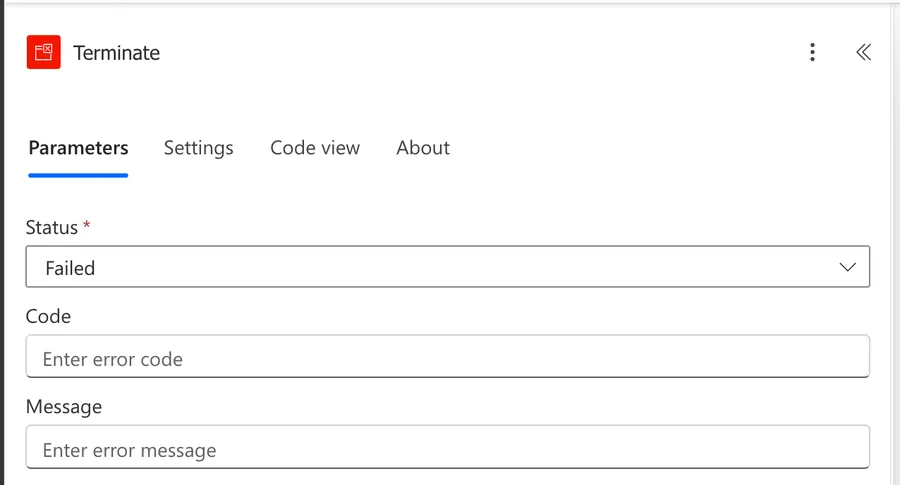
A good message looks like this:
Validation failed for customer @{variables('CustomerId')}. Expected status 'Active', got '@{variables('Status')}'.
You don't need to make it complex or even to put the values in the error message, but having some context will help you and will speed up debugging a lot when Flows fail.
Custom Value
There's also a "Custom Value" option in the status dropdown. It lets you set the status dynamically with an expression. This is useful when the status itself depends on what happened, for example, marking the Flow as "Failed" or "Cancelled" based on a variable.
In most cases, you don't need this. Stick to the three static options unless you have a specific reason to compute the status at runtime.
Non-intuitive behaviors
Here are some things that may surprise you when using the "Terminate" action.
It stops the entire Flow, not just the branch
This is the most common misconception. The "Terminate" action ends the whole Flow run, not the parallel branch it sits in, and not the Scope action it's inside. Even if you have other branches running in parallel, they all stop the moment "Terminate" fires.
If you only want to skip the rest of a branch, "Terminate" is the wrong tool. Use "Configure run after" on the next action, or a Condition action to guard it.
"Cancelled" is not the same as "Failed"
The difference matters for reporting. If your Flow stops because a user didn't approve something, or because a business condition said "no work needed today," that's not a failure. Use "Cancelled" so your dashboards and alerts don't treat it as one.
"Run after" properties don't pick this up
If you have a "Terminate" action and then a "Compose" action for example, it won't run, even with "run after" as "Failed."
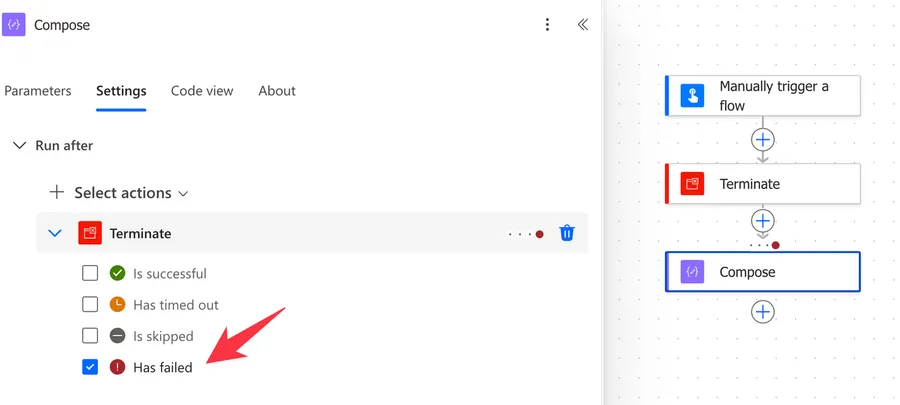
Here's the result.
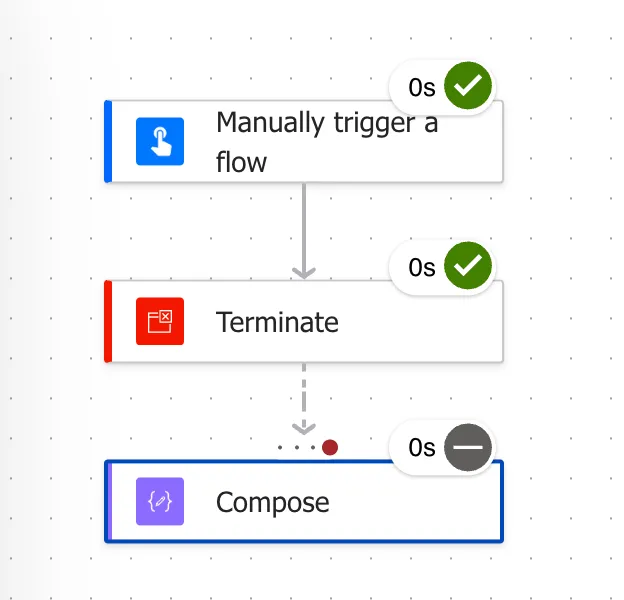
This makes sense because the "Terminate" did its job and "didn't fail," so the next action won't run because, in reality, the "Terminate" action returned a green checkbox indicating success. Be careful with this. It's correct, but it could be misleading.
Limitations
Here are the constraints you'll bump into.
You cannot use it inside Apply to each
If you drop a "Terminate" inside an Apply to each, Power Automate refuses to save the Flow and throws this error:
The operation 'terminate' cannot be used inside a for each.
The reason is that "Terminate" stops the whole Flow, and Power Automate doesn't allow that decision to come from inside a loop iteration. The same restriction applies to Do Until and other iterative controls.
Child Flows do not propagate Terminate to the parent
If you call a child Flow with the Run a Child Flow action and that child runs a "Terminate," only the child Flow stops. The parent keeps going. If you want the parent to react, check the child's response status in the parent and act on it explicitly.
No way to "resume" after Terminate
Once "Terminate" fires, the Flow is done. There's no resume, no retry, no continue from the next action. If you need that kind of control, you're looking at a different pattern entirely, probably involving a parent Flow that triggers child Flows and reads their results.
Troubleshooting Common Errors
Flow shows "Succeeded" even though my Terminate ran
Check the status you picked. If "Terminate" runs with status "Succeeded" (the default), the Flow will show as a success even if you used it to bail out of an error. Set the status to "Failed" or "Cancelled" depending on what actually happened.
Dynamic content in the Message field shows up as the raw expression
This usually means the field is interpreting your input as a string literal. Make sure you're using the dynamic content picker or the expression editor, and that the expression is wrapped in @{} when it's mixed with plain text. For example:
Customer @{variables('CustomerId')} failed validation.
Not:
Customer variables('CustomerId') failed validation.
Recommendations
Here are some things to keep in mind.
Pick the right status
It sounds basic, but it's the thing people get wrong most often. "Succeeded" means "this Flow did its job." "Failed" means "something went wrong and someone should look at it." "Cancelled" means "we stopped on purpose, this is not an error." Match the status to what actually happened, not to what looks tidier in the run history.
Always pair Terminate with a clear Code and Message
A "Failed" Terminate without a useful "Code" and "Message" is almost worse than no Terminate at all, because the run history now says "Failed," but nobody knows why. Spend the extra thirty seconds to write a message that tells you, six months from now, what went wrong and where.
Name it correctly
The name is super important here because the action only shows the status, not the reason. Rename "Terminate" to something like "Terminate as Failed - Customer Not Found" or "Terminate as Cancelled - No work today." Always build the name so others can understand your use without opening the action and checking the details.
Always add a comment
Adding a comment will also help avoid mistakes. Indicate what condition triggered the "Terminate," what the expected status is, and any context that's useful when debugging. It's essential to enable faster debugging when something goes wrong.
Always deal with errors
Have your Flow fail graciously and notify someone that something failed. It's horrible to have failing Flows in Power Automate since they may go unlooked-for a while or generate even worse errors. I have a template that you can use to help you make your Flow resistant to issues. You can check all details here.
Final Thoughts
The "Terminate" action is small, but it's one of the few ways Power Automate lets you take control of how a Flow ends.
It can be used to your advantage, especially for complex Flows where you validate along the way and stop the Flow when a certain step is reached, so you have your Flows running quickly and without executing more actions than needed.
Anything that I missed? Please reach out and I'll fix the post.
Back to the Power Automate Action Reference.
Photo by Etienne Girardet on Unsplash



No comments yet
Be the first to share your thoughts on this article!