
We've all been there. You add an action to your flow, open the dynamic content picker to grab its output for the next step, and the field you need just isn't there. Sometimes the action shows up but the specific property is missing. Sometimes the whole action is missing. Either way, you're left wondering where your dynamic content went.
I will update the article with things that I find, but if you have a suggestion please let me know and I'll add it to the article.
The good news is that Power Automate follows specific rules about when content appears in the picker, and once we understand those rules, the "missing" content is rarely actually missing.
Let's walk through the common causes and the workarounds I keep coming back to. If you want a related read, I've covered the topic from another angle in No Dynamic Content? No problem.
Common Issues
The action isn't fully configured
This is the most common one, and it catches everyone at some point. If an action has mandatory fields that aren't filled in, Power Automate won't expose its outputs in the picker. From the engine's point of view, that action isn't ready to produce anything yet, so there's nothing to offer.
It gets awkward when you want to reference one action's output to configure another action's required field, and then use that second action's output further down. The workaround is to temporarily drop a placeholder value into the required fields, save the flow, and come back to swap the placeholders for the proper dynamic content once the picker catches up.
The rule of thumb is simple. Fill every required field (the ones with the red asterisk) before expecting that action's outputs to appear elsewhere. Nine times out of ten, this is the fix.
Can't see the field
Sometimes it's simply hidden.
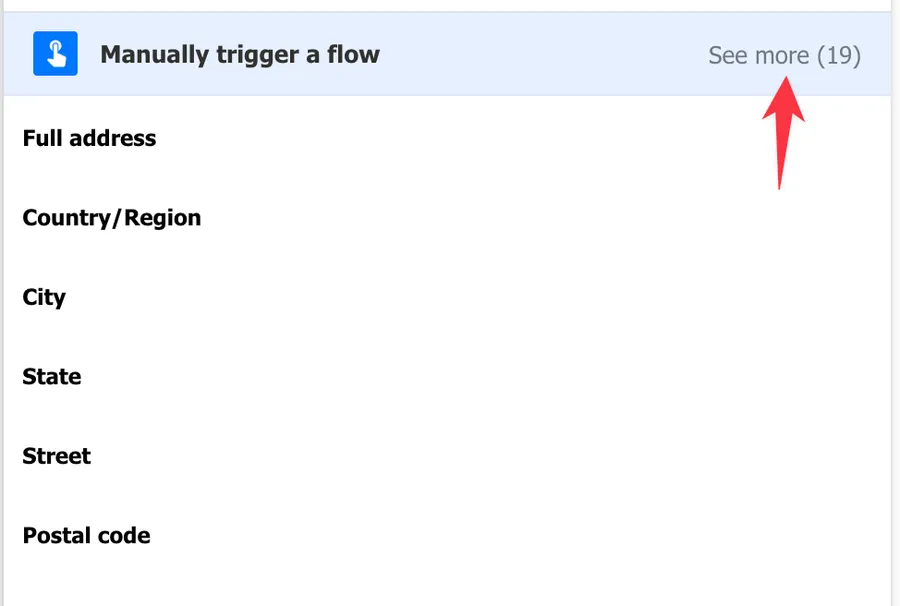
Check if there's a "See more" before you start, because SharePoint actions often return a lot of fields.
This is quite basic, but once in a while it tricks me as well.
Data type filtering
The picker is smarter than it looks, and sometimes that works against us. By default, it filters dynamic content by the data type of the field we're filling in. If the field expects a string, we only see string outputs. If it expects a number, we only see numbers. The content is there, but the picker is hiding it.
If a field expects a "date", for example, it will only show you the dates. This is a feature, and it helps us avoid issues where values are incompatible.
There's another Microsoft-sanctioned trick that I don't love, but I'll mention it here for completeness. The "Compose" action lets us drop in any value, and its output has a flexible type. That means the picker will happily show it regardless of what field we're pointing at.
I don't like it for the same reason the feature exists: data type incompatibility. Even if you pass a valid number into a number field, Power Automate may still reject it, because it expects a specific shape. You may need to convert the values before passing them through, so be careful and only use this technique if you know what you're doing.
Split On is enabled on the trigger
When a trigger receives an array (for example, "When a new response is submitted" on Microsoft Forms, or "When an item is created or modified" on SharePoint), Power Automate has a setting called Split On that fires a separate flow run for each item. It's useful when we want to process items in parallel, but it changes the shape of the trigger output, and that changes what's available in the picker.
With Split On enabled, the trigger no longer hands us an array. It hands us individual items. Array-level properties simply aren't there anymore, because at runtime there is no array.
This may be what you want, but be careful.
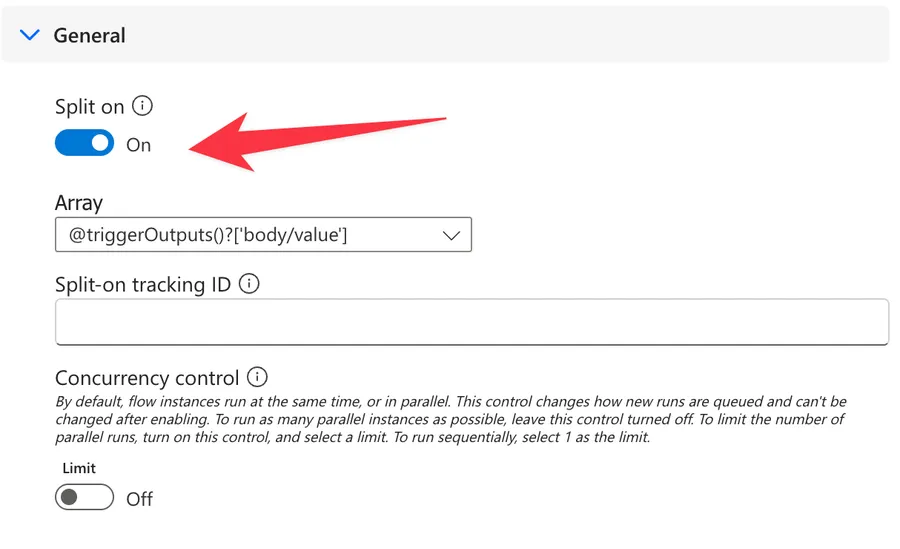
To turn it off, click the three dots on the trigger card, go to Settings, switch Split On to Off, and click Done. Just keep in mind that disabling it means we'll need to loop through the array ourselves using the "Apply to each" action.
Where variables are initialized
Power Automate enforces a strict rule here. The "Initialize variable" action can only sit at the root level of the flow. We can't place it inside a "Condition", an "Apply to each", or a "Scope", even if the designer seems to let us drag it in.
The practical consequence is that all of our variables need to be declared up front, right after the trigger, before any branching or looping. Then we use "Set variable" inside the loop or condition to update the value.
If a variable seems to be missing from the picker, check that its "Initialize variable" lives at the top of the flow, or at least before where we're trying to use it. Move it earlier and we'll be able to reference it, unless the variable type is incompatible with the field, as we covered above.
Workarounds / Solutions
Here are a few workarounds and solutions to these issues.
Parse JSON to define the schema
When an action returns JSON with a complex or dynamic structure, Power Automate sometimes only exposes the top-level property, because it can't know the full structure before running the flow.
The "Parse JSON" action solves this by explicitly defining the schema, which then makes every nested property available as named dynamic content.
Add a "Parse JSON" action after the action that returns the complex payload, paste a sample response into the "Generate from sample" feature, and let Power Automate build the schema for us. From that point on, every property shows up in the picker as a clean value to pick from.
Power Automate usually does this for us. For example, the SharePoint "Get items" action "pings" SharePoint and fetches the list structure so that we can use it.
This is especially useful for HTTP actions calling external APIs, responses from custom connectors, and any time we're staring at a deeply nested object and dreading writing expressions by hand.
Handling null and empty fields
Even when the field is there, using it can fail if the value is null or empty. The classic symptom is the InvalidTemplate error: "Unable to process template language expressions". Most of the time, this means we've referenced a property that doesn't exist on the current item.
The fix is the question mark operator (?) combined with the "coalesce" function. The ? tells the engine to return null instead of throwing when a property is missing, and "coalesce" then substitutes a default.
coalesce(triggerBody()?['propertyName'], 'default value')
For arrays that might be empty, we check before processing using the "empty" function:
if(empty(outputs('Get_items')?['body/value']), json('[]'), outputs('Get_items')?['body/value'])
And in conditions, we want to check for emptiness before comparing the value:
empty(outputs('Get_response_details')?['body/fieldName'])
I've gone deeper into this topic in Why you need the question mark operator in Power Automate expressions if you want to understand why every property access in a chain needs its own ?.
Final Thoughts
There are many potential reasons why values may go missing from the dynamic content picker, but the ones above cover about 99% of what I run into. If you know other workarounds or causes that should be here, please reach out and I'll happily update the article.
Photo by Bernd Dittrich on Unsplash



No comments yet
Be the first to share your thoughts on this article!