
Sooner or later, every flow needs a date that isn't today. A due date three days from now, a follow-up next week, an expiration one month ahead. The "Get future time" action, part of the built-in Date Time group in Power Automate, takes the moment the flow runs, adds the interval you choose, and hands you back a ready-to-use timestamp.
"Get future time" is a standard, built-in action. It doesn't need a connection, doesn't call any external service, and doesn't require a premium license. It runs inside the workflow engine itself, so it's also one of the fastest actions you can add to a flow.
Where to find it?
Search for "future time" in the action picker, and you'll find it under the "Date Time" group.
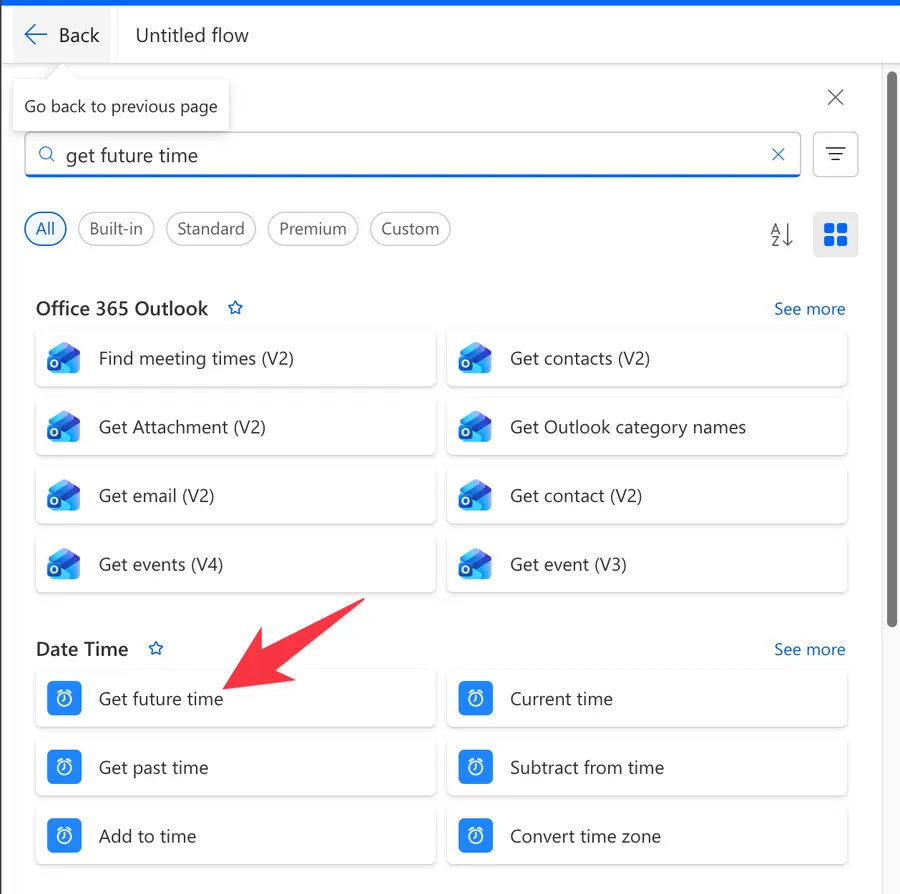
Here's what it looks like.
The Date Time group holds six near-identical actions, and it is easy to reach for the wrong one. "Get past time" subtracts instead of adding. "Current time" returns now with no math. "Add to time" and "Subtract from time" work on a timestamp you provide instead of the current moment. The "Convert Time Zone" action changes the time zone of an existing value. Finally, this is the cloud flows action, not one of the date time actions in Power Automate Desktop.
There's also a "getFutureTime" function that does the same calculation inside an expression. The action is easier to read in the designer, and its result shows up in the run history, while the function saves you an extra step when you're already writing an expression. Pick whichever fits, the math is identical.
Now that we know how to find it, let's understand how to use it.
Usage
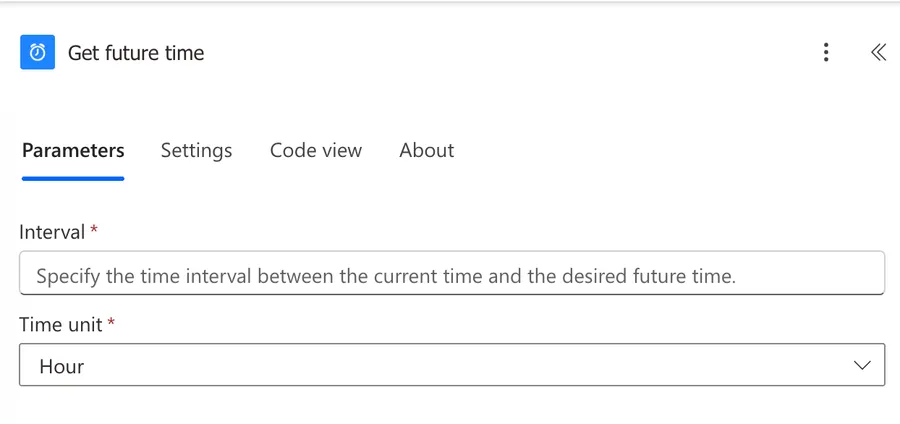
The action has only two parameters, and both are required.
Interval
A whole number that says how many units to add to the current time. You can type a fixed value or feed it dynamic content, for example, a "Days until deadline" column from a SharePoint list. Negative numbers technically work and produce dates in the past, but don't do that. Use "Get past time" instead so the flow reads the way it behaves.
Decimals aren't accepted, since Microsoft types this parameter as an integer. For an hour and a half, ask for 90 minutes instead of 1.5 hours.
Time unit
A dropdown with the unit the interval refers to: Month, Week, Day, Hour, Minute, or Second.
Using the action's outputs
The action returns a single output.
| Output | Description | Example Value |
|---|---|---|
| Future time | The current time plus the interval, as a string in UTC, in ISO 8601 format | 2026-06-15T09:30:00.0000000Z |
To grab it in an expression:
outputs('Get_future_time')?['body']
Here's the breakdown:
- The "outputs" function gets everything the "Get future time" action returned.
?['body']safely navigates to the body, which holds the timestamp. The question mark returns null instead of crashing the flow if the property doesn't exist. I explain why you need the question mark operator in detail in another article.
You'll also see the shorter body('Get_future_time') form using the "body" function, which returns the same value.
The output is a string, like every value in Power Automate, so you can reshape it with the "formatDateTime" function:
formatDateTime(outputs('Get_future_time')?['body'], 'yyyy-MM-dd')
- The inner expression gets the future timestamp from the action.
- The "formatDateTime" function reformats it, here keeping only the date part.
A practical example, building a deadline
This action shines in deadline patterns. Say a flow starts with the "Recurrence" trigger every Monday morning and creates a weekly task. Add a "Get future time" action with an Interval of 3 and a Time unit of Day, then use its "Future time" output as the due date in a SharePoint "Create Item" action. Every run gets a deadline three days out, with no expressions to maintain.
Non-intuitive behaviors
The result is always UTC
The action does its math on Coordinated Universal Time, and the output comes back in UTC, no matter where you or your users live. If you drop the raw value into an email, people in Lisbon will see a time that's off by an hour or more depending on the season. Run the output through the "Convert Time Zone" action before showing it to a human.
The clock starts when the action runs, not when the flow starts
"Get future time" reads the current time at the exact moment the action executes. If your flow waits for an approval for two days and then hits this action, the future time is calculated from the moment after the approval, not from when the trigger fired. If you need the deadline anchored to the trigger, calculate it at the top of the flow and store it, for example in a "Compose" action.
Month math gets clamped at the end of the month
Adding one month to January 31 can't produce February 31, so the result lands on the last valid day of February instead. This matches standard .NET date arithmetic, but it surprises people running monthly deadlines from the 29th, 30th, or 31st.
The end-of-month clamping is the standard behavior of the underlying .NET date functions that Microsoft's expression engine is built on, but Microsoft doesn't document it explicitly for this action. Test your flow with end-of-month dates before relying on it.
Limitations
It only works from the current time
There's no base time parameter. If you need to add three days to a date from a SharePoint item instead of to now, this action can't do it. Use the "addToTime" function or the "Add to time" action, both of which accept the timestamp to start from. The "addDays" function and "addHours" function are handy shortcuts for the same job.
No format parameter
The "getFutureTime" function takes an optional third parameter, a format string, so getFutureTime(5, 'Day', 'D') hands back something like Tuesday, March 6, 2026. The action has no such parameter and always returns the full ISO 8601 timestamp, so reformat its output with the "formatDateTime" function as shown above.
No Year option in the dropdown
The Time unit dropdown stops at Month. For a date one year ahead, use an Interval of 12 with the Month unit, or switch to an expression, since the "getFutureTime" function accepts 'Year' as a unit.
Troubleshooting Common Errors
The time is wrong by a few hours
The flow runs fine, but the date or time in the result doesn't match your wall clock, and a deadline near midnight even lands on the wrong day.
Cause: The output is UTC, and your time zone offset pushes it across a boundary.
Solution: Convert the output with the "Convert Time Zone" action before comparing or displaying it.
InvalidTemplate error when the Interval comes from dynamic content
The action fails with "Unable to process template language expressions" when the Interval is fed by dynamic content.
Cause: The incoming value is empty or isn't a whole number, for example, a text column or a number with decimals.
Solution: Wrap the value to guarantee an integer, defaulting when it's missing:
int(coalesce(triggerBody()?['DaysAhead'], 3))
- The "triggerBody" function gets the data from the trigger.
?['DaysAhead']safely navigates to the column with the number of days.- The "coalesce" function substitutes
3when the value is null. - The "int" function converts the result to a whole number.
Recommendations
Here are some things to keep in mind.
Convert before you display
Keep UTC for storing and comparing values, since it's unambiguous, and convert to the local time zone only at the edges, right before an email, a Teams message, or anything a person reads.
Calculate deadlines once
If several actions need the same deadline, run "Get future time" once near the top of the flow and reference its output everywhere. Calculating it multiple times mid-flow gives you slightly different values, since the clock keeps moving between actions.
Name it correctly
An action called "Get future time" tells you nothing about intent. Rename it to say what the value is for, for example, "Get future time, Invoice due date (3 days)". Always build the name so others can understand your use without opening the action and checking the details.
Always add a comment
Adding a comment will also help avoid mistakes. Indicate why the interval is what it is, especially if it comes from dynamic content. It's essential to enable faster debugging when something goes wrong.
Always deal with errors
This action almost never fails on its own, but the actions consuming its output can. Have your Flow fail gracefully and notify someone that something failed. A failing Flow in Power Automate can go unnoticed for a while and generate worse errors downstream, so build the handling in from the start. I have a template that you can use to help you make your Flow resistant to issues. You can check all details here.
Final Thoughts
"Get future time" is a small action that replaces an expression with something anyone can read in the designer. Remember the two things that trip people up: the result is always UTC, and the clock starts when the action runs. Get those right, and it will quietly do its job in every deadline flow you build.
Back to the Power Automate Action Reference.
Photo by Christopher Burns on Unsplash

No comments yet
Be the first to share your thoughts on this article!