
Knowing who's in a Microsoft Teams chat or channel is one of those things you barely think about, until you need it. Maybe you want to send a personalized message to everyone, mention a specific role, or just audit who has access. The "List members" action in Power Automate gives you that information in one shot, and the same action covers both group chats and channels. Let's explore how it works and the details to keep in mind.
Where to find it?
You can find the action by searching for "List members" inside the Microsoft Teams connector.
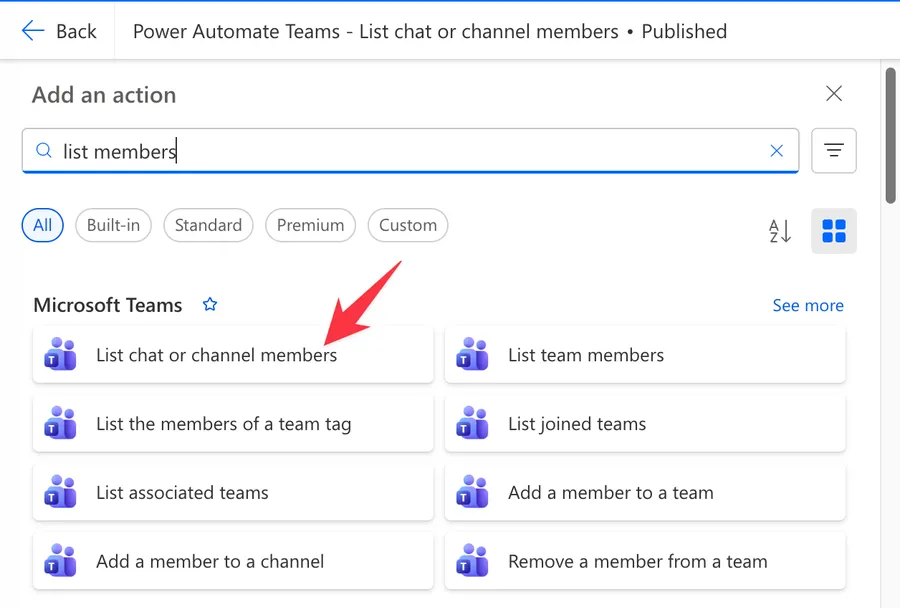
Power Automate tends to save the most common actions in the main screen, so check there before going through the full hierarchy. You can also use the search to find it quickly.
It looks like this once added to the Flow.
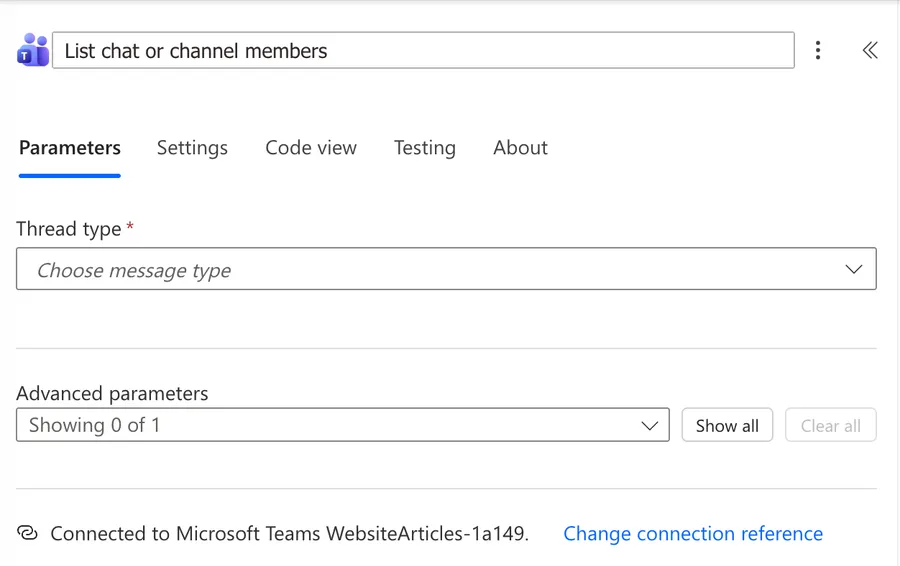
Now that we know how to find it, let's understand how to use it.
Usage
The "List members" action covers two scenarios depending on the "Thread type" you pick.
Thread type
This is the most important parameter, and it changes which fields appear next.
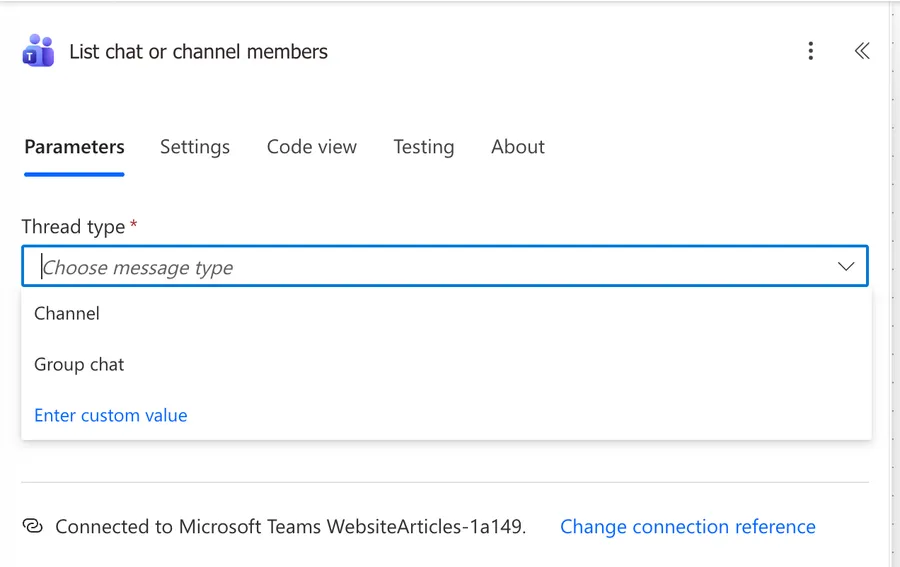
You have two options:
- Group chat: lists members of a Teams group chat that you participate in.
- Channel: lists direct members of a channel inside a team.
Pick the one that matches your scenario. The fields you'll see next are different for each, since group chats need a chat selector while channels need a team and a channel.
Group chat
When you pick "Group chat", you'll be asked to select the chat from a dropdown. The dropdown only shows chats you're part of, since Power Automate uses the connection of the user who owns the Flow to query Microsoft Teams.
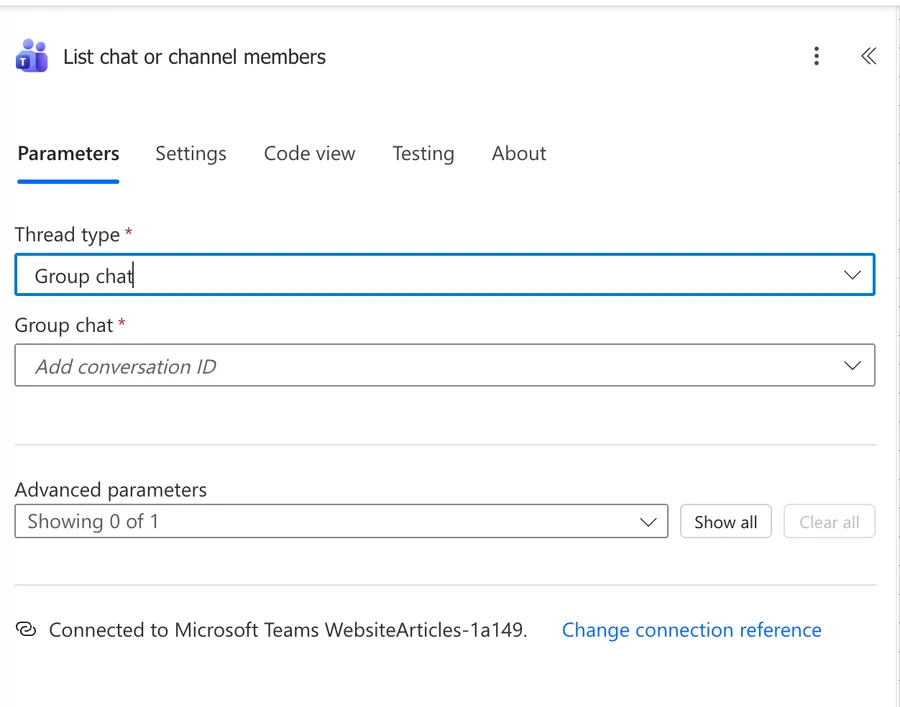
If the chat you want is not there, the user that owns the connection is not a participant. You can also paste a chat ID directly using the "Enter custom value" option.
Channel
When you pick "Channel", you'll get two fields, "Team" and "Channel". Pick the team first, and the channel dropdown will populate with the channels of that team.
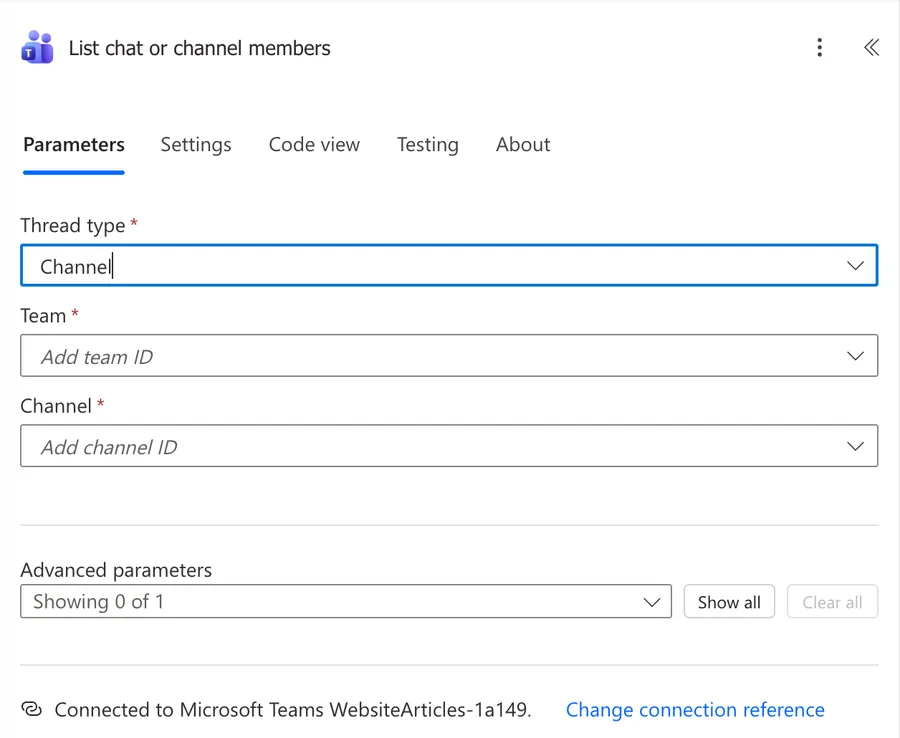
The action returns the direct members of the channel. For standard channels, that's typically the same as the team's members. For private and shared channels, it's only the people explicitly added to the channel.
Filter Query
The "Filter Query" is an optional OData filter that the connector forwards to the underlying Microsoft Graph endpoint to narrow the results before they hit your Flow.
The "Filter Query" is only honored when you target a channel. The Microsoft Graph endpoint for chat members does not support OData query parameters at all, so the filter is ignored when "Thread type" is set to "Group chat".
The filter is applied to the conversation member fields, so you can use properties like "displayName", "email", "userId", or "tenantId". For example, to bring back only members from a specific tenant:
tenantId eq '00000000-0000-0000-0000-000000000000'
Microsoft's own example on the connector reference is membershipType eq 'standard', but "membershipType" is a property of the channel itself, not of the conversation member. There's no "membershipType" on the records you're filtering, so that example does not work. Stick to actual member fields.
Output
Whatever option you choose, the action returns an array under "value", with one entry per member. Each entry has these properties:
| Property | Description |
|---|---|
| displayName | Friendly name shown in Teams |
| Member's email address | |
| id | Membership ID, opaque, do not parse it |
| roles | Array of roles, for example ["owner"] |
| tenantId | Tenant the member belongs to |
| userId | Microsoft Entra (Azure AD) user object ID |
| visibleHistoryStartDateTime | When the member started seeing the conversation history. Mostly relevant for chats, often empty for channel members. |
You can pipe this output into an "Apply to each" loop, into a "Filter array" to narrow it further, or into a "Compose" if you want to inspect it during testing.
Non-intuitive behaviors
The membership ID is opaque
The "id" returned for each member is not the user's Microsoft Entra ID. It's a membership ID that's specific to the conversation. If you want the actual user, use "userId" instead. The "id" is also opaque, meaning Microsoft can change its format at any time, so don't try to parse it or build assumptions on top of it.
Members can come from different tenants
Microsoft Teams supports federation, so a chat or channel can include guests from other tenants. The "tenantId" field tells you which tenant each member belongs to, which is the safest way to detect external participants.
The dropdown is scoped to the connection's user
The dropdowns only show chats and teams that the owner of the connection is part of. If you build a Flow that lists members from a chat, and someone else takes over the connection, the dropdown can suddenly show different items. When in doubt, use the "Enter custom value" option and pass a known chat or channel ID.
External guests get the "owner" role
Per the Microsoft Graph documentation, an out-of-tenant external member is assigned the owner role in the "roles" array, even when they're functionally a guest. If you're filtering members by role to find owners, you can pick up external participants by accident. Combine the role check with a "tenantId" comparison if you want only internal owners.
Limitations
The action returns only direct members. For shared channels, this means you'll get the people directly added to the channel, but not the indirect members from the host team. If you need the full picture for a shared channel, you have to use the "List allMembers" Microsoft Graph endpoint through an HTTP action.
For channels, the underlying Microsoft Graph endpoint returns 100 members per page by default, with a hard maximum of 999 per page. This is the same pagination pattern that applies to every paginated action in Power Automate, so if you expect more than 100 members, turn on the connector's pagination feature and the connector will follow the next-page links for you. We'll cover this in the recommendations.
| Field | Limit |
|---|---|
| Default page size | 100 members |
| Maximum page size | 999 members |
| OData filter on chats | Not supported, channel only |
| Membership type | Direct members only |
| Personal Microsoft accounts | Not supported, work or school accounts only |
Troubleshooting Common Errors
I'm getting fewer members than expected
If your chat or channel has more than 100 members, the action returns only the first 100. This is the standard Power Automate pagination behavior, not something unique to this action, so the same fix you use for any other paginated action applies here. Open the action's settings, turn on "Pagination", and set a "Threshold" higher than the number of members you expect.
"The chat with id ... was not found"
The connection's user is not a participant in that chat, or the ID is wrong. Double-check that the user owning the Flow's Microsoft Teams connection is part of the chat, and that the ID matches one of the chats in the dropdown.
The action returns an empty list for a channel I'm part of
For private and shared channels, "List members" returns only the people explicitly added to the channel, not the team's members. If you expected the full team, target the standard team channel instead, or use the Office 365 Groups connector to get the team's members.
Recommendations
Here are some things to keep in mind.
Turn on pagination for chats or channels with more than 100 members
If you expect more than 100 members, open the action, click the three dots, go to "Settings", turn on "Pagination", and set a threshold that's safely higher than the largest chat or channel you're querying. This is the same pagination pattern that applies to most paginated actions in Power Automate, so the steps will feel familiar.
If you want to learn more about pagination, I have a dedicated article on it here, and another one specifically about going beyond 100 records.
Use userId, not id
When you need to do something with a member, like sending a message, mentioning, or looking them up in another system, always use "userId". The "id" field is the membership ID and is only useful within the Microsoft Teams API itself.
Filter on the action when you can
If you only need owners or only need a specific membership type, use the "Filter Query" parameter to narrow the result at the source, rather than pulling everyone and using a "Filter array" afterwards. It's faster, simpler, and saves API calls. Just remember this works for channels, not chats.
Name it correctly
The name is super important here, since the action looks the same whether you're listing chat or channel members. Always name it so others can understand what you're listing without opening the action and checking the details.
Always add a comment
Adding a comment will also help avoid mistakes. Indicate which chat or channel you're targeting, why you need the members, and what the next step does with the data. It's essential to enable faster debugging when something goes wrong.
Always deal with errors
Have your Flow fail gracefully and notify someone that something failed. It's horrible to have failing Flows in Power Automate since they may go unlooked for a while or generate even worse errors. I have a template that you can use to help you make your Flow resistant to issues. You can check all details here.
Final Thoughts
The "List members" action is one of those small building blocks that unlocks a lot of automation in Microsoft Teams, from mass messaging to access audits. The opaque membership ID and the role assigned to external guests are the two details worth keeping in mind, and pagination works exactly like it does for every other paginated action in Power Automate. Once those are in your toolbelt, the action is easy to drop into any Flow that needs to know who's in a conversation.
Back to the Power Automate Action Reference.
Photo by RUBENSTEIN REBELLO on Unsplash



No comments yet
Be the first to share your thoughts on this article!