
Moving files around is one of those tasks that sounds trivial until you actually try to do it in Power Automate. You want to grab a file from one place and drop a copy somewhere else, maybe on the same site, maybe on a completely different one. That's exactly what the SharePoint "Copy file" action is for, and it does the job well, but there are a few surprises hiding under the hood.
Let's do the usual deep dive into the action, check its limitations, edge cases and troubleshooting so that you know exactly what to expect.
Where to find it?
Like always, I recommend searching for the action instead of scrolling through the connector list. Power Automate has a lot of actions these days, so searching is your fastest route.
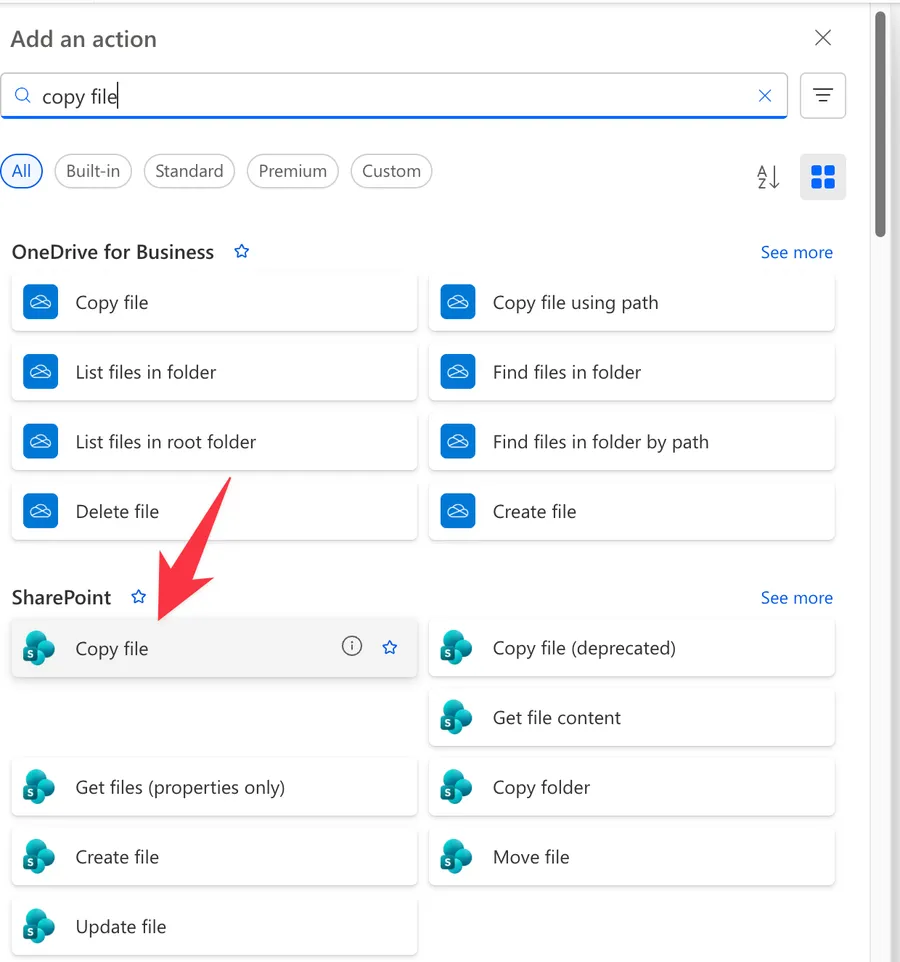
You can also search for "SharePoint" and scroll to the file actions.
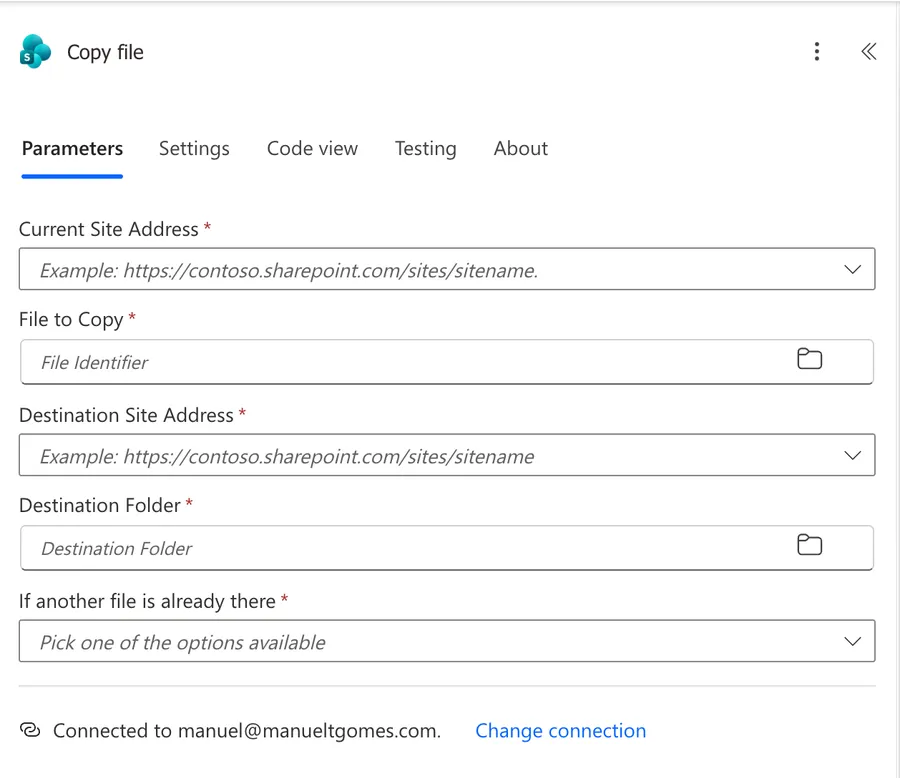
Here's what the action looks like once you add it.
There is an older action called "Copy file [deprecated]" that looks almost identical. Make sure you pick the plain "Copy file" action and not the deprecated one, since Microsoft keeps the old version around for existing flows but no longer maintains it. If the action name includes "[deprecated]", it's the wrong one.
There's also a "Copy folder" action for entire folders, and a separate OneDrive "Copy file" action. This article covers the SharePoint "Copy file" action specifically, so don't mix them up.
Now that we know how to find it, let's understand how to use it.
Usage
The "Copy file" action has five parameters, and all of them are required. Let's take a look at each one.
Current Site Address
Since this is a SharePoint action, we first need to tell it where the source file lives. This is the site that holds the file you want to copy. I always recommend picking it from the dropdown.
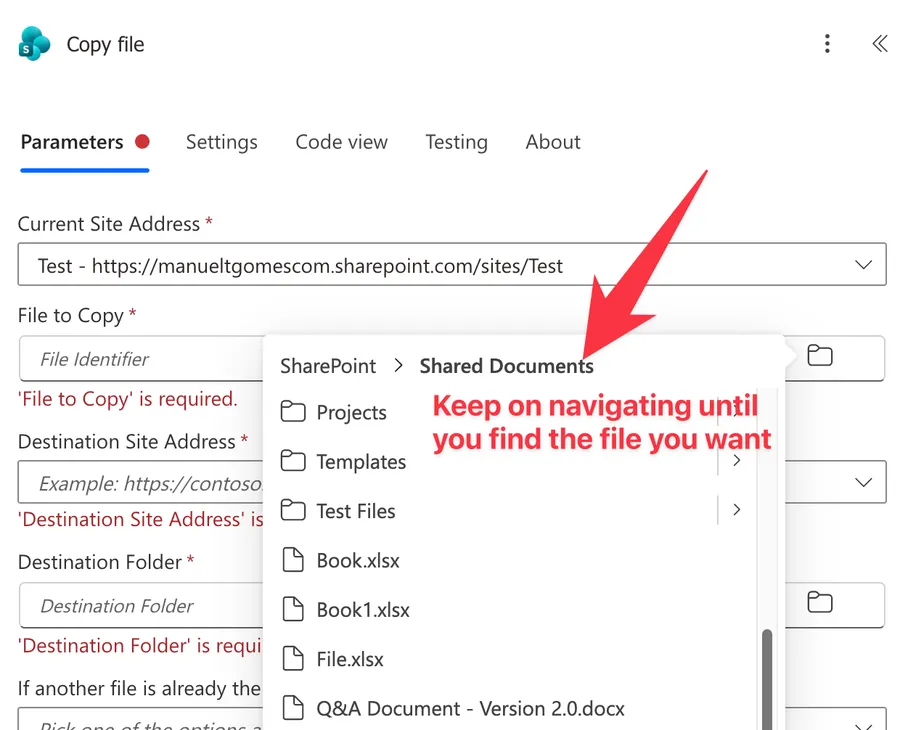
If your site doesn't appear in the list, you can provide the address manually. Notice that Power Automate asks for the "Site Address", not the library URL.
It's very common to copy and paste the URL straight from your browser and accidentally include the library and view in it. For example, https://<insertYourTenant>.sharepoint.com/sites/Test is correct, but https://<insertYourTenant>.sharepoint.com/sites/Test/Shared%20Documents/Forms/AllItems.aspx is not. Ideally, always pick from the dropdown.
File to Copy
This is the file you want to copy. The picker lets you browse the source library and select the file. You'll see it once selected.
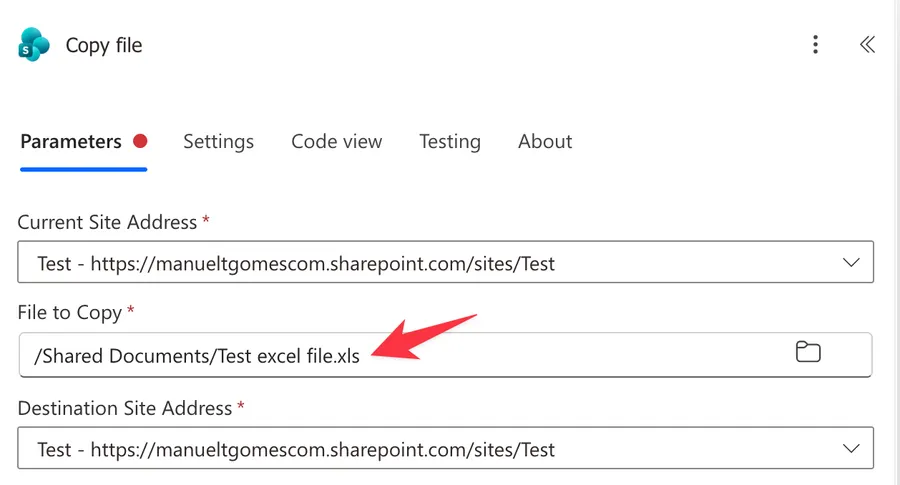
As you can see the file names have my bad name format ™️, so sorry about that :).
Here's the thing that trips people up, and it's important enough that I'll repeat it in the non-intuitive behaviors below. Even though the picker shows you a friendly path, the value the action actually stores is the file's internal identifier, not its path. That has real consequences, so keep reading.
Destination Site Address
Now we tell the action where the copy should go. This can be the exact same site as the source, or a completely different site in your tenant. Copying across sites is the whole point so you only need to repeat the same steps as above.
Destination Folder
Finally, we pick the folder where the copy will land. Just like the source, use the folder picker rather than typing a path by hand. Same as above, you'll see the folder in the list.
The action keeps the original file's name when it copies, so you don't provide a new name here. If a file with that name already exists at the destination, the next parameter decides what happens.
If another file is already there
This is the conflict handler, and it's arguably the most important choice you'll make in this action. It has three options:
- Replace - Overwrites the existing file at the destination with the copy.
- Copy with a new name - Creates the copy under an automatically generated name (for example, it appends a number) so nothing gets overwritten.
- Fail this action - Stops the action with an error if a file with that name already exists.
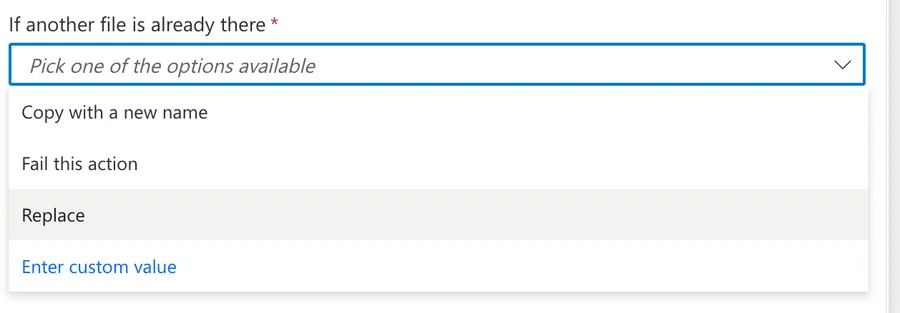
Pick the behavior that matches your intent. If you're archiving and want the latest version to win, "Replace" is fine. If you never want to lose anything, "Copy with a new name" is the safe choice. And if you'd rather the flow shout at you when there's a collision, "Fail this action" gives you that control.
Using the action's outputs
Once the copy succeeds, the action hands back information about the new file. This is useful when you want to chain the copy into another step, like updating properties or notifying someone with a link. The most common outputs are:
| Output | Description | Example Value |
|---|---|---|
| Id | The new file's identifier, which you pass to later SharePoint actions | %252fSites%252f... |
| Name | The base file name | Report.docx |
| DisplayName | The display name of the file | Report.docx |
| Path | The folder path of the new file | /Shared Documents/Archive/ |
| FullPath | The folder path combined with the file name | /Shared Documents/Archive/Report.docx |
| ItemId | The list item ID of the new file in the destination library | 42 |
| ETag | The version tag of the new file | "{GUID},1" |
| Link to item | The SharePoint URL of the copied file | https://<insertYourTenant>.sharepoint.com/... |
| Created / Modified | Timestamps for the new file | 2026-07-15T09:30:00Z |
If you want to reference one of these outputs in a later step, for example passing the new file's Id into a "Get file metadata" action, you can use an expression like this:
body('Copy_file')?['Id']
body('Copy_file')- Gets the response body from the "Copy file" action (replaceCopy_filewith your action's actual name)?['Id']- Safely reads theIdfield, and returns nothing instead of erroring if it's missing
The timestamps and author fields returned here belong to the newly created copy, not the source file. In practice that means "Created" is the moment of the copy and "Created by" is the flow's connection owner. If you were hoping to read the original file's history from these outputs, you won't find it here.
Non-intuitive behaviors
The "File to Copy" value is an identifier, not a path
The picker shows you a path, but under the hood the action stores the file's internal identifier. This matters because identifiers are tied to a specific file instance, not to a location. If the source file is deleted and later re-created with the same name in the same folder, its identifier changes, and your action will fail because it's still pointing at the old, now non-existent file. The fix is simply to re-select the file in the picker so it captures the new identifier. Avoid hard-coding or reusing a stored identifier across flows for this reason.
Version history is not carried over
When you copy a file across libraries or sites, the copy lands as a single current version. All the previous versions from the source file are left behind. This surprises a lot of people who expect a "copy" to be a faithful clone.
If you genuinely need the version history to travel with the file, the connector action can't do it, and you'll have to fall back to a SharePoint REST call that preserves versions. If versions matter to you in general, I have an article on how to get previous versions in SharePoint that's worth a read.
Author and dates get reset on the copy
Related to the version history point, the copy does not preserve the original "Created by", "Modified by", or the original created and modified dates. The new file shows the flow's connection owner as the author and the copy time as its created date. If you need the copy to reflect the original author or dates, you'll have to re-stamp those columns afterward with a follow-up "Update file properties" action, or use the REST copy job route.
Custom metadata may not follow the file
The action copies the file itself, but custom column values in the destination library are not reliably carried over. If your libraries use metadata columns and you need them populated on the copy, plan on setting them explicitly after the copy. As a side note, the SharePoint "Move file" action behaves better here, since Microsoft documents that it keeps custom metadata intact, so if a move fits your scenario better than a copy, that's worth considering.
It's a server-side copy, so the file bytes never enter your flow
This is actually good news. Unlike the pattern of reading a file with SharePoint Get File content and then writing it back out with Create File, the "Copy file" action tells SharePoint to handle the copy on its own servers. The content doesn't pass through Power Automate, which means you can often copy files that would blow past the usual message size limits of the read-and-write approach. It also means very large copies happen asynchronously, which occasionally leads to the action running longer than you'd expect.
Limitations
Here are the boundaries to keep in mind. These aren't bugs, they're the documented and practical limits of the action.
File size
The SharePoint connector documents a 100 MB ceiling, and Microsoft recommends approaches like the Microsoft Graph API for anything larger. In practice, because "Copy file" is a server-side operation where the bytes don't travel through your flow, people successfully copy files bigger than 100 MB with it. Both statements are true depending on how you read them, so my advice is to test with your actual file sizes rather than assuming either extreme. If you're routinely dealing with big files, my guide on handling large files in Power Automate covers the alternatives.
Throttling and bandwidth
SharePoint enforces roughly 600 API calls per connection per minute, and the connector also caps bandwidth at around 1000 MB per minute per connection. If you're copying files in a large loop, you can hit these limits. Keep your parallelism modest and add delays for bulk operations.
Timeouts on long copies
Power Automate has a general 120-second window for synchronous connector calls. This isn't a number Microsoft prints specifically on the "Copy file" page, it's a platform-wide constraint, but a slow or very large copy can bump into it. When that happens the action may error out or appear stuck in a running state.
Path length
SharePoint itself limits a full decoded URL path to 400 characters, and individual file or folder names to 128. This is a SharePoint platform limit rather than something specific to this action, but deeply nested destination folders with long names can push you over it. Keep destination structures reasonably shallow.
Same tenant only
This action operates within a single tenant. It happily copies between different sites, but it does not copy across tenants. If you need cross-tenant movement, this isn't the tool for it.
Supported library types
SharePoint connector actions support generic document libraries. Custom or specialized library templates are not guaranteed to work, so stick to standard document libraries for predictable results.
Troubleshooting Common Errors
Let's walk through the errors you're most likely to run into and how to deal with them.
"Failed to verify the existence of destination location"
Cause: This one shows up a lot when you copy into a brand new site or a freshly created Teams document library. The site exists, but SharePoint hasn't finished provisioning the default library yet, so the destination path isn't there when the action reaches for it. The error often mentions The system cannot find the file specified and an HRESULT: 0x80070002 code.
Solution: Give the provisioning a moment. Insert a Delay of 30 seconds or more before the copy, or add retry logic so the action tries again after a short wait. If the destination is always a new site, consider creating the file directly with the Create File action instead.
"A file already exists" or a name conflict error
Cause: You have the conflict behavior set to "Fail this action" and a file with the same name already lives at the destination. The action refuses to overwrite it.
Solution: Switch the "If another file is already there" option to "Replace" if you want the copy to win, or "Copy with a new name" if you want to keep both. This is a configuration choice, not a code fix.
Copy fails on files with special characters
Cause: File or folder names containing characters like +, #, or % can break the copy because of how the path gets encoded.
Solution: Sanitize the names before copying, or clean up the destination path. The easiest approach is a series of "replace" functions to strip or swap out the problem characters. Keeping names simple with letters, numbers, spaces, hyphens, and underscores avoids the whole category of issue.
The copy is rejected by column validation
Cause: The destination library has a column or list validation rule (or required columns), and the copied file doesn't satisfy it. SharePoint blocks the copy rather than landing an invalid item.
Solution: Either relax the validation on the destination library, or set the required column values immediately after the copy so the file becomes valid. This is a common surprise when the source and destination libraries have different schemas.
"Access denied" across two sites
Cause: Copying between sites needs the flow's connection to have read access on the source site and write (Contribute) access on the destination site. Cross-site copies fail here surprisingly often because the connection owner has rights on one site but not the other.
Solution: Make sure the connection you're using has the right permissions on both sites. If it works within one site but fails when the destination is elsewhere, permissions on the destination are almost always the culprit.
"The file is locked" or checked out
Cause: The source or destination file is open in the browser or a desktop app, or it's checked out to someone.
Solution: There's not much you can do except wait and retry. Add a Delay and retry logic to your flow, and if it keeps failing, you may need to ask whoever has the file open to close it.
The action runs forever without finishing
Cause: For large files the underlying copy is asynchronous, and occasionally the action sits in a running state longer than it should.
Solution: Add a parallel branch with a Delay and a Terminate so your flow doesn't hang indefinitely, and configure the run-after settings so you can catch the timeout gracefully. It's not elegant, but it keeps a stuck copy from blocking everything downstream.
Quick error code reference
When the action fails, you'll usually see an HTTP status code. Here's what they typically mean for this action.
400 - "Bad Request" Often the destination location isn't ready (new site or library) or the path has invalid characters. Check that the destination exists and that names are clean.
401 - "Unauthorized" Your connection expired. Remove the SharePoint connection and add it again to re-authenticate.
403 - "Forbidden" The connection doesn't have permission on the source or destination site. You need at least Contribute access on the destination.
404 - "Not Found" The source file identifier no longer resolves, usually because the file was moved, renamed, or deleted and re-created. Re-select the source file.
409 - "Conflict" A file with that name already exists and your conflict behavior is set to fail. Change it to Replace or Copy with a new name.
423 - "Locked" Someone has the file open or checked out. Wait and retry.
429 - "Too Many Requests" You've crossed the throttling limit. Power Automate retries automatically, but slow down bulk copies.
500, 502, or 503 - "Server Error" SharePoint is having a temporary problem. Wait a few minutes and run the flow again.
Recommendations
Here are a few habits that will save you trouble.
Choose the conflict behavior deliberately
The "If another file is already there" setting quietly determines whether you overwrite data, so don't leave it on autopilot. Decide up front whether replacing, renaming, or failing matches what you actually want, because getting this wrong can silently overwrite files you meant to keep.
Re-select the source file if it's ever re-created
Because the "File to Copy" field stores an identifier rather than a path, a source file that gets deleted and re-created will break the action even though the path looks identical. If you're troubleshooting a copy that suddenly fails with a 404, re-selecting the source file in the picker is usually the fix.
Pick sites and folders from the dropdowns
Just like with the Create File action, I strongly recommend picking the source site, destination site, and destination folder from the pickers instead of typing them by hand. Manual paths invite encoding problems with spaces and special characters, and the dropdowns let Power Automate and SharePoint do the right thing.
Don't assume metadata comes along
If your libraries rely on custom columns, remember that the copy won't reliably bring them across. Plan a follow-up step to set those properties, or reach for the "Move file" action when preserving metadata matters more than duplicating.
Name the action clearly and add a comment
Give the action a descriptive name and a short comment explaining what it copies and where from. A note like "Copy approved invoice from Finance site to the Archive library" saves you from opening every step later when something breaks.
Always handle errors
Have your flow fail gracefully and tell someone when a copy fails, especially for background automations that can go unnoticed. I have a reusable pattern you can drop in, described in my Try, Catch, Finally article, and if you want to go deeper there's an advanced error handling guide as well.
Mind the throttling in loops
If you're copying many files inside an Apply to each, keep concurrency low and add small delays. It's easy to trip the 600-calls-per-minute limit when you're copying in bulk.
Final Thoughts
The "Copy file" action looks like a one-click operation, and most of the time it is. The friction lives in the details: the source value is really an identifier, version history and author information don't travel with the copy, and the conflict behavior quietly decides whether you overwrite good data. Pick your sites and folders from the dropdowns, choose the conflict option on purpose, wrap the action in proper error handling, and it becomes a dependable way to shuffle files around your tenant.
Sources
- SharePoint connector reference (Copy file, parameters, limits, throttling)
- Use SharePoint actions and triggers with Power Automate
Back to the Power Automate Action Reference.
Photo by Marian Florinel Condruz on Unsplash



No comments yet
Be the first to share your thoughts on this article!