
So you have a lookup column in SharePoint and want to update it using Power Automate?
The process itself is simple, but there are a few places where we may have questions, so here's the explanation on how to do it and some things to take into consideration.
The SharePoint Side
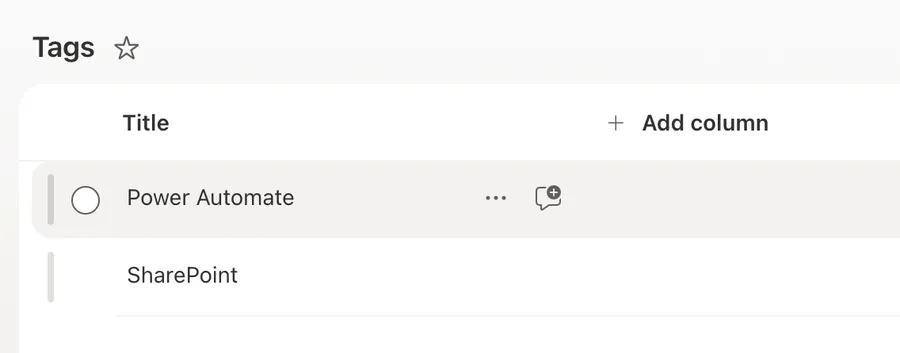
Here's our testing columns with "highly imaginative"™️ columns and table names.
Tag is a simple column that will have a list of values. It can contain more fields, not a problem.
Then we need a lookup table. Let's add a "Article" table with a lookup table to the "Tags" table:
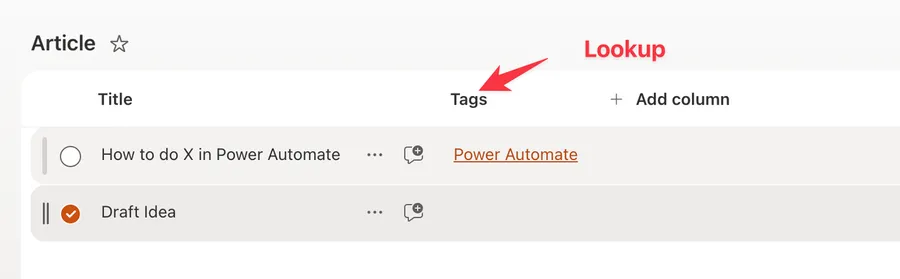
Here's the lookup.
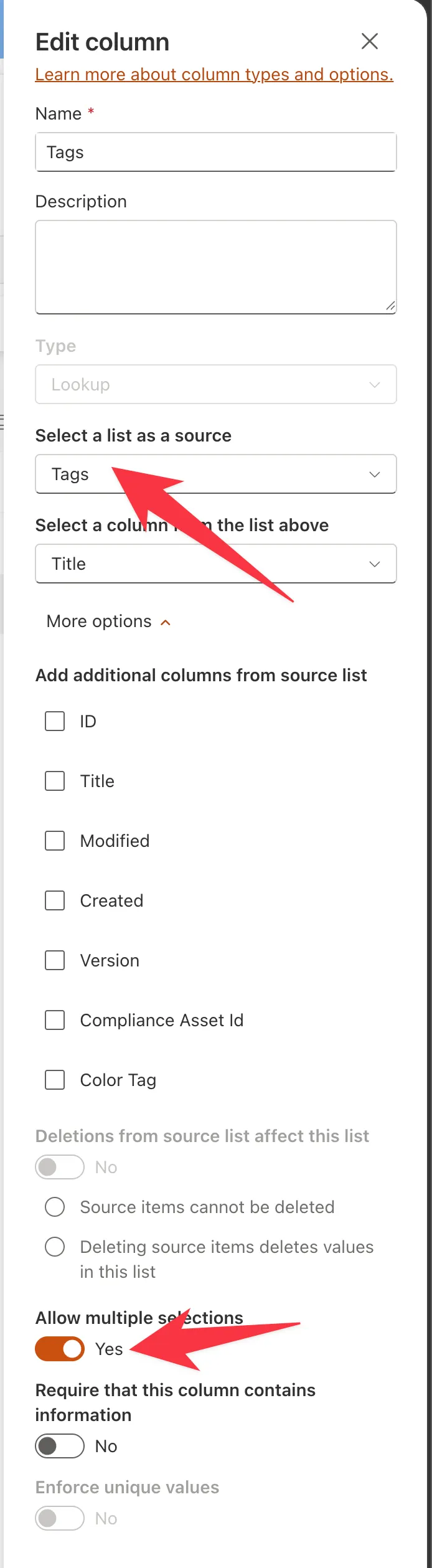
Notice that we are connecting it to the "Tags" list, but we don't need to use the same name. You can use any name (as long as it fits SharePoint's rules) and you're good. I'm just adding with the same name for convenience and because, in this case, if "fits".
Ok now that we have a test table, let's take a look at the Power Automate side.
The Power Automate Side
You can use a simple "Create Item" action, but you need to be careful with the structure of the "Tags" field.
First, if you already know which tags you want to apply then you don't even need this article. You can simply pick them from the "+ Add new item" and you're good to go.
But if not, or if the values are dynamic, we need to use the array mode to add our own array, meaning adding your own list of values. This is especially important in case each value that you insert has different lookup column values.
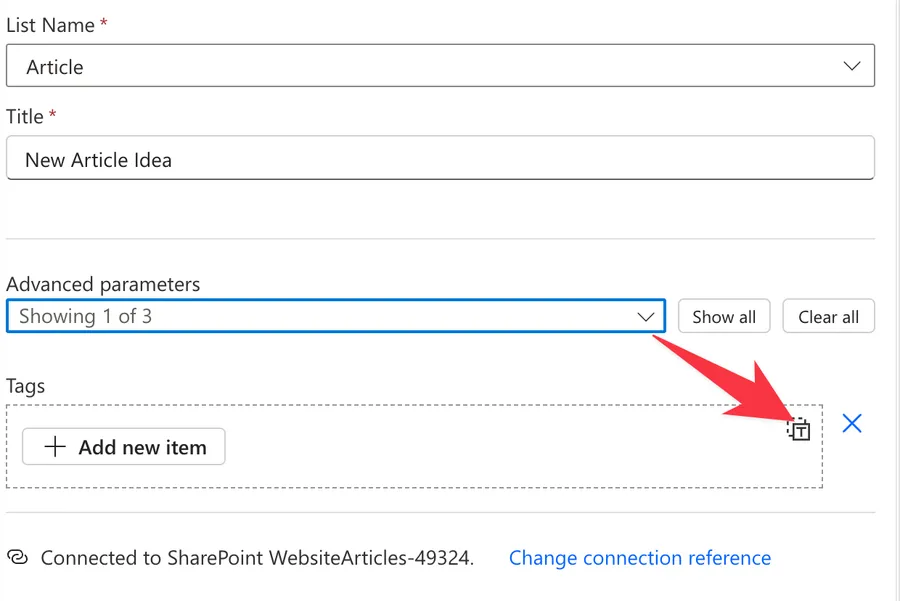
Here's what it looks like:
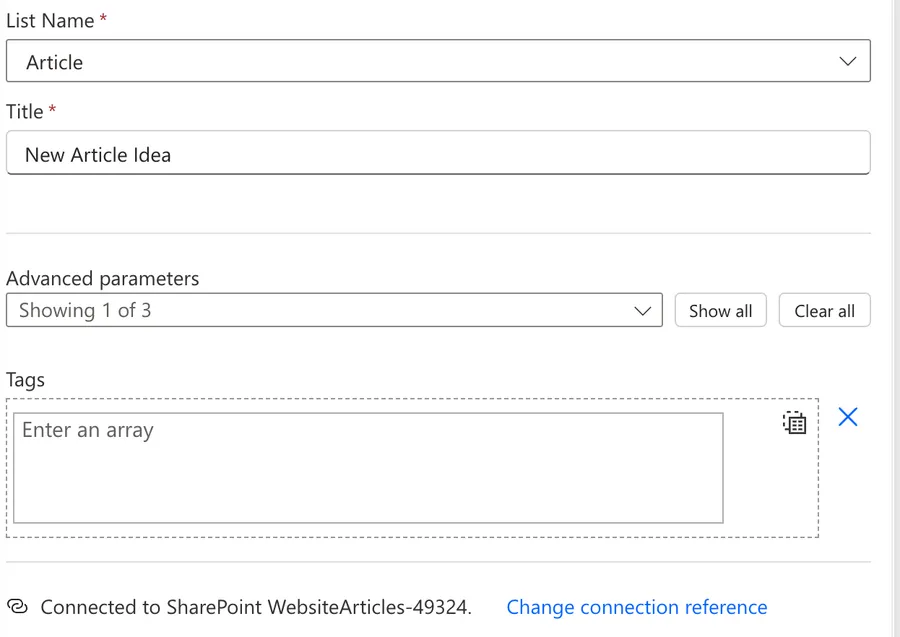
Notice that the Tags field is now expecting the values. Since we don't know the structure, let's use a small trick. Let's add 2 values from the list manually and see what we get by switching to the array mode.
For example:
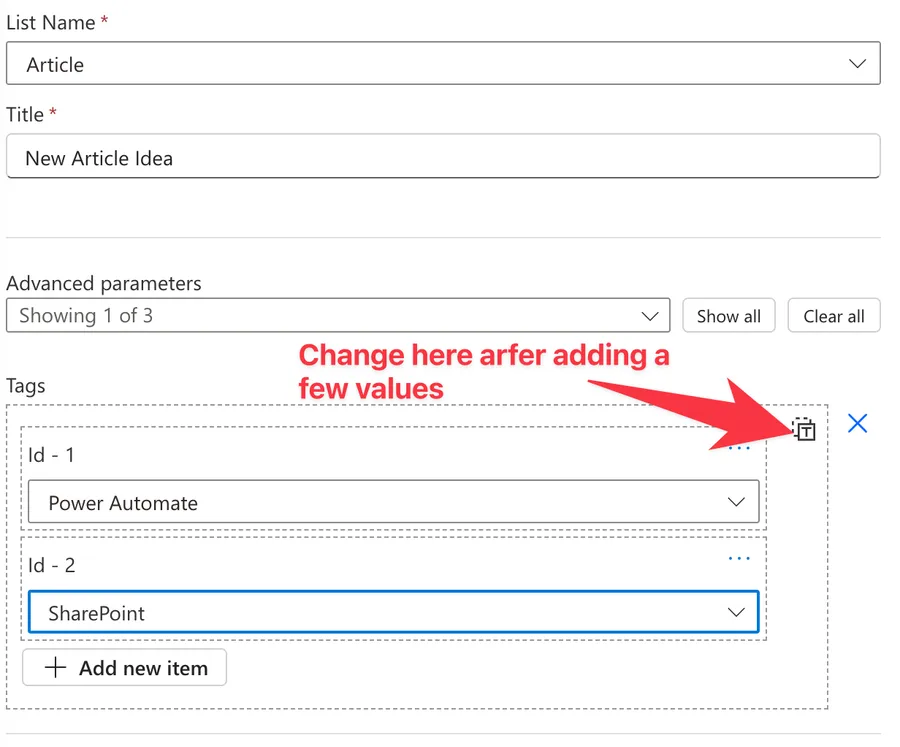
We will get:
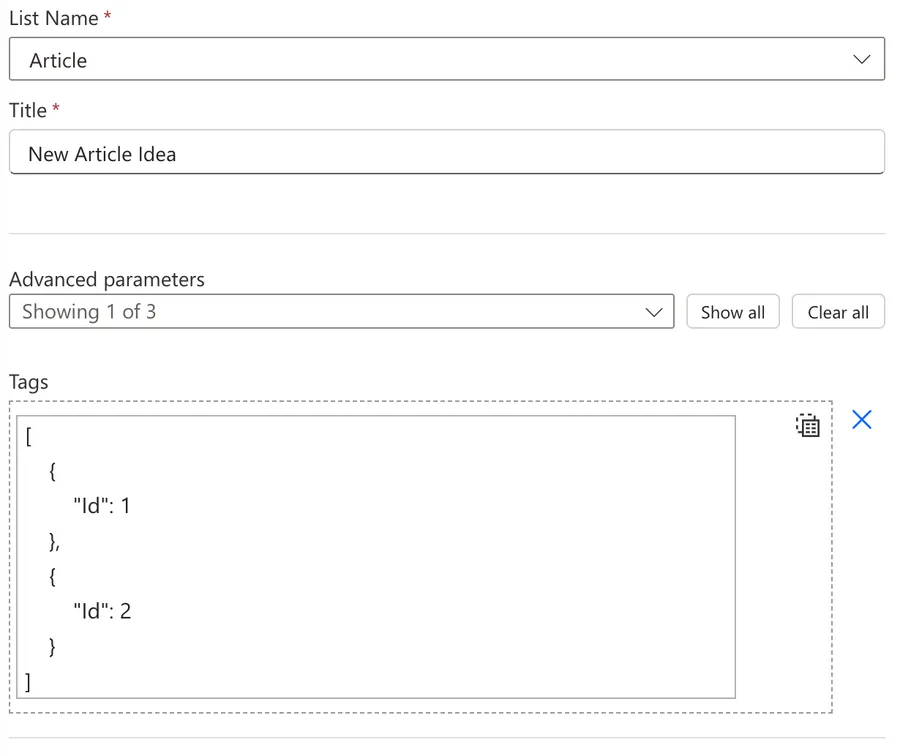
Now that we know the structure let's test the Flow. Here's what we get when we run it:
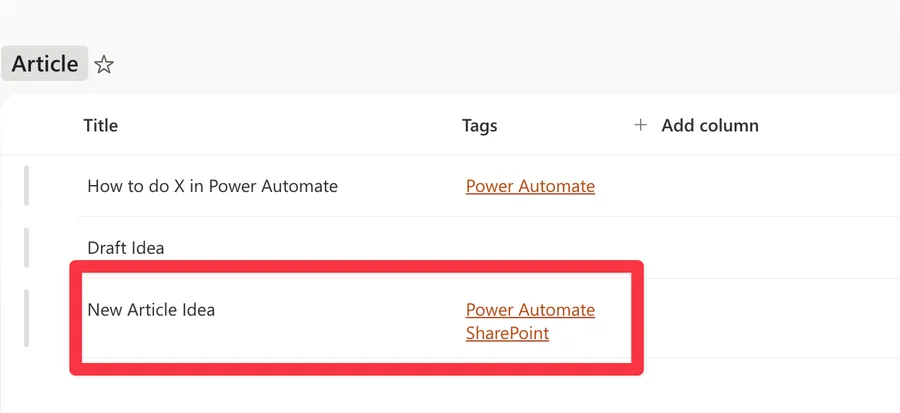
So here's what we need. We need to map the tags to their corresponding IDs and then add them to our list.
How to get a list of values?
The easy way
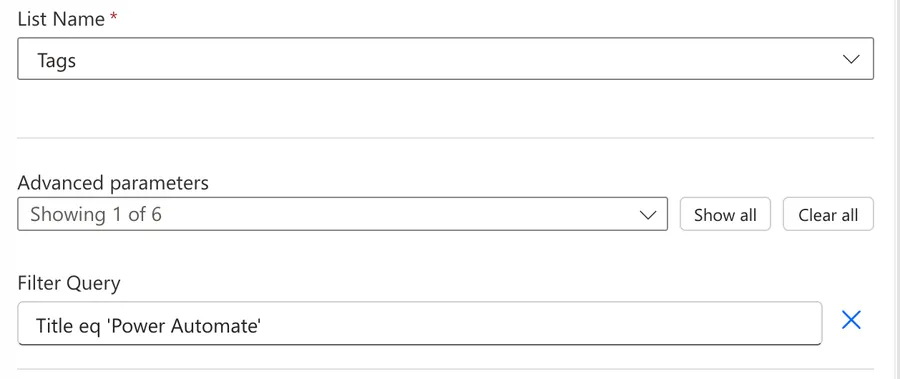
There's a common but incorrect (or at least inefficient way) to get the ID that corresponds to the value that you want to use. You can call "Get Items" with an OData query like this:
Title eq 'Power Automate'
Then you can add this to an "Apply to Each" action and you're good to go. But this is inefficient in case your value list is large. If you feel more comfortable with it, by all means use it, since the run is super easy to debug.
My only recommendation is to use the "Filter Query" and ideally set the "Top Count" to 1, since you only need one item when you're looking for the ID.
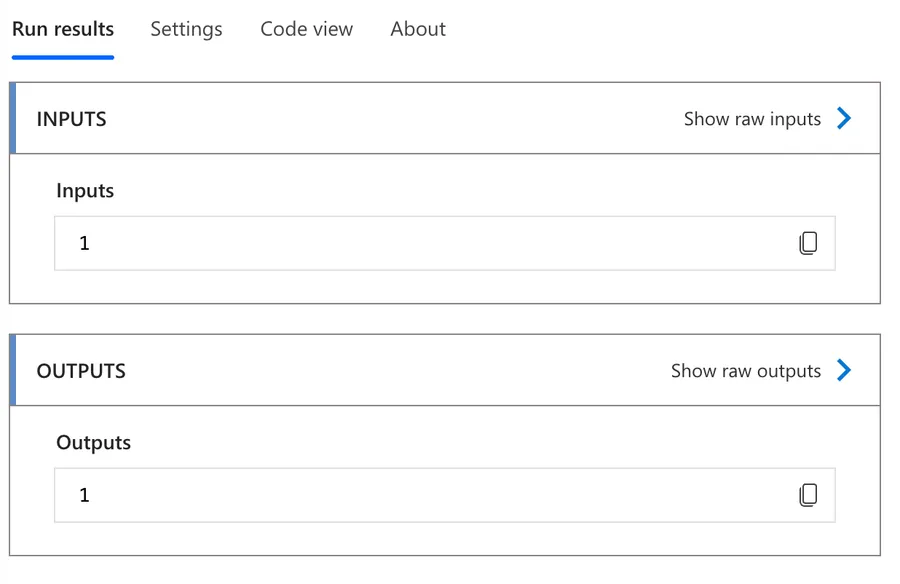
Then get the first item using the "first" function, or you can even get the ID in one function with:
first(outputs('Get_items')?['body/value'])?['ID']
The efficient way
But there's a better way, or at least more scalable in case you need to find the IDs often inside the same Flow.
So you can get all items using a "Get Items" action and then use the "Filter array" action when you need an item to get the value that you want:
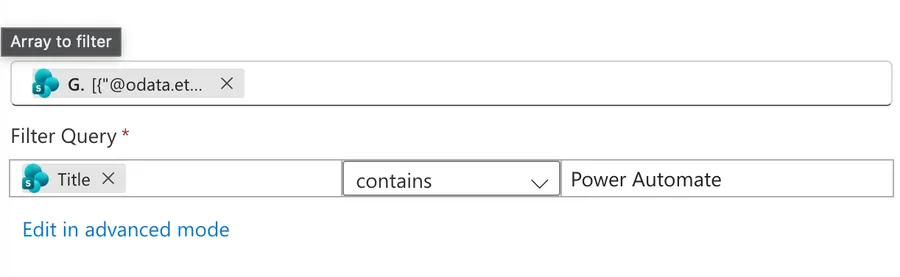
You can use the "first" function in case you want to get the item directly without using an "Apply to Each" action.
first(body('Filter_array'))?['ID']
This way you can get the item when you need it from a list that is already fetched from SharePoint. No ping-pong between Power Automate and SharePoint each time you need a new ID.
This is very efficient if you have a list of items that you want to add to SharePoint, each of them with a lot of lookup values, and you need IDs for each of them so that you can insert. This way you can get the lookup values quite quickly, speeding up the process.
There's a 3rd way, but it's super complex
For the sake of completeness there's a 3rd way where you can get the values into a "Select" action and then parse the values to get something like this:
{
	"Power Automate":1,
	"SharePoint":2
}
Now we can use this list quickly and efficiently in all the Flow by using the formula to find the value that we need:
body('Select')?['Power Automate']
Replace Power Automate with the value that you want to find.
Tom has the solution here in case you want to take a look, but I think it makes things super complex and hard to understand for a "normal" user. If you're a power user take a look because it's the most efficient way possible to get the items.
Final Thoughts
I wanted to show you multiple ways to find the information to fit your needs, but the most important part is how to parse the data so that it can be inserted into SharePoint. As long as you figure out that part then the rest is easy.
Use the strategy that makes sense to you. If speed is not a question, you can even think about using the "Get Items" action with an OData filter and then things would be super easy to debug. I propose the second solution if you want things to work a bit faster while keeping your ability to debug things.
Photo by Hilthart Pedersen on Unsplash


No comments yet
Be the first to share your thoughts on this article!