
Sooner or later a date arrives in your Flow looking nothing like a date. An email says "20 October 2010", a CSV column says 21052019, a form in France hands you 20/10/2014, and every date function you reach for refuses to touch any of it. The "parseDateTime" function is the door back in. You give it the messy string, you tell it which language wrote it, and it hands back a clean ISO 8601 timestamp that the rest of Power Automate is happy to work with.
It's the mirror image of the "formatDateTime" function. One turns a timestamp into text for a human, the other turns text from a human back into a timestamp. They're a matched pair, and they look alike, which is the source of the most common mistake people make here. Let's go through how it works, what the locale buys you, and the places where it quietly gives you the wrong month instead of an error.
Where to find it?
You can use "parseDateTime" anywhere an expression is supported. In practice it shows up right at the boundary where outside data enters your Flow, so you'll usually find it inside a "Compose" action or an "Initialize variable" action placed immediately after the trigger, normalizing the value once before anything else gets to see it.
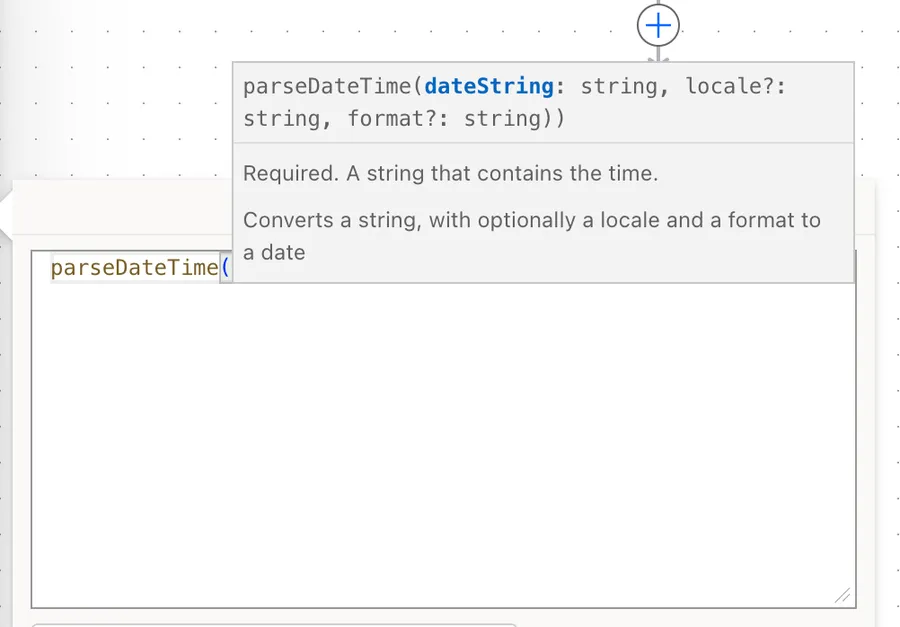
This trips up almost everyone. The "formatDateTime" function takes the format second and the locale third. "parseDateTime" takes the locale second and the format third. Both parameters are optional strings, so swapping them does not produce a helpful "wrong parameter" message. You get a confusing parsing error, or worse, a date that is silently wrong.
Usage
The "parseDateTime" function takes one required parameter and two optional ones:
parseDateTime('<timestamp>', '<locale>'?, '<format>'?)
| Parameter | Required | Type | Description |
|---|---|---|---|
| timestamp | Yes | String | The string that contains the timestamp you want to parse |
| locale | No | String | The locale to read the string with, such as fr-fr or pt-PT. Defaults to en-us. An invalid value generates an error |
| format | No | String | A single format specifier or a custom format pattern describing the shape of the input. If omitted, the function attempts parsing with multiple formats compatible with the locale |
The return value is always a string, and it's always in the o format, yyyy-MM-ddTHH:mm:ss.fffffffK, which complies with ISO 8601 and preserves time zone information, though as we'll see, only when the string you gave it had any.
Letting the locale do the work
Most of the time we don't need the format at all. Tell the function which language wrote the string and it works the rest out on its own:
parseDateTime('20/10/2014', 'fr-fr')
This returns 2014-10-20T00:00:00.0000000. Because the locale is French, 20/10/2014 is read as day first, so you get the 20th of October rather than an error about there being no twentieth month.
The locale also unlocks month and day names in that language, which is where this function starts to feel like magic:
parseDateTime('20 octobre 2010', 'fr-FR')
That returns 2010-10-20T00:00:00.0000000. It even copes with a leading weekday name:
parseDateTime('martes 20 octubre 2020', 'es-es')
That returns 2020-10-20T00:00:00.0000000. Notice that the locale tag is not case-sensitive: fr-fr and fr-FR both work.
Pinning the format explicitly
When the string has no separators, no locale on earth can guess what it means. That's where we reach for the third parameter:
parseDateTime('21052019', 'fr-fr', 'ddMMyyyy')
This returns 2019-05-21T00:00:00.0000000. The same digits in a different order just need a different pattern:
parseDateTime('20190521', 'fr-fr', 'yyyyMMdd')
That also returns 2019-05-21T00:00:00.0000000, this time from a year-first input. Custom patterns can carry literal characters too, escaped with a backslash:
parseDateTime('10/20/2014 15h', 'en-US', 'MM/dd/yyyy HH\h')
This returns 2014-10-20T15:00:00.0000000. The \h tells the parser that the trailing h is decoration, not a format specifier.
Parsing a value from the trigger
In a real Flow the string is rarely a literal. It comes from a trigger or an earlier action, so read it with the "triggerBody" function and safe navigation:
parseDateTime(triggerBody()?['InvoiceDate'], 'pt-PT', 'dd/MM/yyyy')
Let's break that down:
triggerBody()gets the data the trigger passed in.?['InvoiceDate']safely reads the field. The question mark matters, because without it a missing field breaks the whole expression instead of returning null.'pt-PT'reads the string the Portuguese way, day first.'dd/MM/yyyy'removes any remaining doubt about the shape.
Real-world examples
An invoice date pulled out of an email
João's supplier emails invoices with the date written as 15-03-2026 in the body. You pull it out with the "split" function, then convert it into something a date column will accept:
parseDateTime(trim(variables('RawDate')), 'en-GB', 'dd-MM-yyyy')
The "trim" function clears the stray spaces that email bodies love to add, and the result lands as 2026-03-15T00:00:00.0000000.
A compact date from a legacy export
Maria's team exports a report where dates are stored as 20260315 with no separators at all. Nothing else will read that, but the format parameter handles it in one line:
parseDateTime(item()?['ReportDate'], 'en-us', 'yyyyMMdd')
This gives you 2026-03-15T00:00:00.0000000, ready for comparison or storage. The "item" function reads the current record inside an "Apply to each" action.
Normalizing before you sort or compare
Text dates sort alphabetically, which is rarely what anyone wants. 20/10/2014 sorts after 19/11/2020 as text, and that's simply wrong. Parse first, then compare:
parseDateTime(triggerBody()?['StartDate'], 'pt-PT')
Once every value is in o format, the "ticks" function and the "sort" function will treat it as a date rather than as a run of characters.
Non-intuitive behaviors
Here are the behaviors that catch people off guard with the "parseDateTime" function.
The format parameter describes the input, not the output
This is the mental model people get backwards, because in the "formatDateTime" function the format describes what comes out. Here it describes what goes in. Passing 'yyyy-MM-dd' to "parseDateTime" does not give you a short date, it tells the function "the string I'm handing you looks like this". The output is always full o format regardless.
An ambiguous date fails silently, not loudly
06/11/2026 is a valid date in every locale. In en-us it's the 6th of November. In pt-PT or en-GB it's the 11th of June. The function will not warn you, because nothing is wrong from its point of view. It parses cleanly and returns a confidently incorrect answer, and you find out months later when a report is off. Any string where the day is 12 or lower deserves an explicit locale and an explicit format.
Omitting the format means several formats get tried
Leave the third parameter out and the function attempts parsing with multiple formats compatible with the locale. That flexibility is what makes parseDateTime('20 octobre 2010', 'fr-FR') work without any pattern at all. It also means the rule that matched your string is invisible to you, so a slightly different input next week can match a different rule and still succeed. Specifying the format turns a guess into a contract.
The default locale is en-us, not your locale
Leave the locale out and you get American date order, no matter where you, your tenant, or your data happen to live. parseDateTime('20/10/2014') does not fall back to something sensible for a European reader. It tries to read 20 as a month, and fails.
A single-character format means something else entirely
Pass one character as the format and it's read as a standard format specifier, not as a custom pattern. 'd' means the locale's short date pattern, it does not mean "a day without a leading zero". If the character isn't a recognized standard specifier, 'h' for instance, the expression fails outright. To use a single custom specifier on its own, prefix it with a percent sign, so '%d' rather than 'd'. Two or more characters are always read as a custom pattern, which is why 'ddMMyyyy' and 'yyyyMMdd' behave exactly as they look.
AM and PM need the lowercase hour specifier
If the string ends in AM or PM, the hour has to be hh or h, never HH. The 24-hour specifier and the AM/PM designator cannot be combined in a parsing operation, so a pattern like 'dd/MM/yyyy HH:mm tt' fails every time, no matter how right the string looks next to it.
parseDateTime('15/03/2026 03:45 PM', 'en-GB', 'dd/MM/yyyy hh:mm tt')
That parses cleanly. Swap the hh for HH and the same string errors.
Two-digit years land in a century you didn't pick
A yy pattern has to guess a century, and the guess comes from a sliding window in the runtime underneath rather than from anything in your expression. That window used to end in 2029, which made '35' read as 1935. In newer versions it ends in 2049, which makes the same '35' read as 2035.
parseDateTime('12/10/35', 'en-US', 'MM/dd/yy')
Run that once in your own tenant and look at the year that comes back. Either way, a four-digit year in the source is the only version of this that never surprises anyone.
The result usually carries no time zone at all
The documentation says the o format preserves time zone information, and it does, but only the information that was already there. The K at the end of yyyy-MM-ddTHH:mm:ss.fffffffK renders as nothing when the input carried no zone, which is why every example above comes back as 2014-10-20T00:00:00.0000000 with no Z and no offset on the end.
That matters downstream. A timestamp with no offset isn't UTC, it simply isn't saying, and the next function in the chain will usually treat it as UTC anyway. If the string you're parsing is a local time, decide what that means and convert it on purpose with the "convertToUtc" function rather than letting the assumption ride.
Limitations
You cannot control the output format
The return value is always o format. There's no parameter for it. That fits the job of the function, which is normalization rather than presentation, but it does mean a display-ready date always costs you a second call to "formatDateTime".
The result is a string, not a date
Like every date value in Power Automate, what comes back is text, so you cannot do arithmetic on it directly. Run it through the "ticks" function for a number you can subtract, or use the "dateDifference" function for the gap between two timestamps.
An invalid locale is an error, not a fallback
If the locale isn't a valid value, the function generates an error rather than quietly reverting to en-us. The same applies to an invalid format string. It fails at the point of the mistake, which is what you want, but it does mean a locale built from dynamic content can take a Flow down at runtime.
It only reads text, not numbers
A date stored as a spreadsheet serial number or a Unix epoch is not a timestamp string, and no locale or format pattern will convince this function otherwise. Those need arithmetic with the "addToTime" function starting from the relevant epoch date.
Expression size limits
As with every Power Automate expression, you have a ceiling of 8,192 characters. Nesting a parse inside a format inside a condition eats into that quicker than you'd think, so break long chains into "Compose" actions.
Troubleshooting Common Errors
The datetime string must match ISO 8601 format
Cause: The format you supplied doesn't match the string you supplied, so the parser gives up and falls back to complaining about its default. It's a misleading message, since the real problem is usually a mismatched pattern rather than anything to do with ISO 8601. A value that already ends in Z being passed with a fractional-seconds pattern is a common trigger. There's a documented reason behind that particular case. A custom format pattern cannot parse a value that has no time zone component, or one that uses Z for UTC, even when the pattern you wrote matches the o format character for character. Writing 'yyyy-MM-ddTHH:mm:ss.fffffffK' by hand is not the same as leaving the format out or passing 'o'.
Solution: Check the pattern against the string character by character, and remember that a value which is already ISO 8601 does not need parsing at all. If you only want to reshape it, use the "formatDateTime" function, and if you want a different time zone, use the "Convert time zone" action.
The provided locale is not valid
Cause: The second parameter isn't a locale tag. Nine times out of ten a format string is sitting in it, because the expression was written in "formatDateTime" order.
Solution: Locale second, format third. Read the expression back out loud before you save it.
parseDateTime('15/03/2026', 'pt-PT', 'dd/MM/yyyy')
The function expects its first parameter to be of type string
Cause: The value you passed is null. The field name is misspelled, the column was empty, or the trigger simply didn't include it.
Solution: Guard the input with the "coalesce" function so a missing value becomes a known default, or test it with the "empty" function inside a "Condition" action before you parse.
parseDateTime(coalesce(triggerBody()?['InvoiceDate'], '01/01/2000'), 'pt-PT', 'dd/MM/yyyy')
The date parses fine but the month and day are swapped
Cause: No error here, which is exactly the problem. The string was ambiguous and the locale read it the other way round, almost always because the locale was left out and defaulted to en-us.
Solution: Always pass the locale and the format when the day is 12 or lower. Then test with a date like the 25th, which cannot be a month, so a wrong pattern will fail loudly rather than lie to you.
Recommendations
Here are some things to keep in mind when using the "parseDateTime" function.
Parse once, at the edge
Convert the value to ISO 8601 in a single "Compose" action right where the data arrives, then reference that output everywhere downstream. Every other action gets a clean timestamp, and when the source format changes you have exactly one expression to fix.
Pass the format even when it works without one
The locale alone will parse 20/10/2014 today. It will also parse 06/11/2026 today, into the wrong day. Supplying the pattern costs you a dozen characters and removes the entire category of problem.
Don't parse what is already a timestamp
If the value has a T in the middle and ends in a Z, it's already ISO 8601 and every date function will accept it as it is. Running it through "parseDateTime" adds a call that can only fail.
Test with a day above the twelfth
The 25th of a month is the cheapest test you own. If your locale and format are wrong, a 25 in the day position cannot be read as a month, so the expression errors instead of returning a plausible lie.
Always add a comment
Adding a comment will help others understand your expression. Note where the string comes from and why that specific locale was chosen, because 'pt-PT' sitting alone in an expression tells the next person nothing about the supplier who sends the file.
Final Thoughts
The "parseDateTime" function is the translator that sits between the outside world and everything else your Flow wants to do with dates. Feed it the string and the locale it was written in, and it hands back a timestamp the rest of Power Automate understands. Just hold on to the two rules that cause every bug here. The locale comes second and the format comes third, and the format describes what goes in, not what comes out. Get those right and the messiest date string in your inbox becomes a one-line problem.
Sources
- Microsoft's parseDateTime function reference
- Limits and configuration for Azure Logic Apps
- Standard date and time format strings
- Custom date and time format strings
Back to the Power Automate Function Reference
Photo by Paul Green on Unsplash


No comments yet
Be the first to share your thoughts on this article!