
Sooner or later every spreadsheet turns into a counting exercise. How many orders came from Porto? How many rows say "Paid"? How many values are above target? You could filter the list, eyeball the status bar, and jot the number into your report, but the moment the data changes, you have to do it all again. That is exactly the chore the "Countif" function was built to remove.
The "Countif" function looks at a range and counts only the cells that meet a single condition you give it. That condition can be a piece of text, a number, a comparison like "greater than 100", or a pattern with wildcards. If you spend any real time in Excel, it is one of the most useful functions to have at your fingertips, because it turns a manual tally into a formula that updates itself.
Where to find it?
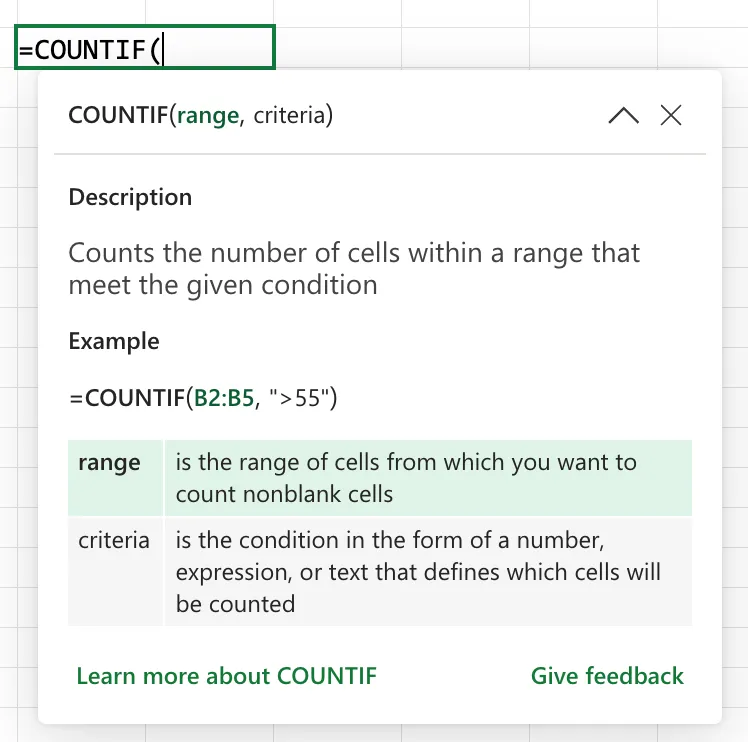
You type the "Countif" function straight into a cell. Start with an equals sign, type COUNTIF, and Excel's formula AutoComplete will offer it along with its relatives. If you prefer a guided approach, go to the Formulas tab, choose "Insert Function", and search for it there. It works the same way in Excel for Windows, Excel for Mac, and Excel for the web.
The "Countif" function checks a single condition against a single range. The "Countifs" function (with an S) checks several conditions at once and only counts the rows where all of them are true. If you find yourself wanting to count on two columns, such as status "Paid" and region "Porto", you have outgrown the "Countif" function and want the "Countifs" function instead.
Usage
The "Countif" function takes exactly two arguments, and both are required. You tell it where to look and what to look for.
=COUNTIF(range, criteria)
| Parameter | Required | Type | Description |
|---|---|---|---|
| range | Yes | Range | The group of cells you want to check. It can hold numbers, text, or a named range. |
| criteria | Yes | Number, text, expression, or cell reference | The condition a cell must meet to be counted. |
The range part is straightforward. The interesting part is the criteria, because it can take several shapes. Let's walk through the ones you will actually use.
Matching text
The simplest case is counting cells that contain a specific word. Wrap the text in double quotes.
Data in A1:A5
Paid, Pending, Paid, Cancelled, Paid

=COUNTIF(A1:A5, "Paid")

will return

3
Text matching ignores case, so "Paid", "paid", and "PAID" all count as the same value.
Matching numbers and comparisons
Pass a number on its own to count exact matches. To count a range of values, put a comparison operator and the number together inside quotes. The supported operators are >, <, >=, <=, =, and <> (not equal to).
Data in A1:A6
100, 250, 90, 400, 250, 50

=COUNTIF(A1:A6, ">100")

will return

3
The quotes around ">100" matter. Without them Excel does not know what to do with the operator and the formula will not behave.
Using wildcards
For text, two wildcard characters let you match patterns. The asterisk * stands for any number of characters, and the question mark ? stands for exactly one character.
Data in A1:A4
apple, apples, apricot, banana

=COUNTIF(A1:A4, "ap*")

will return

3
If you genuinely need to count a literal asterisk or question mark, put a tilde ~ in front of it so Excel treats it as a plain character.
Referencing a cell in the criteria
Hard-coding a value into the formula is fine until the value changes. To point the criteria at another cell, join the operator and the cell reference with the & symbol.
=COUNTIF(A1:A10, ">"&B1)
This counts the cells in A1:A10 that are greater than whatever number sits in B1, so you can change B1 and the count follows.
The function family
The "Countif" function sits in a small family of counting and conditional functions that we all constantly mix up. Picking the right one saves a lot of head-scratching, so keep this table close.
| Function | What it does |
|---|---|
| Count | Counts cells that contain numbers |
| Counta | Counts cells that are not empty |
| Countblank | Counts cells that are empty |
| Countif | Counts cells that meet one condition |
| Countifs | Counts cells that meet several conditions |
| Sumif | Adds up the cells that meet one condition |
| Averageif | Averages the cells that meet one condition |
If you only need a plain count of numbers with no condition, the "Count" function is the simpler tool. If you need to add or average instead of count, the "Sumif" and "Averageif" functions follow the same criteria pattern you just learned.
Real-world examples
A status tile on a dashboard
Joana keeps a sheet of support tickets with a Status column in D. She wants a single cell that always shows how many are still open.
=COUNTIF(D:D, "Open")
Because it points at the whole column, the number updates on its own as new tickets arrive.
Counting values above a target
Manuel tracks monthly sales in column C and wants to know how many months beat the target stored in F1.
=COUNTIF(C2:C13, ">"&F1)
Change the target in F1 and the count reacts instantly, which makes it perfect for a "what if" comparison.
Finding duplicates in a list
To flag repeated entries, count how many times each value appears and check for anything above one. Placed next to a list in column A, this formula tells you whether the value in A2 shows up more than once.
=COUNTIF(A:A, A2)
Wrap it in an "If" function and you can turn that count into a friendly "Duplicate" label.
Non-intuitive behaviors
Text matching is case-insensitive
The "Countif" function does not care about capitalization. "Lisbon", "lisbon", and "LISBON" are all the same cell to it. That is convenient most of the time, but if you were relying on case to separate two categories, the "Countif" function will not do it. You would need a case-sensitive approach with a helper formula instead.
Numbers stored as text are matched by value
Unlike the "Count" function, which ignores numbers stored as text, the "Countif" function compares by value. When the criteria can be read as a number, Excel treats it as a number, and it does the same to the values in the range. A cell showing 100 counts toward =COUNTIF(range, 100) whether it is a real number or text that looks like a number.
The same coercion catches formatting you may have meant to keep. A criteria value of "000123" matches a cell holding 123, a cell holding the text "123", and a cell holding the text "0123", because the leading zeros disappear once Excel reads all of them as the number 123. This is usually helpful, but it means a messy column of mixed real numbers and text numbers can still return a count that looks right while hiding a data-quality problem underneath. When you need the count to respect the difference, the "Sumproduct" function compares the values as they are actually stored.
Counting blank and non-blank cells
You can count empty cells by passing an empty string as the criteria, and count filled cells with the "not equal to" operator.
=COUNTIF(A1:A10, "")

counts the empty cells

=COUNTIF(A1:A10, "<>")

counts the cells that are not empty
For a dedicated empty-cell count the "Countblank" function is clearer, but these two forms are handy when you are already working with the "Countif" function.
Leading and trailing spaces break matches
A value that looks like "Paid" but is actually "Paid " with a trailing space will not match "Paid". Excel stores the space, so the two strings are different to the "Countif" function even though they look identical on screen.
Limitations
It only checks one condition
The "Countif" function is built for a single criterion against a single range. The moment you need two or more conditions to be true together, it cannot help you, and you move up to the "Countifs" function.
Criteria longer than 255 characters fail
Microsoft documents that the "Countif" function returns incorrect results when the criteria string is longer than 255 characters. You will rarely hit this with normal data, but very long text values can trip it silently.
It cannot count by cell format
The "Countif" function looks at the value in a cell, never at its appearance. You cannot ask it to count cells by their fill color, font color, or border. Counting by color needs a different approach, usually a helper column or a small piece of VBA.
References to closed workbooks error out
If the range points at another workbook and that workbook is closed, the "Countif" function returns a #VALUE! error. Opening the source workbook clears it. This is worth knowing before you link counts across files.
Localization
The argument separator in Excel formulas changes with your regional and list separator settings. With some settings it is a comma, and with others, such as Portugal, it is a semicolon. Both forms are below, so you can copy whichever one matches your setup.
// Comma-based regional settings
=COUNTIF(A1:A10, ">100")

// Semicolon-based regional settings (for example, Portugal)
=COUNTIF(A1:A10; ">100")
Troubleshooting Common Errors
The formula returns 0 when values clearly match
Cause: The most common reason is a criteria value that Excel is reading as something other than plain text, usually because the quotes are missing, or the cells contain hidden leading and trailing spaces that stop the match.
Solution: Put text criteria inside double quotes, and clean stray spaces from the source values with the "Trim" function before counting.
=COUNTIF(A1:A10, "Paid")
The count is lower than the rows you can see
Cause: Some of the values you expect to match are slightly different from the criteria, often because of inconsistent spelling, extra spaces, or a mix of text and numbers in the same column.
Solution: Standardize the source data, or use a wildcard to match a partial pattern when small variations are expected.
=COUNTIF(A1:A10, "Lisb*")
A #VALUE! error appears
Cause: The range refers to a workbook that is currently closed. The "Countif" function cannot read a closed file.
Solution: Open the referenced workbook, or copy the data you need into the current file so the range stays local.
Recommendations
Here are some things to keep in mind.
Reference whole columns or named ranges
If your data grows over time, point the "Countif" function at a whole column or a named range so the formula keeps working without edits. The function ignores the empty cells anyway, so there is no penalty for the extra rows.
=COUNTIF(A:A, "Paid")
Put the criteria in a cell, not in the formula
Instead of typing the condition into the formula, store it in a cell and reference it. Your report becomes interactive, and you avoid editing formulas every time the question changes.
=COUNTIF(A:A, C1)
Reach for the right family member
Before you write the "Countif" function, be sure a single condition is really what you need. Two conditions call for the "Countifs" function, adding values calls for the "Sumif" function, and a plain count of numbers is a job for the "Count" function. Choosing correctly the first time avoids a count that is quietly wrong.
Always deal with errors
A single error value in the range, or a reference to a closed workbook, can turn your neat count into a #VALUE! error that then cascades into every formula that depends on it. Clean the source data, or wrap the formula in the "Iferror" function so one bad cell does not break the wider report.
=IFERROR(COUNTIF(A1:A10, "Paid"), 0)
Final Thoughts
The "Countif" function is the workhorse you reach for whenever a report needs a conditional tally. Remember that it handles one condition against one range, that its text matching ignores case, and that quotes around your criteria are not optional. Master those three points and you will lean on it in nearly every workbook you build.
Sources
- Use the COUNTIF function in Microsoft Excel
- Overview of formulas in Excel
- COUNTIF and COUNTIFS with numbers stored as text, on Microsoft Q&A
Back to the Excel Function Reference
Photo by Marija Zaric on Unsplash


No comments yet
Be the first to share your thoughts on this article!