
The "When a new team member is added" trigger starts a flow when someone joins a team you choose in Microsoft Teams. It belongs to the Microsoft Teams connector, and it's a great starting point for onboarding flows, like welcoming new people or giving them access to other resources.
It's simple to set up in Power Automate, since it asks for one thing only: the team to watch. In return, it gives you one thing only: the ID of the person who joined.
It's a polling trigger. Polling means it checks the team on a schedule rather than being notified the moment something changes, so expect a few minutes between someone joining and your flow starting.
Let's see how it works.
Where to find it?
The easiest way is to search for "team member" in the trigger list.
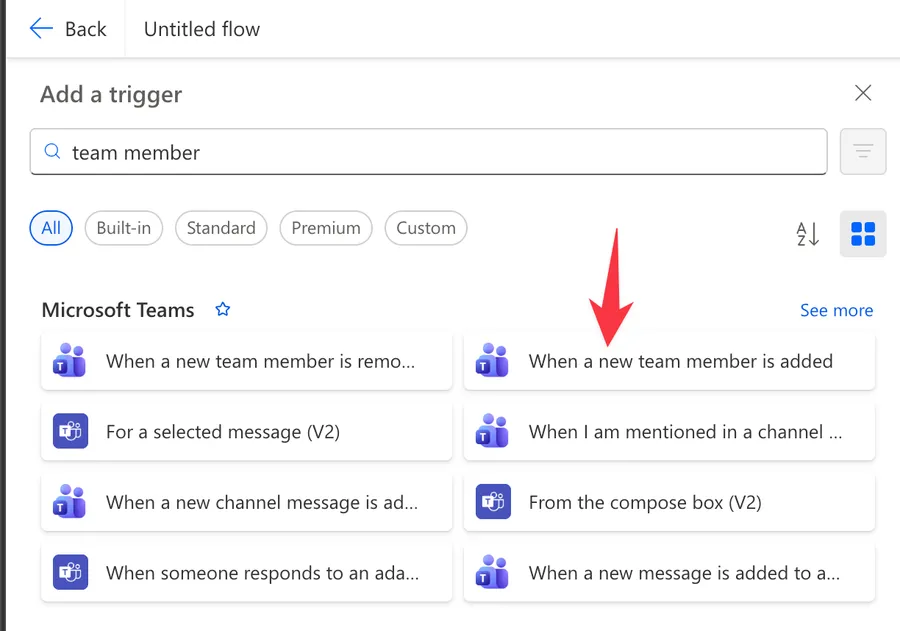
Here's what it looks like.
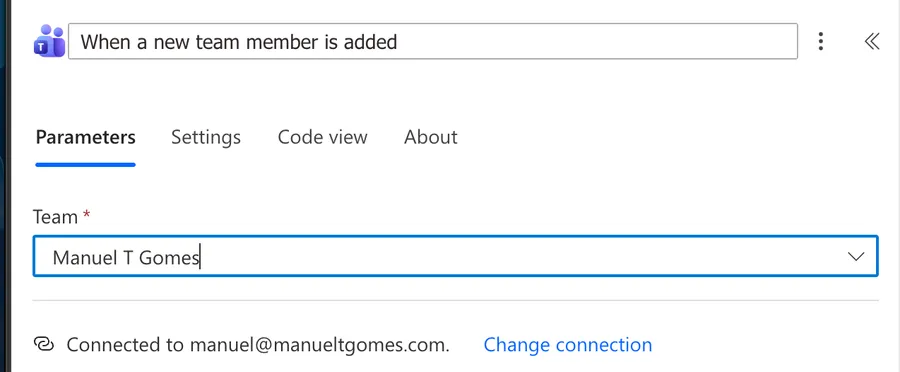
The connector has a twin trigger called "When a new team member is removed". Both have the same parameter and the same output, so check the name on the card before you build the rest of the flow.
Now that we know how to find it let's understand how to use it.
Usage
Team
The only parameter, and it's required. A team in Microsoft Teams is built on top of a Microsoft 365 group, so behind the scenes the trigger stores the group's ID (the groupId key).
The dropdown lists the teams that the connection's account belongs to. Pick one, and the trigger watches that team's membership.
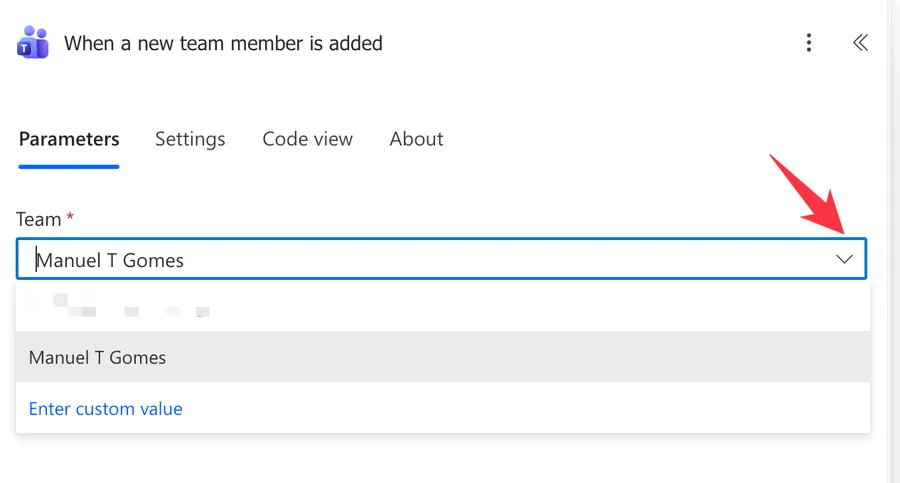
If you need to type the ID instead, choose "Enter custom value" and paste the group ID. You can find it in Teams by opening the team's menu, selecting "Get link to team", and copying the groupId value from the link.
The connection matters
The trigger runs on behalf of the account behind its connection. If Joana builds the flow with her account and later leaves the team, the flow can no longer see it.
For flows that serve a whole team, use a dedicated service account (an account that belongs to the organization rather than to one person) and add it to the team.
Trigger conditions
A trigger condition is a rule in the trigger's Settings tab that decides if a run should start at all. Since the only output is the user ID, that's the only value you can test.
A common use is ignoring a service account that your organization adds to every team.
@not(equals(triggerBody()?['id'], '<insertUserId>'))
triggerBody()gets the body of the trigger's output, using the "triggerBody" function?['id']safely reads the ID of the person who joinedequals(..., '<insertUserId>')checks if it's the account you want to skip, using the "equals" functionnot(...)inverts the result, so the flow runs for everyone else, using the "not" function
Outputs
The trigger returns a single value.
| Name | Path | Type | Description | Example value |
|---|---|---|---|---|
| User ID | id |
string | Unique id of the user | a1b2c3d4-e5f6-7890-abcd-ef1234567890 |
The User ID is the person's object ID in Microsoft Entra ID, which is the directory where your organization keeps its user accounts. It never changes for that account, so it's safe to store and compare.
You can reach it with this expression.
triggerBody()?['id']
Getting the person's details
An ID is not very friendly in a welcome message, so most flows add the Office 365 Users "Get user profile (V2)" action right after the trigger. Pass the User ID in the "User (UPN)" field, since the action accepts either the email address or the ID.
The action returns fields like the display name, email, job title, and department. Here's how to read the display name.
body('Get_user_profile_(V2)')?['displayName']
body('Get_user_profile_(V2)')gets the response of the action?['displayName']safely reads the person's display name
Non-intuitive behaviors
It's not instant
Microsoft documents a 5-minute polling interval for this trigger, due to a limitation in the underlying API. Community reports describe waits of 15 to 20 minutes, so don't panic if nothing happens right after you add someone.
When you test, add the person, wait about 20 minutes, and then check the run history before changing anything.
The same person can start more than one run
Microsoft states that the polling can cause the trigger to fire multiple times for the same event. For a log entry, that's a small problem. For a welcome email, Beatriz gets two.
Make the flow safe to run twice. Keep a SharePoint list of the IDs you already processed, check it with the "Get items" action, and stop the run with the "Terminate" action when the ID is already there.
Re-adding a removed person may not start a run
A community thread describes the trigger not firing when the same people were removed and added again during testing. The suggested explanation is that the team remembers previous members, but it's a guess rather than a confirmed behavior.
When testing, use people who were never part of the team. If your process regularly removes and re-adds people, check the run history after the first few cases to confirm they come through.
It watches the team, not the channels
The trigger reacts to team membership. Standard channels share the team's members, so adding someone to the team covers them too.
Private and shared channels have their own member lists. To follow those, use a "Recurrence" trigger with the "List chat or channel members" action, and compare the result with what you stored the last time.
Limitations
One team per flow
The Team parameter takes one team. To watch several teams, create one flow per team. Build the first one, test it, and then use "Save As" to make copies that you point at the other teams.
Teams with hidden membership are not supported
Microsoft documents that this trigger doesn't work on groups with hidden members. Hidden membership is a setting on the Microsoft 365 group that keeps the member list private, and it can only be chosen when the group is created.
For these teams, track the additions where they happen. If people join through a flow, for example with the "Add a member to a team" action, run your onboarding steps in that same flow.
Only the ID comes back
There's no option to return the name or email. Plan for the extra "Get user profile (V2)" call in every run, as shown in the Outputs section.
Connector throttling
The Microsoft Teams connector allows 100 API calls per connection every 60 seconds. When you add a large group of people at once, spread the follow-up actions with the concurrency control setting so runs don't all hit the connector at the same moment.
Recommendations
Here are some things to keep in mind.
Fetch the profile first
Make "Get user profile (V2)" the first action after the trigger. Every other step can then use names and emails, and the run history becomes easier to read when you troubleshoot.
Pair it with the removed trigger
If you need a membership log, build a second flow with "When a new team member is removed" that writes to the same SharePoint list. Both triggers return the same User ID, so the entries line up.
Use a service account
Connect the trigger with an account that stays in the team no matter who comes and goes. Document which account it is, so the next person knows where to look.
Name it correctly
Always build the name so others can understand the trigger's purpose without opening it and checking the details.
Always add a comment
Adding a comment will also help avoid mistakes. Indicate what conditions trigger the flow and any assumptions about the data. It's essential to enable faster debugging when something goes wrong.
Final Thoughts
"When a new team member is added" is one of the simplest triggers in the Microsoft Teams connector: one team in, one user ID out. Give it a few minutes to react, fetch the profile right away, and make the flow safe to run twice, and it will serve your onboarding flows well.
Sources
- Microsoft Teams connector reference
- Community thread on the polling delay
- Community thread on re-added members
Back to the Power Automate Trigger Reference.
Photo by Declan Sun on Unsplash


No comments yet
Be the first to share your thoughts on this article!