
We usually want our Flows to run as fast as possible, but every now and then a downstream system needs a moment to catch up before we carry on. The "Delay" action pauses your Power Automate Flow for a set amount of time before moving to the next step. It belongs to the built-in "Schedule" group, so it has no connector and no authentication to worry about.
I'll say upfront that this is an action you should reach for sparingly, and always for a clear reason. And when I say sparingly I mean that if you reach for it, think twice because 99% of the time the issue is elsewhere.
But it can be useful in certain situations, so let's check.
Where to find it?
The "Delay" action is in the "Built-in" tab inside the "Schedule" group, but as always the best way of finding it is by searching for it.
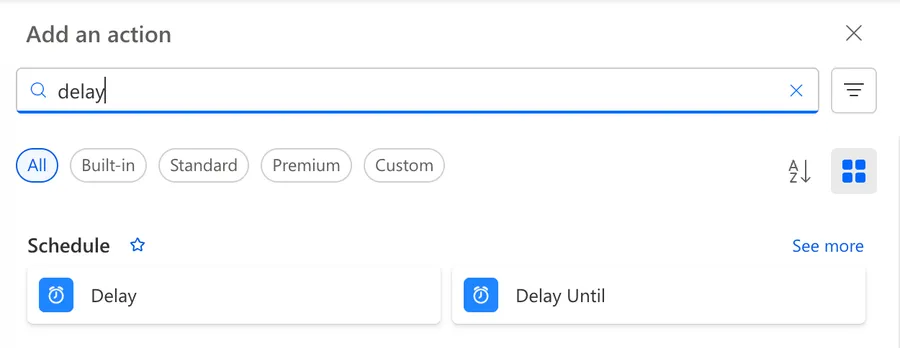
It looks like this.
The "Schedule" group also has a "Delay until" action, and the two are easy to mix up. "Delay" waits for a relative duration (for example, "wait 30 seconds from now"). "Delay until" waits until a specific timestamp you provide (for example, "wait until 2026-06-01T09:00:00Z"). If you want a fixed pause, you want "Delay". If you want to wait for a precise moment, you want "Delay until".
Let's take a look at how to use it.
Usage
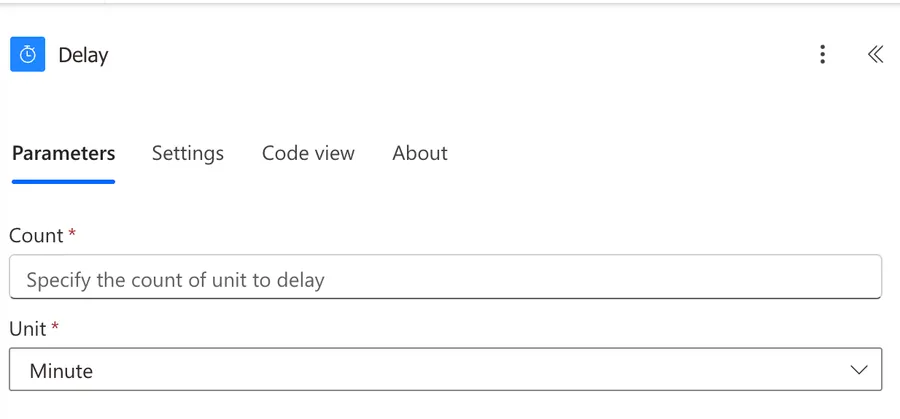
The "Delay" action has only two fields, and both are required.
Count
The number of units you want to wait. It accepts a positive whole number, so the smallest valid value is 1. You can type a static number, or feed it an expression to make the pause dynamic (more on that below).
Unit
A dropdown that sets what the count means. The available options run from the shortest to the longest interval.
| Unit | Use it for |
|---|---|
| Second | Short pauses while another system finishes a quick task |
| Minute | Light throttling between batches of calls |
| Hour | Spacing steps across a working day |
| Day | Multi-day pauses inside a longer process |
| Week | Rarely useful, see the limitations below |
| Month | Avoid, see the limitations below |
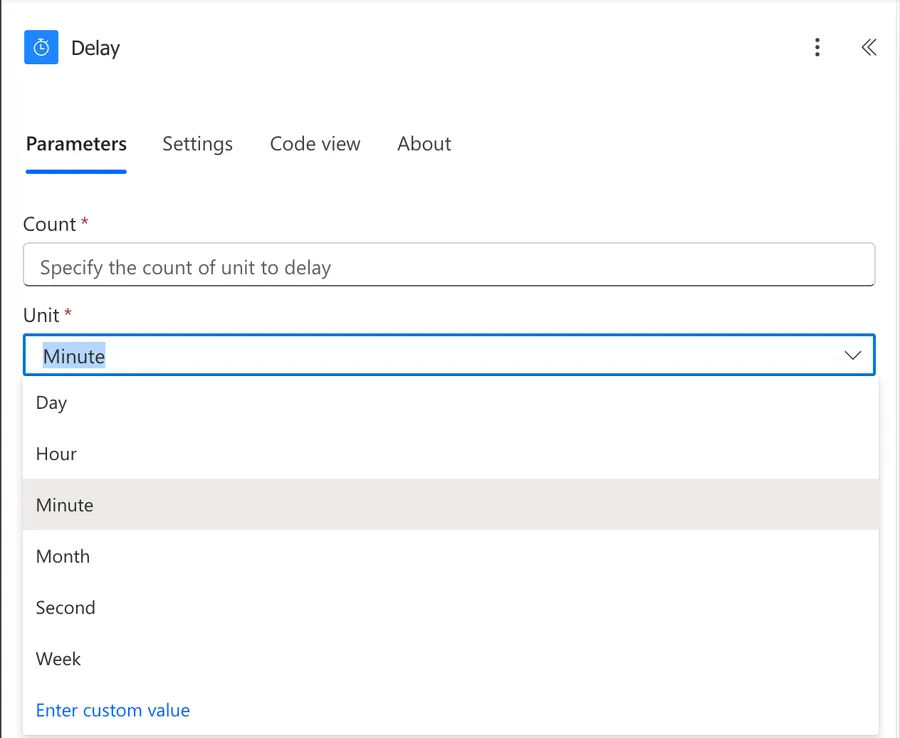
Pick the unit that fits, set the count, and the Flow pauses at that step before continuing. While it waits, the run is genuinely parked on Microsoft's side, so it does not burn any compute or hold a connection open.
Why use it?
More important than how to use it is why? There are a few cases that I think the "Delay" action will be useful, so let's explore a few.
Creating files
If you're creating a file in SharePoint and then, in the next action, do a "Get File Content Using Path" or "Get File Content" Action, for example, the file may not yet be created. Your Flow may fail because it can't find the file the second after you trigger to create it. So adding a delay in these cases helps to avoid a crash in the Flow, but a delay of 1 to 2 seconds will be enough.
Bulk adding values
If you're providing many values to insert in a table, for example, it may be wise to delay a bit between batches. Some systems may limit the number of requests, so you may get errors if you trigger too many calls. The best approach is to connect once and send a defined batch of information, but if it's impossible, look at the logs for random failures.
When Flow and users share files
There may be cases where you have a Flow that edits the same file as other people, and you may get errors in "merging the data." Considering that this is imperative, like in this case, you can define wait times for when you know the users are editing the files. I want to include this case to provide a different view, but I would use the sync mechanisms in Excel and other apps before I try to manage times and slots where one or the other can edit a file.
Where NOT to use it?
Almost anywhere else besides the examples that I mentioned before. There may be more, and I'll be happy to add them if you comment or send me an email, but I see it used in these cases. These are some cases, but there may be a lot more. Use the delay wisely and sporadically.
Waiting for user iteration
This happens a lot in cases like approval processes, for example. Power Automate takes care of this for you, so take full advantage of it.
Calls to APIs
If the API takes longer than expected to report back, then the "Delay" action won't solve it.
Waiting for a date to come
Never do this. Ever!! Your Flow should start and end as fast as possible. If you need something to happen on a date, either define a scheduled Flow that triggers a defined schedule or use some other strategy to trigger the Flow, but never use the "Delay" action to block the Flow until a certain time arrives.
Trigger reminders
The same as above. Store that information somewhere and trigger a Flow that will check if the time has arrived and then send the reminder.
Controlling multiple runs of the same Flow
If you have a Flow that triggers before the previous run finished, don't add the "Delay" action to "wait" for the other to finish. There is a better way by using the "Concurrency Control" in the Flow's trigger. Here's how to do it:
In your trigger, select the Settings:
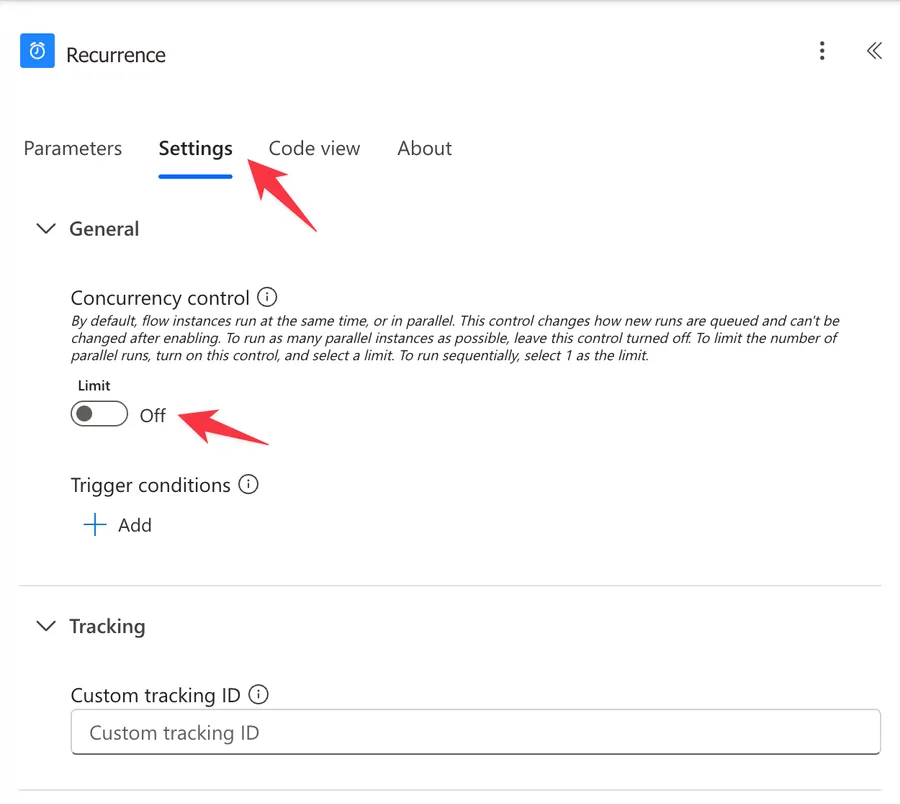
And in the settings, activate the "Concurrency Control" and set it to 1.
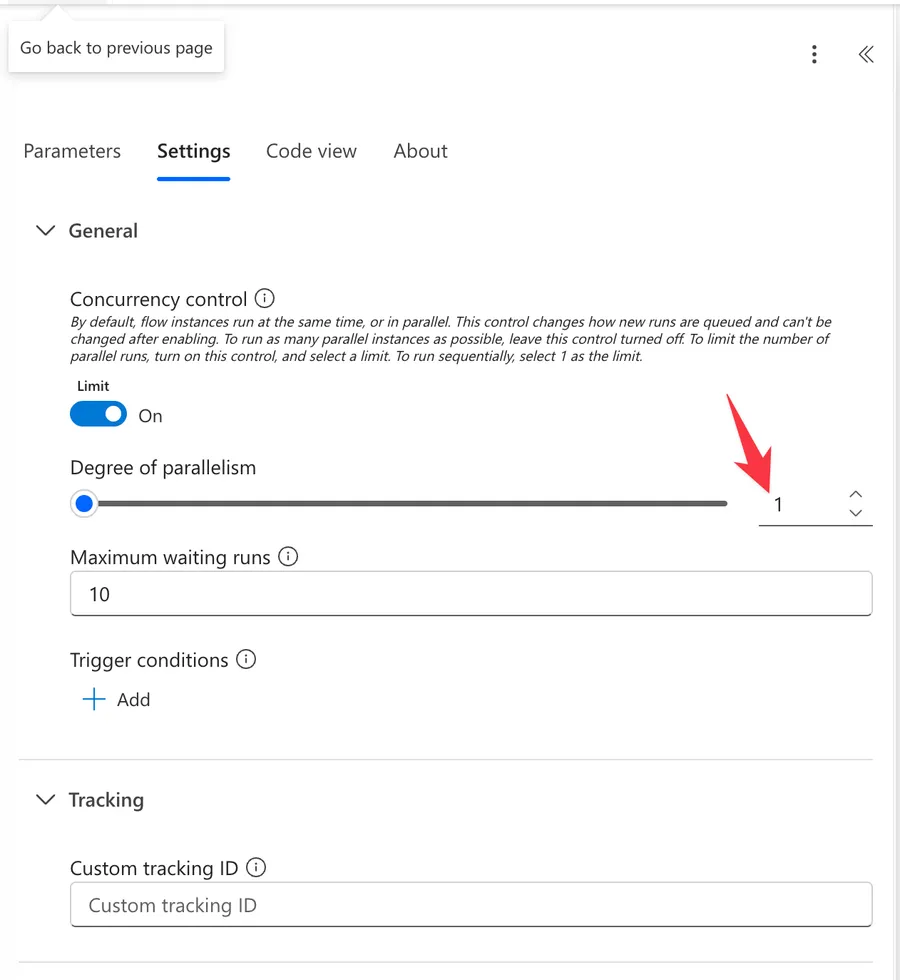
You're setting no parallelization, and that one Flow can only run after the other ends.
Non-intuitive behaviors
You can make the delay dynamic
The Count field is not limited to a hard-coded number. You can pass it an expression, which is handy when an upstream service tells you how long to wait. For example, if a trigger returns a retry hint, you can convert it and feed it straight in:
int(triggerOutputs()?['body/retryAfter'])
triggerOutputs()gets all the data the trigger returned.?['body/retryAfter']safely reads theretryAfterfield, and the?means the expression will not crash if that field is missing.int(...)converts the value to a whole number, since Count expects an integer.
Short delays are approximate, not exact
The "Delay" action is not a precision timer. A one-second delay can resume a little later than a literal second, because the platform schedules the resume rather than blocking a thread. For the use cases where you actually need this action, a second or two of drift makes no difference, so this only matters if you were hoping to use it for tight timing.
It pauses the Flow, it does not run in the background
The whole Flow sits still at the "Delay" step. Nothing after it runs until the wait is over, and nothing before it is affected. If you need other work to continue in parallel, the "Delay" action is the wrong tool, and you should look at splitting the logic into separate Flows instead.
Limitations
The 30-day run limit caps how long you can wait
Cloud Flows have a maximum run duration of 30 days. A "Delay" longer than that will never resume, because the run times out first regardless of which step it is sitting on. This is why the "Week" and "Month" units are mostly there for completeness. Anything that pushes the total run past 30 days is a design problem, not a delay problem.
Count must be a positive integer
You cannot delay by 0, by a negative number, or by a fraction. The smallest valid value is 1, and the action will reject anything else with a validation error.
It is the wrong fit for long or scheduled waits
If you need something to happen on a particular date, do not park a Flow on a long "Delay". Use a scheduled run with the Recurrence trigger, or store the target time somewhere and check it on a schedule. A blocked Flow waiting days for a date is fragile and easy to lose track of.
Troubleshooting Common Errors
The action fails with The provided 'Wait' action interval count '0' is not valid.
- Cause: The Count field resolved to 0, to a blank value, or to a negative number. This often happens when Count is driven by an expression or variable that came back empty.
- Solution: Make sure Count is always a whole number of 1 or more. If it is calculated, guard the value first, for example with a Condition or by using a default when the source is missing.
The step after the "Delay" never runs and the Flow eventually times out.
- Cause: The requested delay is longer than the 30-day run duration, so the run expires before it can resume.
- Solution: Redesign the pattern. Replace the long wait with a scheduled Flow on the Recurrence trigger that checks whether it is time to act.
The "Delay" action looks stuck or will not load in the designer.
- Cause: This is usually a designer or browser cache glitch rather than a problem with the Flow itself.
- Solution: Remove the action, refresh the page (clearing the browser cache helps), then add it back and save.
The "stuck in the designer" behavior shows up in community threads but is intermittent, and I could not reliably reproduce it. Treat the remove and re-add step as a first aid measure rather than a guaranteed fix.
Recommendations
Here are some things to keep in mind.
Use it sparingly, and know the alternatives
A "Delay" is the right answer in a handful of cases. The clearest one is a timing gap, for example when you use SharePoint Create File and then immediately try to read the file with Get File Content Using Path. A short pause of one or two seconds avoids the Flow failing because the file is not ready yet. Light throttling between batches is another fair use.
For most other situations there is a better built-in option, so reach for those first:
- Waiting for someone to respond? Use an approval process, which is built to pause for human input.
- Stopping a Flow from running on top of itself? Use Concurrency Control, not a "Delay".
- Waiting for a slow API to finish? A "Delay" will not help, since the call itself is the bottleneck. Poll with a Do Until loop instead.
"Bad Smell"
Even if you build Flows for a living, if you have to use this action more than a couple of times, then there's something wrong in the process. Adding delays, except for some cases like mentioned above, should always be considered a warning that something should be done differently. Consider this a "bad smell" that something should be reviewed or at least checked.
Name it correctly
The name is super important in this case since the "Delay" action needs to be clear to everyone. Naming it "Delay" doesn't say much, and it could confuse anyone trying to debug your Flow.
Always add a comment
Adding a comment will also help to avoid mistakes. It's essential to add comments to the "Delay" action so that people know that there's a reason to use it. And it better be a good reason; otherwise, removal is the better option.
Always deal with errors
Let your Flow fail graciously when something goes wrong and notify someone that the Flow failed when trying to use this action. It's horrible to have failing Flows in Power Automate since they may go unlooked for a while or generate even worse errors. I have a pattern you can reuse to make your Flows resilient, and you can find all the details in Try, Catch, Finally.
Final Thoughts
The "Delay" action is handy in a few specific situations, but it's rarely the right long-term answer. Use it sparingly, always name and comment it clearly, and treat a Flow full of delays as a sign that something deeper needs rethinking.
Back to the Power Automate Action Reference.
Photo by Andy Beales on Unsplash


No comments yet
Be the first to share your thoughts on this article!