
Today, let's look at one of those actions that sounds simple but trips up a lot of people once they actually try to use it.
The "Get Attachment" action belongs to the Office 365 Outlook connector in Power Automate, and its job is to fetch a single email attachment by its ID and hand you back the file, its name, its content type, and the actual bytes you can save somewhere.
The confusing part is that you often already have the attachments without this action, so it's important to understand where to use it. But I'm getting ahead of myself. Let's take a look at how to use it.
Where to find it?
To find it, search for "Get Attachment" and pick the one under the Office 365 Outlook connector.
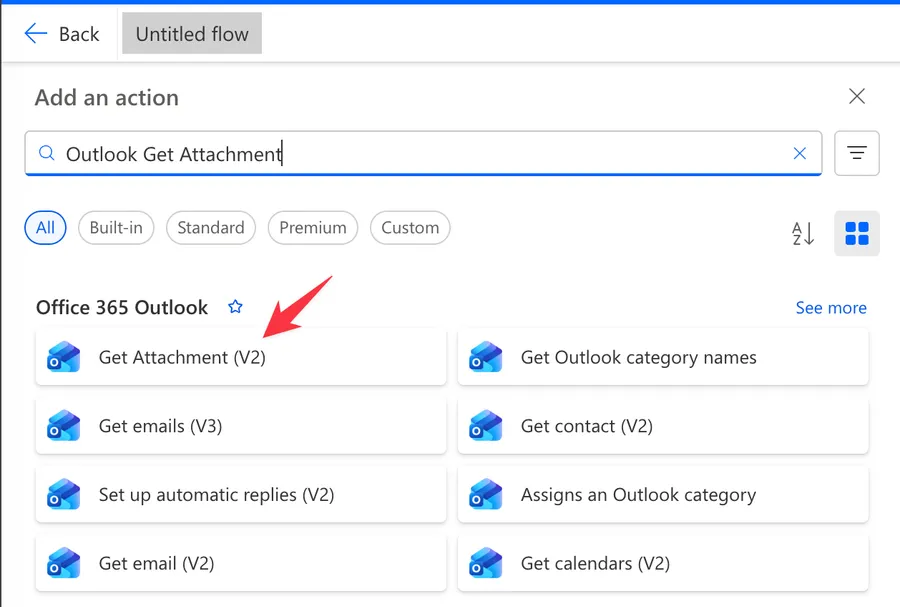
Once you add it, it looks like this:
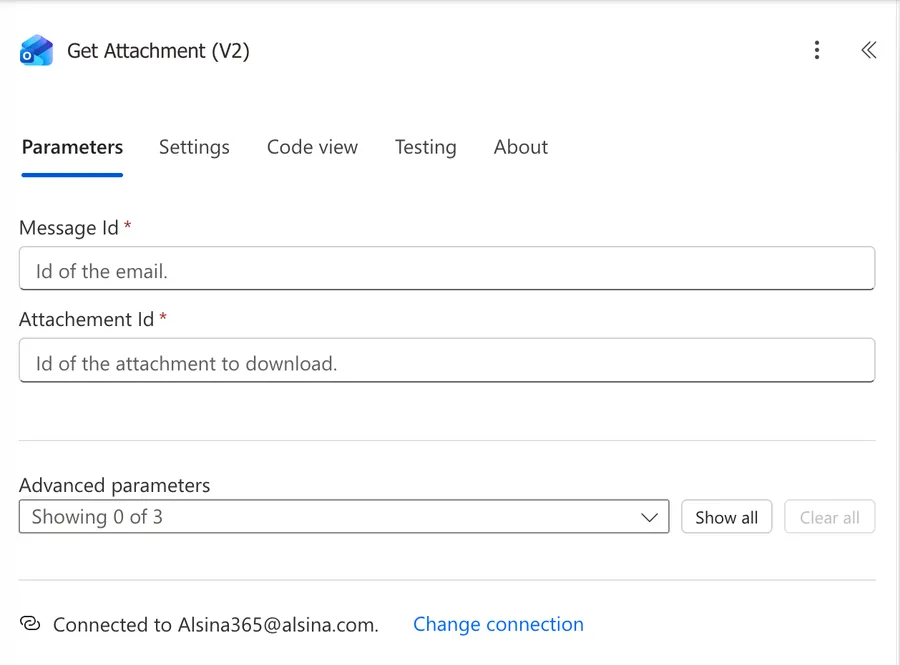
There are two actions with almost the same name. The plain "Get Attachment" is deprecated, and you want "Get Attachment (V2)" instead. They look identical at a glance, but only V2 returns proper structured outputs and supports shared mailboxes. If you're staring at an action that only gives you a single "response" output, you grabbed the old one. Delete it and add V2.
Now that we know how to find it, let's understand how to use it.
Usage
The action only needs two things to work, and both are IDs you'll almost always grab from a previous step rather than type by hand.
Message Id
This is the ID of the email that holds the attachment. You'll normally pull it from the dynamic content of whatever gave you the email in the first place, for example the "When a new email arrives" trigger, the "Get email" action, or a search action that returns a list of messages.
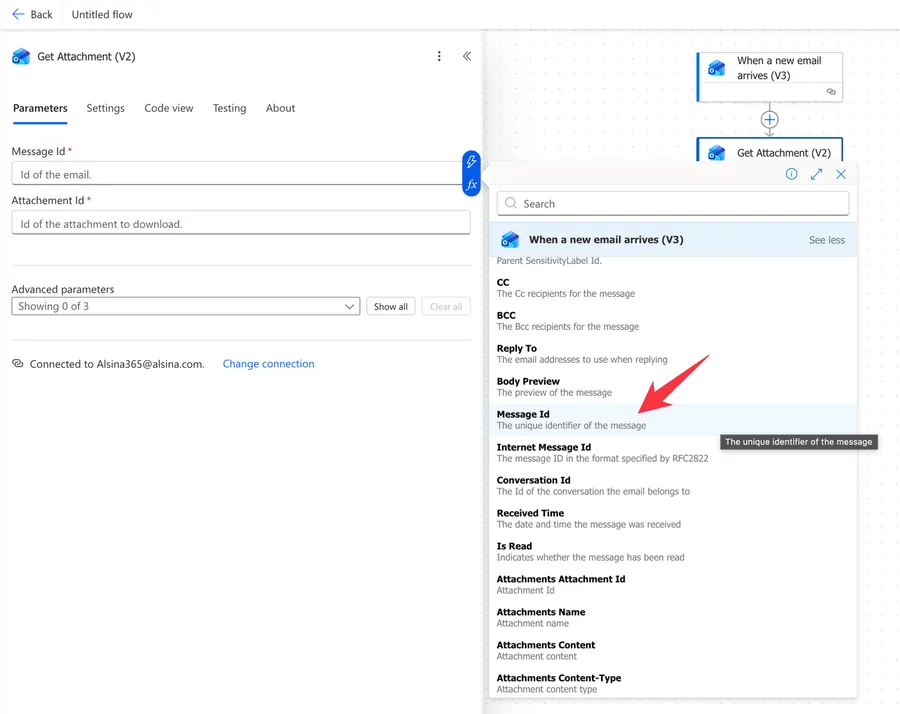
Notice that I picked "Message Id" and not "Internet Message ID" or "Conversation Id". Be careful because they have different structures and are not at all the same.
Attachment Id
This is the ID of the specific attachment you want to download. A single email can carry many attachments, so each one has its own ID. You'll feed this field the attachment's ID, which usually comes from looping over the email's attachments collection (more on that in a moment).
Original Mailbox Address (advanced)
If the email lives in a shared mailbox, expand the advanced options and fill in the "Original Mailbox Address" with the shared mailbox's email address. Without this, the action tries to read from the connection's own mailbox and fails, because the message simply isn't there. This is the single most common reason "Get Attachment" misbehaves, so keep it in mind whenever shared mailboxes are involved.
Extract Sensitivity Label (advanced)
If your tenant uses sensitivity labels, you can toggle this on to have the action return the label metadata alongside the attachment. Most flows leave it off, so don't worry about it unless you specifically need that information.
Using the action outputs
Once it runs, the action returns the attachment as structured data. Here are the outputs you'll work with.
| Output | Description | Example value |
|---|---|---|
| Id | The attachment's ID | AAMkAGI2...= |
| Name | The file name, including extension | invoice.pdf |
| Content Type | The MIME type of the file | application/pdf |
| Size | The size in bytes | 48213 |
| Content Bytes | The actual file content, base64 encoded | JVBERi0xLjQ... |
| Is Inline | Whether it's an inline image rather than a real attachment | false |
| Last Modified DateTime | When the attachment was last modified | 2026-06-09T10:15:00Z |
The one you'll reach for almost every time is Content Bytes, because that's the file itself. The catch is that it's not a file yet, it's a base64 string, which leads us straight into the behaviors that surprise people.
Non-intuitive behaviors
You might already have the attachments
This is the big one. If you're using the "When a new email arrives" trigger or the "Get email" action with the "Include Attachments" option set to "Yes", the attachments already come back with their content bytes inside the trigger or action output. In that case, calling "Get Attachment" again is wasted work, you already have everything.
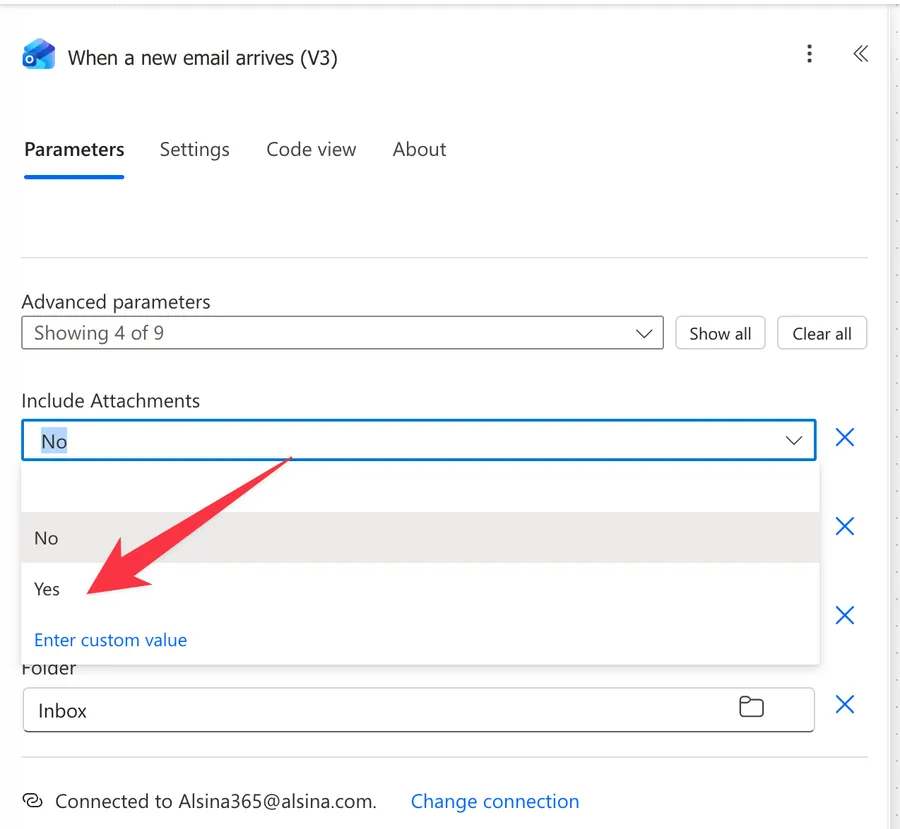
So when do you need it? When you only have the attachment metadata but not the content. That happens when "Include Attachments" was off, when you stored just the IDs earlier, or when you're working from a list of messages where pulling every attachment up front would be too heavy. "Get Attachment" is the action you call to fetch the bytes on demand, one attachment at a time.
I would recommend using the "When a new email arrives" trigger with the "Include Attachments" to "no" and then fetch them if needed. This way you have a faster trigger and don't get information that you don't need.
You almost always need an "Apply to each"
An email can have several attachments, so the attachments property is a collection, not a single item. The moment you reference an attachment's ID inside a flow, Power Automate wraps your steps in an "Apply to each" action automatically, because it has to walk through each attachment in turn.
Inside that loop, you'd grab the current attachment's ID with an expression like this:
items('Apply_to_each')?['id']
items('Apply_to_each')gets the current attachment object for this iteration of the loop?['id']safely reads theidfield, using the?so the flow doesn't crash if the field is missing
Feed that into the "Attachment Id" field and the action fetches one attachment per pass.
Content Bytes is base64, not a file
The "Content Bytes" output is a base64 encoded string. If you take it and write it straight into a text file or a column, you'll end up with a corrupted, unusable file. To turn it back into a real file, you usually don't have to do anything special, because most "Create file" actions accept the base64 content directly. For example, you can pass it to the SharePoint "Create File" action or the OneDrive "Create file" action and they handle the decoding for you. By "decoding" I mean storing the file correctly without issues.
If you ever need the raw binary yourself, you can convert it with the "base64ToBinary" function:
base64ToBinary(outputs('Get_Attachment_(V2)')?['body/contentBytes'])
outputs('Get_Attachment_(V2)')grabs the full output of the action?['body/contentBytes']safely reads the base64 content from the bodybase64ToBinary(...)turns that string into actual binary data
Reach for "base64ToBinary" only when something genuinely requires raw binary. For the common case of saving the attachment somewhere, pass "Content Bytes" straight into the "Create file" action and skip the conversion entirely. Converting when you don't need to is the easiest way to end up with a corrupted file.
If you want to understand what's happening under the hood here, I wrote a whole article on Understanding Binary and Base64 in Power Automate that explains why this conversion matters.
Inline images count as attachments
If an email has images embedded in the body (a signature logo, for example), those show up as attachments too, with "Is Inline" set to true. If you're saving attachments somewhere, you'll suddenly find a pile of tiny signature images you didn't expect. Filter on the "Is Inline" output when you only want the real, user-added files.
Limitations
The plain "Get Attachment" is deprecated
As covered above, only "Get Attachment (V2)" should be used in new flows. The original is deprecated, returns a less useful output, and doesn't support shared mailboxes. If you inherit an old flow using V1, plan to migrate it.
Item attachments aren't supported
The connector cannot return "item" attachments, that is, emails or calendar invites attached to another email. If someone forwards you a message with another .msg/.eml email attached, "Get Attachment" can't pull that one out. The workaround people use is to ask senders to zip those files first, since a .zip is treated as a normal file attachment, but if I find a better strategy I will add it here.
Connector throttling
The Office 365 Outlook connector allows roughly 300 calls per connection per 60 seconds. If your flow loops over a mailbox full of emails and fetches every attachment, you can hit that ceiling and start getting 429 Too Many Requests errors. If you're processing high volumes, batch your work or add delays so you stay under the limit.
Size limits
The connector caps mail content at around 49 MB. Very large attachments can fail or time out, so don't assume it will happily move a 100 MB file for you. For big files, rethink the design, for example, have the sender drop large files in storage and email a link instead.
Troubleshooting Common Errors
"The specified object was not found in the store"
Symptom: The action fails with a message about the object not being found in the store.
Cause: The email no longer exists where the action is looking. This usually happens when an earlier step (or a person) moved or deleted the message between the time you captured the Message Id and the time "Get Attachment" runs. It can also happen the very first time a flow connection's mailbox is used, before Exchange has initialized it.
Solution: Make sure nothing moves or deletes the email before this action runs. If it's a brand-new account, sign in to Outlook on the web once with that account to force Exchange to set up the mailbox, then try again.
"Item does not belong to the targeted mailbox"
Symptom: The action fails complaining that the item doesn't belong to the mailbox, even though you can clearly see the email.
Cause: The email lives in a shared mailbox, but the action is reading from the connection's own mailbox. The IDs are valid, they just point at a mailbox the action isn't looking in.
Solution: Expand the advanced options and set "Original Mailbox Address" to the shared mailbox's email address. The Message Id and Attachment Id must come from that same shared mailbox, otherwise the IDs won't line up.
The saved file is corrupted
Symptom: The attachment saves successfully, but the resulting file won't open or looks like gibberish.
Cause: The base64 "Content Bytes" was written as plain text instead of being decoded into a file.
Solution: Pass "Content Bytes" directly into a "Create file" action that expects file content (like the SharePoint or OneDrive ones linked above), or convert it explicitly with the "base64ToBinary" function. Don't drop the raw base64 string into a text field and expect a working file.
Recommendations
Here are some things to keep in mind.
Keep the trigger lean and fetch on demand
My own preference is to set "Include Attachments" to "no" on the trigger (or on "Get email") and only call "Get Attachment" for the attachments I actually need. That keeps every run light and fast, and you don't drag big files through the flow when you might never use them. The flip side is the rule to remember: if "Include Attachments" is already on, the bytes are right there, so don't stack a redundant "Get Attachment" on top. That just costs you an extra API call and some throttling headroom.
Always set the mailbox for shared mailboxes
If there's any chance the email comes from a shared mailbox, set "Original Mailbox Address" from the start. It saves you from the single most common error with this action, and it costs nothing when the mailbox happens to be a personal one.
Name it correctly
The name is super important here, because you'll often have several attachment-related steps inside a loop. Rename the action to say what it fetches, for example "Get Attachment for invoice", so others can understand your flow without opening every action and reading the details.
Always add a comment
Adding a comment will also help avoid mistakes. Indicate where the Message Id and Attachment Id come from, and what you intend to do with the file. It's essential to enable faster debugging when something goes wrong.
Always deal with errors
Have your flow fail graciously and notify someone when an attachment can't be fetched. Attachments are exactly the kind of thing that breaks quietly, a moved email, a shared mailbox tweak, a size limit, and you want to know before your users do. I have a template that you can use to make your flow resistant to issues. You can check all the details here.
Final Thoughts
The "Get Attachment" action is super useful but as you've seen there are a few things to take into consideration. You often already have the attachment without it (although I recommend not fetching them in the trigger). The content it returns is base64, not a ready-made file. Set the mailbox address for shared mailboxes.
It's not a lot but these are super common mistakes.
Also remember that this is V2. It has new features and since V1 is deprecated there's no real reason to use V1.
Back to the Power Automate Action Reference.
Photo by khampha phimmachak on Unsplash



No comments yet
Be the first to share your thoughts on this article!