
The "join" function is handy, although I don't see many people using it. It converts an array into a string with a delimiter, and at first you may not see a direct usage for it. Then you need to turn a list of email addresses into something the "To" field will accept, or build a CSV line out of a collection, and suddenly it's the one function standing between you and a loop.
It's one of the small Power Automate functions that quietly removes work. Let's look at how it behaves, and at the few places where it does something you didn't expect.
Where to find it?
The "join" function lives in the Collection functions group of the expression picker, and you can use it anywhere an expression is supported. Start typing join( and the editor shows you the signature, which is a quick way to remember which parameter comes first. In practice you'll write it inside a "Compose" action, an "Initialize variable" action, or right after a "Select" action has reshaped your data.
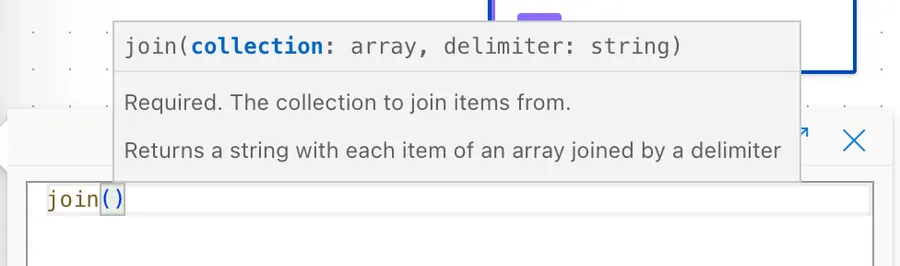
There's also a "Data Operation, Join" action that does the same job with a From box and a Join with box. The action is easier to read in a Flow that other people will maintain, and the function is better when you want the result inline without adding a step. I use the function most of the time and the action when the expression would otherwise get long.
The "split" function is the exact opposite. "join" takes an array and gives you a string, "split" takes a string and gives you an array. They pair up nicely, but reaching for the wrong one is the most common mix-up.
Usage
The function takes two parameters, and both of them are required.
join([<collection>], '<delimiter>')
| Parameter | Required | Type | Description |
|---|---|---|---|
| collection | Yes | Array | The array holding the items you want to join |
| delimiter | Yes | String | The separator placed between each item |
The return value is always a string. There's no single-argument version, so if you want the items glued together with nothing between them, pass an empty string as the delimiter.
Basic example
join(createArray('Apple', 'Orange', 'Pear'), ',')
That returns Apple,Orange,Pear. The "createArray" function is only there to build the sample, since in a real Flow the array comes from an action.
Notice that "join" uses the delimiter to separate the values and nothing more. It doesn't add it at the beginning or at the end of the resulting string, which is exactly what you want when you're building a recipient list or a CSV line.
The delimiter can be a whole string
The delimiter doesn't have to be a single character, so you can get creative:
join(createArray('Apple', 'Orange', 'Pear'), 's and ')
That returns Apples and Oranges and Pear. We're doing two things at once here, separating the items and adding an s to the end of each one. Look closely at the last word though. Because the delimiter only goes between items, "Pear" never gets its s. That's the rule from the previous example biting back, and it's worth remembering before you build anything clever on top of a delimiter that carries text.
Joining with a line break
If you want one item per line in an email body, this is where people get stuck. Writing \n inside the expression does not give you a line break, it gives you the literal characters \ and n, because the expression language has no backslash escapes at all.
Use the "decodeUriComponent" function instead:
join(createArray('Apple', 'Orange', 'Pear'), decodeUriComponent('%0A'))
That gives you a real line break between each item:
Apple
Orange
Pear
Use %0D%0A instead of %0A if the destination wants a carriage return as well. If the output is going into an HTML email body, <br> works just as well and is easier to read.
Special characters and emoji work fine
The delimiter is just a string, so nothing stops you from using it for decoration:
join(createArray('Apple', 'Orange', 'Pear'), '😀 ')
That returns Apple😀 Orange😀 Pear.
Mixed data types work too
You can throw an array with different data types at it and it will handle them:
join(createArray('Apple', 2, 3), ', ')
That returns Apple, 2, 3. The numbers get converted to text on the way out.
Real-world examples
Building a recipient list for an email
This is the one you'll use most, and it's the example Microsoft's own documentation reaches for. Your Flow receives a list of addresses as an array, and the email action wants them as one string separated by semicolons:
join(triggerBody()?['recipients'], ';')
Drop that into the To field of your email action and you're done. The ?[] keeps it safe, so a missing property returns null instead of failing the whole expression.
Turning records into a readable list
Maria's Flow reads a SharePoint list and needs the names in a summary email. The records are objects, so you can't join them directly. Run a "Select" action first to pull out just the field you want, then join that:
join(body('Select')?['value'], ', ')
Building a CSV line by hand
There's a "Data Operation, Create CSV table" action, and it's the right tool most of the time. When you need control over the header row, the quoting, or the order of the columns, building the lines yourself is the escape hatch:
join(createArray('Name', 'Department', 'Status'), ',')
Join each row the same way, then join the rows together with decodeUriComponent('%0D%0A') to get the line breaks a CSV file expects.
Non-intuitive behaviors
Here are the behaviors that catch people off guard with the "join" function.
The delimiter never appears at the ends
This is the function's best feature and its most common trap. join(createArray('a', 'b', 'c'), ',') gives you a,b,c, never ,a,b,c,. It's perfect for recipient lists and CSV rows, and it quietly breaks any pattern where you were treating the delimiter as a suffix on every item.
If your delimiter is something like 's and ', the final item never receives it. Build the suffix into the array before joining if every item needs it.
\n is not a line break
The expression language has no backslash escape sequences. Writing '\n' puts a backslash and an n into your output, which is why so many emails end up reading Apple\nOrange\nPear. The fix is decodeUriComponent('%0A'), and Microsoft's expression cookbook now calls this out directly.
It wants an array of simple values
"join" is built for arrays of strings and numbers. If your array holds objects, which is what almost every SharePoint or Excel action gives you, run a "Select" action first to reduce each record to the single value you actually want. Microsoft's documentation recommends the same thing.
Whitespace is preserved exactly as you typed it
The delimiter goes in literally, so ', ' really does put a space after every comma, and nothing gets trimmed. That's usually what you want, but it means a stray space in the delimiter shows up in every gap of the result.
Limitations
The result has a documented ceiling
Microsoft documents that the length of the result must not exceed 104,857,600 characters. I tried to break the function with an array of a thousand elements back when I first wrote this, and it didn't even notice, which makes sense now. A thousand items is nowhere near the limit.
You'll hit other limits long before that one
In practice something else gives out first. A Power Automate message is capped at 100 MB, an "Apply to each" action tops out at 100,000 items on most plans and 5,000 on the low-throughput ones, and whatever you're feeding the result into has its own limit. A SharePoint single line of text column holds 255 characters, and an email "To" field has its own recipient cap. Those are the walls you'll actually meet.
The expression itself is capped at 8,192 characters
That's the source text you type, not the output. It only bites when you hand-build a long createArray(...) literal or nest "join" inside a much bigger expression. Break long expressions into "Compose" actions and reference them instead.
The delimiter must be a string
Passing a number gives you an error rather than a helpful conversion. There's more on that in the troubleshooting section below.
Troubleshooting Common Errors
The function expects its second parameter to be of type string
Cause: You passed a number, a boolean, or null as the delimiter. It happens most often when the delimiter comes from a variable or a Flow input rather than being typed in place.
Solution: Wrap it in the "string" function, or add the quotes if it's a literal.
join(variables('Fruits'), string(variables('Delimiter')))
The function expects its first parameter to be an array
Cause: You pointed the expression at the body of an action instead of at the array inside that body. A "Select" action or a "SharePoint Get Items" action returns an object, and the array sits in a property inside it.
Solution: Reach the array explicitly and keep the safe navigation.
join(body('Get_items')?['value'], ', ')
The error appears when you save instead of when you run
Cause: This isn't a different problem, it's the same one caught earlier. When every value in the expression is a constant, the engine can evaluate it at save time and rejects it there as an InvalidTemplate error. When a value comes from a variable or a trigger, it can only fail during the run.
Solution: Read the message the same way in both cases. The parameter it names is the parameter to fix.
Recommendations
Here are some things to keep in mind when using the "join" function.
Don't build everything in the same expression
Keep the collection and the delimiter in separate variables. You end up with a couple more actions, and in exchange you can see the individual values in the run history before the join happened, which is exactly what you need when something goes wrong.
Have a fallback when you're converting values
If the join is doing something important, give yourself a failsafe. It isn't common for it to go wrong, but a parallel branch costs you very little. If you don't know how to set one up, my article on how to make a Flow fail proof explains the reasoning and the steps.
You can nest it, just not inside another join
"join" returns a string, so it drops happily into any function expecting a string. toUpper(join(variables('Fruits'), ', ')) and concat('Fruits: ', join(variables('Fruits'), ', ')) both work fine. What you can't do is feed the result into something that needs an array, and that includes a second "join". If you need to work on the pieces again, run the result through the "split" function first.
Sort before you join when order matters
The "sort" function arrived after this article was first written, and it pairs well with "join". One expression now gives you an alphabetized, delimited list:
join(sort(variables('Names')), ', ')
Guard against an empty collection
If there's any chance the array comes back empty, wrap it. Community reports say an empty array can make the expression fail, and I haven't found that documented either way, so I treat it as worth defending against rather than something to rely on. The "coalesce" function or a "Condition" action before the join will both do the job.
Always add a comment
Adding a comment will help others understand your expression. Say what the delimiter is for, because ';' in an expression never explains on its own that the email action needed semicolons.
Final Thoughts
The "join" function does one small thing and does it without a loop, a counter, or a variable you have to reset. Keep two rules in your head and it will behave every time. The delimiter only ever goes between the items, never at the ends, and \n is not a line break. Everything else is just picking the right separator for whatever is waiting on the other side.
Sources
- join function, Reference for functions in workflow expressions, Azure Logic Apps and Power Automate
- Expression cookbook for cloud flows
- Data operations in Power Automate
- Limits and configuration for Power Automate
- Limits and configuration reference for Azure Logic Apps
Back to the Power Automate Function Reference
Photo by Tim Johnson on Unsplash



I am using this method for my situation but I need some additional guidance, please!
My colleague asked me to collect some data in a Power App using checkboxes instead of a multi-select combo box so that it will make her reporting in PowerBI easier. (I don't know enough about PowerBI yet to know if this a valid request or not so I'm just doing as she asks.) I am submitting the data back to text fields in a SharePoint list. So if I have these fields, for example:
check1
check2
check3
...when the value of each is true, it submits back "Yes" to the associated list column; otherwise it submits "No".
In my workflow, I created string variables that were set to an expression:
if(equals(triggerOutputs()?['body/check1'], 'Yes'), 'Check 1', '')
...same format for check2 and check 3 variables.
Then I used your steps above to join the results of these variables in a Compose step:
join(createArray(variables('varCheck1'),variables('varCheck2'),variables('varCheck3')), ', ')
But the problem with this method is that if any one of the checkboxes was not checked, then it includes a blank and still includes the comma, like:
Check 1, , when only check1 was selected.
I assume if I only checked check2 it would end up as:
, Check 2
etc.
I need to get the values into a string so I can insert it into the title of an email so the team knows which type(s) of requests were submitted. Any recommendations on how to handle this would be greatly appreciated! Thanks!
Hi, is there a function to do de inverse?
i mean, a function that takes a string with separators and converts it to an array?
Thanks
Hi Miguel,
Yes, there is—the "split" function. You provide a string and the separator you want, and it returns an array.
You can find the details here:
https://manueltgomes.com/reference/powerautomate-function-reference/power-automate-split-function/
Cheers
Manuel