
I've mentioned this in other articles, but time zones are a mess. There are so many examples of exceptions, issues, and even Microsoft has a time zone issue that they will never fix.
So if you take one thing from this article, it's this: never, ever, EVER try to convert time zones manually. You will be wrong, and it will generate more headaches than you can count.
There are functions to do this for you, and the "convertTimeZone" function takes a timestamp in one zone and gives it back to you in another, in a single expression, with daylight saving already worked out for you.
Did I mention you should never convert a time zone manually? I'll stop, sorry.
It sits between its two narrower siblings. The convertFromUtc function only goes out of UTC, and the convertToUtc function only goes into it. The "convertTimeZone" function goes from anywhere to anywhere, which makes it the most flexible of the three and also the one with the most ways to get the parameters wrong.
Finally, this is a Power Automate function, but if you prefer, you have the "Convert time zone" action that does basically the same thing but in the form of an action. If you don't need to build a complex expression, maybe take a look at it, since it can make things easier.
Where to find it?
You can use the function anywhere an expression is supported in Power Automate, most often inside a "Compose" action, an "Initialize variable" action, a "Condition" action, or straight in the body of an email where a person is about to read the date.
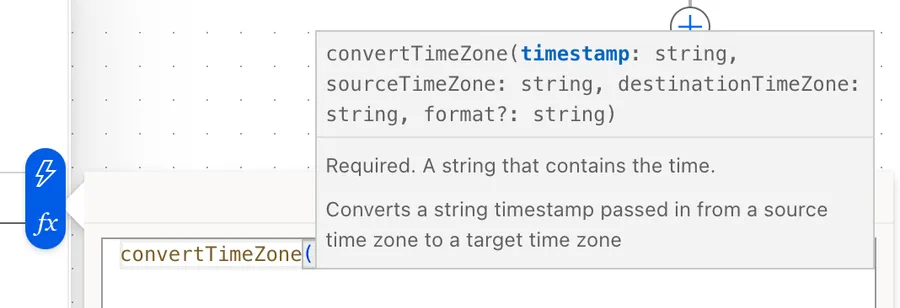
There is also a "Convert time zone" action that does the same job with dropdowns instead of typing. The action is friendlier. The function is free.
Usage
The "convertTimeZone" function takes three required parameters and one optional one:
convertTimeZone('<timestamp>', '<sourceTimeZone>', '<destinationTimeZone>', '<format>'?)
| Parameter | Required | Type | Description |
|---|---|---|---|
| timestamp | Yes | String | The timestamp you want to convert. Microsoft's reference only calls it "the string that contains the timestamp", but in practice it has to parse as ISO 8601 or the call fails |
| sourceTimeZone | Yes | String | The Windows name of the zone the timestamp is currently in |
| destinationTimeZone | Yes | String | The Windows name of the zone you want the timestamp moved to |
| format | No | String | A standard format specifier or a custom format pattern. Defaults to o, which is yyyy-MM-ddTHH:mm:ss.fffffffK. An invalid value raises an error |
All four parameters are text, so all four get quotes. That means the mistakes here are about the contents of the strings rather than their shape.
Basic example
The simplest call moves a UTC timestamp to the American west coast, which is Microsoft's own example:
convertTimeZone('2018-01-01T08:00:00.0000000Z', 'UTC', 'Pacific Standard Time')
That returns 2018-01-01T00:00:00.0000000.
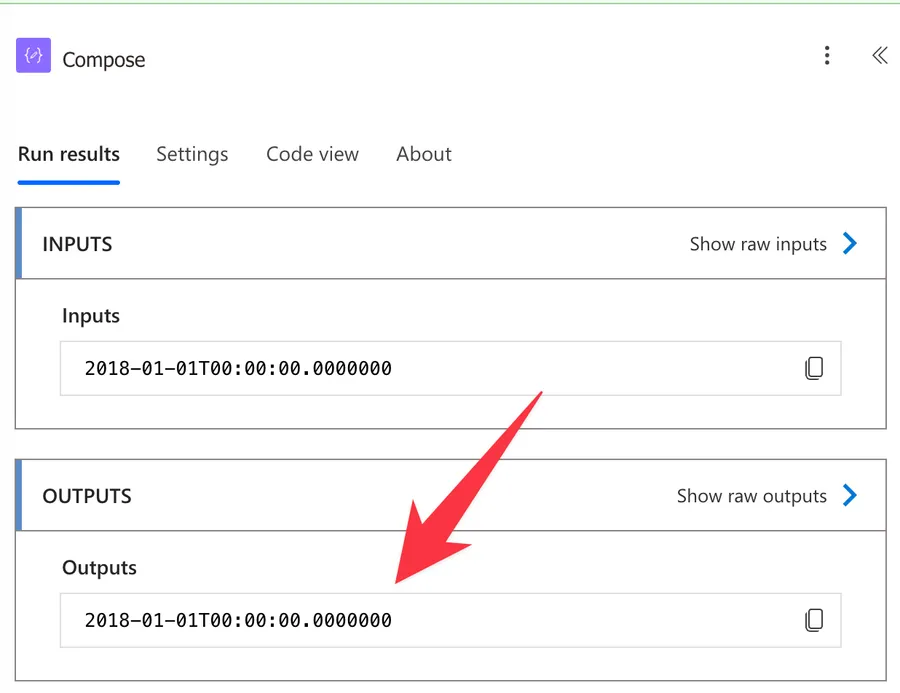
January puts the Pacific zone eight hours behind UTC, so 08:00 becomes midnight on the same date. Look closely, because the Z that went in is not on the way out. More on that below, since it is the most consequential thing about this function.
Using a format string
The fourth parameter shapes the output, and you want it any time the value is going in front of a person:
convertTimeZone('2018-01-01T08:00:00.0000000Z', 'UTC', 'Pacific Standard Time', 'D')
That returns Monday, January 1, 2018. You can also build your own pattern, using the "utcNow" function:
convertTimeZone(utcNow(), 'UTC', 'GMT Standard Time', 'dd-MM-yyyy HH:mm')
The patterns are the same ones the formatDateTime function uses, so anything you already know from there carries over.
Using dynamic content
The timestamp rarely comes from a literal. It usually arrives from a trigger, so pull it out with the triggerBody function and safe navigation:
convertTimeZone(triggerBody()?['Date'], 'UTC', 'Eastern Standard Time', 'HH:mm')
Let's break that down:
triggerBody()gets the payload the trigger produced.?['Date']reads the field, and the question mark means a missing field gives you a null instead of a crash. The full argument for that habit is in why you need the question mark operator.'UTC'tells the function how to read the incoming value.'Eastern Standard Time'is where it should end up.'HH:mm'trims it to a clock time, because that is all the email needed.
Going between two zones that are not UTC
This is the reason the function exists. Neither sibling can do this in one call:
convertTimeZone('2026-07-16T09:00:00.0000000', 'W. Europe Standard Time', 'India Standard Time', 'dd-MM-yyyy HH:mm')
Berlin in July runs two hours ahead of UTC, and India runs five and a half hours ahead, so 09:00 in Berlin returns 16-07-2026 12:30.
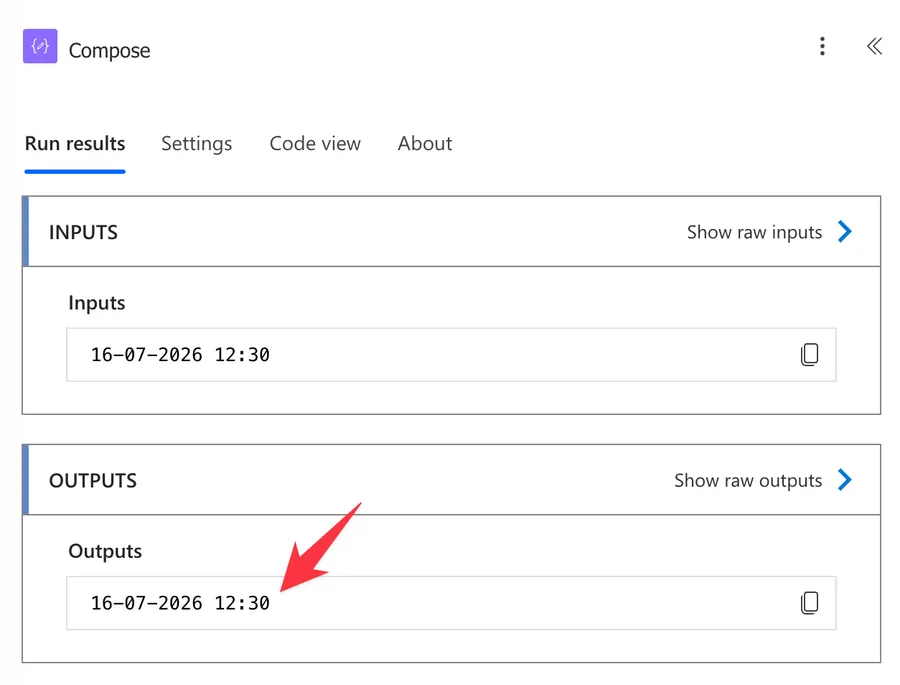
With "convertToUtc" and "convertFromUtc" that is a nested expression. Here it is one line.
Real-world examples
A meeting invitation people can read
João is in Lisbon, and the trigger gives you the start time in UTC. Rather than making him do arithmetic in his head, put the local clock time straight into the email body:
convertTimeZone(triggerBody()?['StartTime'], 'UTC', 'GMT Standard Time', 'dddd, dd MMMM yyyy HH:mm')
A 09:00 UTC start in July reads Thursday, 16 July 2026 10:00, because Lisbon runs an hour ahead of UTC in the summer. In January, the same 09:00 start reads 09:00, because it doesn't. You never touch the expression. The zone does the thinking.
A daily report labeled with the right local date
You have a scheduled Flow on a "Recurrence" trigger that runs at 01:00 UTC and names the output file after "today". At that hour it is still the evening of the day before in New York, so utcNow() and the calendar on the wall disagree, and every file ends up dated a day ahead of the data it contains. Convert first, then name:
concat('daily-report-', convertTimeZone(utcNow(), 'UTC', 'Eastern Standard Time', 'yyyy-MM-dd'), '.xlsx')
The concat function glues it together. On the run that starts at 01:00 UTC on July 17, the file lands as daily-report-2026-07-16.xlsx, matching the calendar of the people who will open it. Leave the conversion out and the same run names it daily-report-2026-07-17.xlsx, a day ahead of everything inside it.
An office-hours check
Maria's team should only be paged during working hours in Lisbon, and the trigger fires in UTC. Convert to the local hour, then compare:
less(int(convertTimeZone(utcNow(), 'UTC', 'GMT Standard Time', 'HH')), 18)
The int function turns the two-character hour into a number, because "convertTimeZone" hands back text and the less function wants both sides to be the same type. Skip it and you are comparing the string '09' to the number 18, so the Flow fails outright with "the template language function 'less' expects two parameters of matching types". Quoting the 18 instead would get you a string comparison that runs, and sorts alphabetically, which agrees with you until the day it doesn't.
Non-intuitive behaviors
Let's look at the behaviors that catch people off guard with the "convertTimeZone" function.
The output loses its time zone marker
This is the big one. Feed the function 2018-01-01T08:00:00.0000000Z and you get back 2018-01-01T00:00:00.0000000. No Z, no -08:00, nothing. The value is correct for the Pacific zone, but the string carries no evidence of that, so every system downstream is free to guess.
That guess is usually "this must be UTC". Write the result into a SharePoint date column and it can be read as 00:00 UTC, eight hours from what you meant. This function is for values that people read. The moment a value goes back into a system that stores or compares dates, keep it in UTC and let the display layer localize it.
A converted timestamp inside an OData filter query is a bug waiting for a season change. Compare in UTC against columns stored in UTC, and convert only what you print.
"Standard Time" in the name does not mean standard time in the result
Every Windows zone id says "Standard Time", including the ones that spend half the year on daylight saving. Pacific Standard Time means "the Pacific zone", not "UTC minus eight forever". Convert an August timestamp with it, and the result sits seven hours behind UTC, because the zone was on daylight saving that day and the function knew.
This is what you want, and it is also why people report the function being "an hour off". It is not off. It applied the rule in force on the date you gave it, which is very often not the rule in force today.
The source zone is a parameter, not a decoration
The second parameter tells the function how to read the timestamp you handed it, so it has to agree with that timestamp. Microsoft's own examples pass a UTC value alongside 'UTC'. If somebody typed a local wall clock time into a form instead, the source is that person's zone.
Getting this wrong does not throw an error. It shifts everything by the difference between the two zones, silently, for as long as nobody checks.
The result is a string, not a date
The output is text, like every date value in Power Automate, so you cannot do arithmetic on it directly. To measure a gap, reach for the dateDifference function, or turn both sides into numbers with the ticks function first.
Limitations
Windows zone names only
The zone parameters take Windows time zone ids. IANA names like Europe/Lisbon or America/New_York do not work, and neither do the abbreviations everybody says out loud, so PST, CET, and BST are all rejected. It is GMT Standard Time for Lisbon, London, and Dublin, W. Europe Standard Time for Amsterdam, Berlin, and Rome, and Pacific Standard Time for the American west coast. Microsoft publishes the full list in its Windows default time zones reference.
The names are also less obvious than they look. Portugal is grouped with the United Kingdom rather than with Spain, and Australia has both E. Australia Standard Time and AUS Eastern Standard Time, which share an offset but disagree about daylight saving.
Drop a "Convert time zone" action on the canvas, pick your zone from its dropdown, then open the code view and copy the exact string it used. No guessing, no typos.
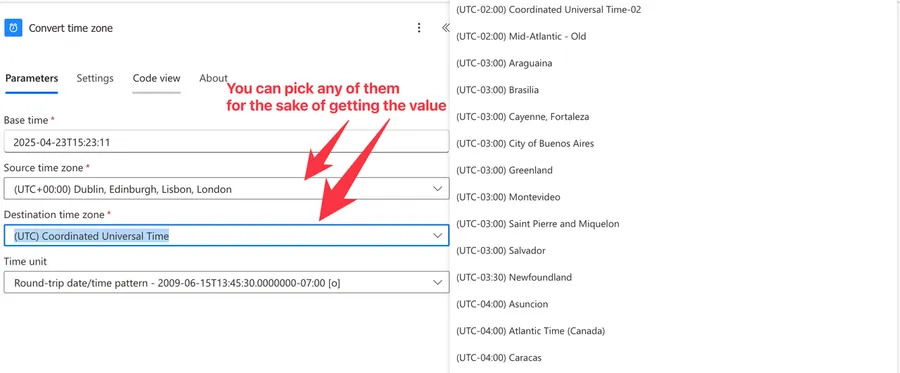
Microsoft's reference notes that "you might have to remove any punctuation from the time zone name" when passing it to this function. Every working example keeps the punctuation, including Microsoft's own, so if a name with a full stop such as W. Europe Standard Time is rejected in your tenant, try it without.
It cannot invent a zone that is not on the list
There is no offset parameter, so you cannot ask for "UTC plus three and a half" unless a zone exists with that rule. If your requirement is genuinely a fixed offset rather than a real place, the addHours function is the blunter but more predictable tool, and it behaves the same way all year round.
Expression size limits
As with every Power Automate expression, you have a ceiling of 8,192 characters. Nesting conversions inside conditionals inside string building eats that faster than you would think, so break the long ones into "Compose" actions.
Troubleshooting Common Errors
The function expects its fourth parameter to be a string that contains a date time format
Cause: The format parameter arrived as null. This is most common with the "Convert time zone" action, whose Format string field carries no required marker but is not happy being left empty. In an expression, it happens when the parameter comes from a variable or column that turned out blank.
Solution: Either omit the parameter entirely, which gives you the default o format, or make sure it always has a value. The coalesce function is a tidy guard when the pattern is dynamic.
convertTimeZone(utcNow(), 'UTC', 'GMT Standard Time', coalesce(variables('Format'), 'dd-MM-yyyy'))
Invalid time zone id
Cause: The zone name is not one Windows recognizes. An IANA name, an abbreviation, a friendly display label copied from a dropdown, or a stray space all land here. So does passing the arguments in the wrong order, which is why people occasionally see a timestamp reported back as an invalid zone id.
Solution: Copy the exact id out of the "Convert time zone" action code view, and check your parameters read timestamp, source, destination, in that order.
The date time string must match ISO8601 format
Cause: The timestamp is not ISO 8601. A value like 16/07/2026 09:00 is a perfectly good date to a person and meaningless to this function. An empty field produces the same error, since an empty string is not a valid timestamp either.
Solution: Run real timestamps through the formatDateTime function before passing them in, and guard the empty case with the empty function and the if function.
if(empty(triggerBody()?['Date']), '', convertTimeZone(triggerBody()?['Date'], 'UTC', 'GMT Standard Time', 'HH:mm'))
The result is an hour out, but only for part of the year
Cause: Daylight saving, and almost always because something in the chain used a fixed offset instead of a zone. Adding one hour to a UTC timestamp gives you Lisbon in the summer and lies to you all winter.
Solution: Let the zone do the work. convertTimeZone(utcNow(), 'UTC', 'GMT Standard Time') is correct in every month of the year, which is more than any hard-coded offset can promise.
The value looks right in the run history and wrong in SharePoint
Cause: The missing marker. The converted string carries no Z, so the destination read it as UTC and shifted it a second time on the way in.
Solution: Store UTC, display local. Write the raw utcNow function output, or the untouched trigger value, into the column, and keep "convertTimeZone" for the email, the file name, or the message a person will read.
Recommendations
Here are some things to keep in mind when using the "convertTimeZone" function.
Convert at the edges, not in the middle
Do the whole Flow in UTC and convert once, at the last possible moment, right where the value becomes text a human will read. Every conversion in the middle is another chance for a value to lose its marker and get shifted again by something downstream.
Put the zone in a variable
If a Flow names the same zone in five expressions, one of them will eventually say Eastern Standard time. Set it once with an "Initialize variable" action and reference it through the variables function everywhere else. When the business moves office, you change one action.
Reach for the narrower function when it fits
If one end really is UTC, "convertFromUtc" and "convertToUtc" say so in their names and give you one less parameter to get wrong. Save "convertTimeZone" for the two-sided conversions, where it has no competition.
Test both sides of the clock change
Run your expression against a January date and a July date before you ship it. Two minutes in a "Compose" action catches the whole family of bugs that otherwise stay hidden until the clocks change.
Always add a comment
Adding a comment will help others understand your expression. Say which zone the value is in when it arrives and which one it is in when it leaves, because the expression shows the ids and never explains why those two.
Final Thoughts
The "convertTimeZone" function does one job properly. Give it a timestamp, tell it where that timestamp is and where you want it, and it hands back the right local time with daylight saving already accounted for. Remember the two rules that trip everyone up. The names are Windows names and nothing else, and the result comes back without its time zone marker, so it belongs in a message rather than in a database column. Keep your Flow in UTC, convert at the edge, and the whole subject becomes boring again.
Sources
- convertTimeZone in the workflow definition language functions reference
- Convert a time zone in Power Automate
- Microsoft Windows default time zones
- Standard date and time format strings
- Custom date and time format strings
Back to the Power Automate Function Reference
Photo by Donald Wu on Unsplash


No comments yet
Be the first to share your thoughts on this article!