
I get this question quite frequently in multiple variations, but the problem is always the same. You create a schema using a JSON that you get from somewhere, but when you run your Flow, you get an "Invalid type. Expected X but got Null". The problem has a simple solution (you can check it below), but I'll first show you why it happens to better frame the solution.
The problem
The issue is in the schema that the "Parse JSON" action requires to run. When you use the "Generate from Sample", Power Automate will try its best to build the schema that describes the data received.

You don't need to know what a schema is, but if you're curious, here's an article explaining it in detail.
The schema describes the type of data that the JSON has. Think of it as a translator between JSON and "Power Automate language" so you can then pick the fields from the "Dynamic content" in other actions.
For example, let's say that we have the following JSON:
{
	"name": "Manuel Gomes",
	"age": 41,
	"address":""
}
Power Automate will generate the following schema:
{
    "type": "object",
    "properties": {
        "name": {
            "type": "string"
        },
        "age": {
            "type": "integer"
        },
        "address": {
            "type": "string"
        }
    }
}
If we insert a "Compose" action, for example, we can now find the values in the "Dynamic Content" tab:
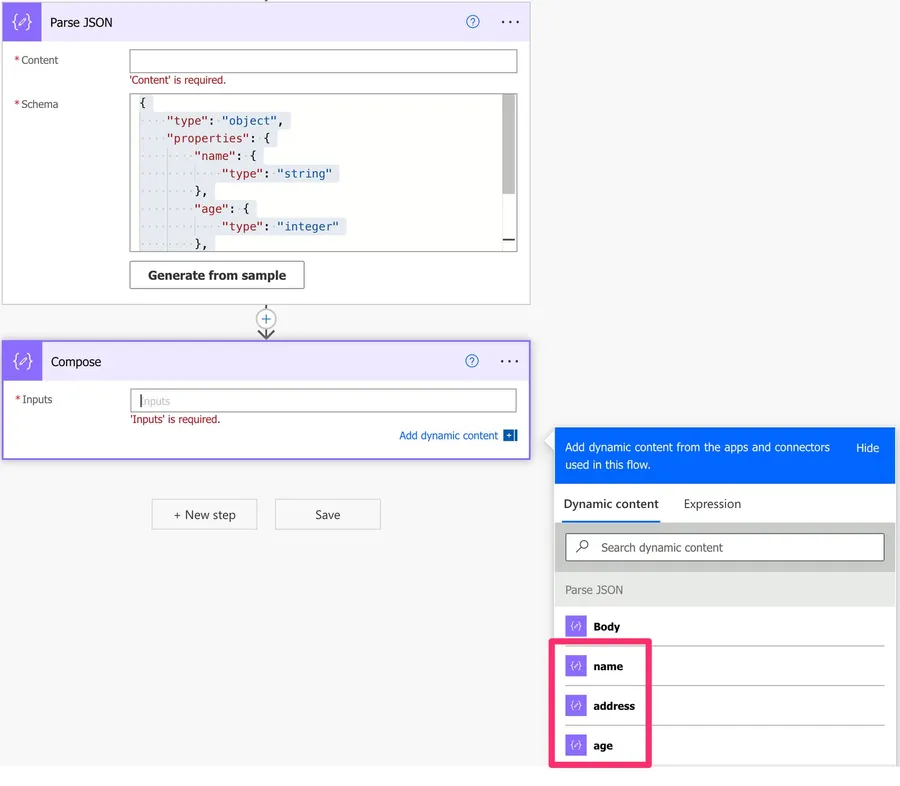
But what if I was shy about my age and didn't provide it, so the service returned something like this:
{
	"name": "Manuel Gomes",
	"age": null,
	"address":""
}
We will get a "ValidationFailed. The schema validation failed."
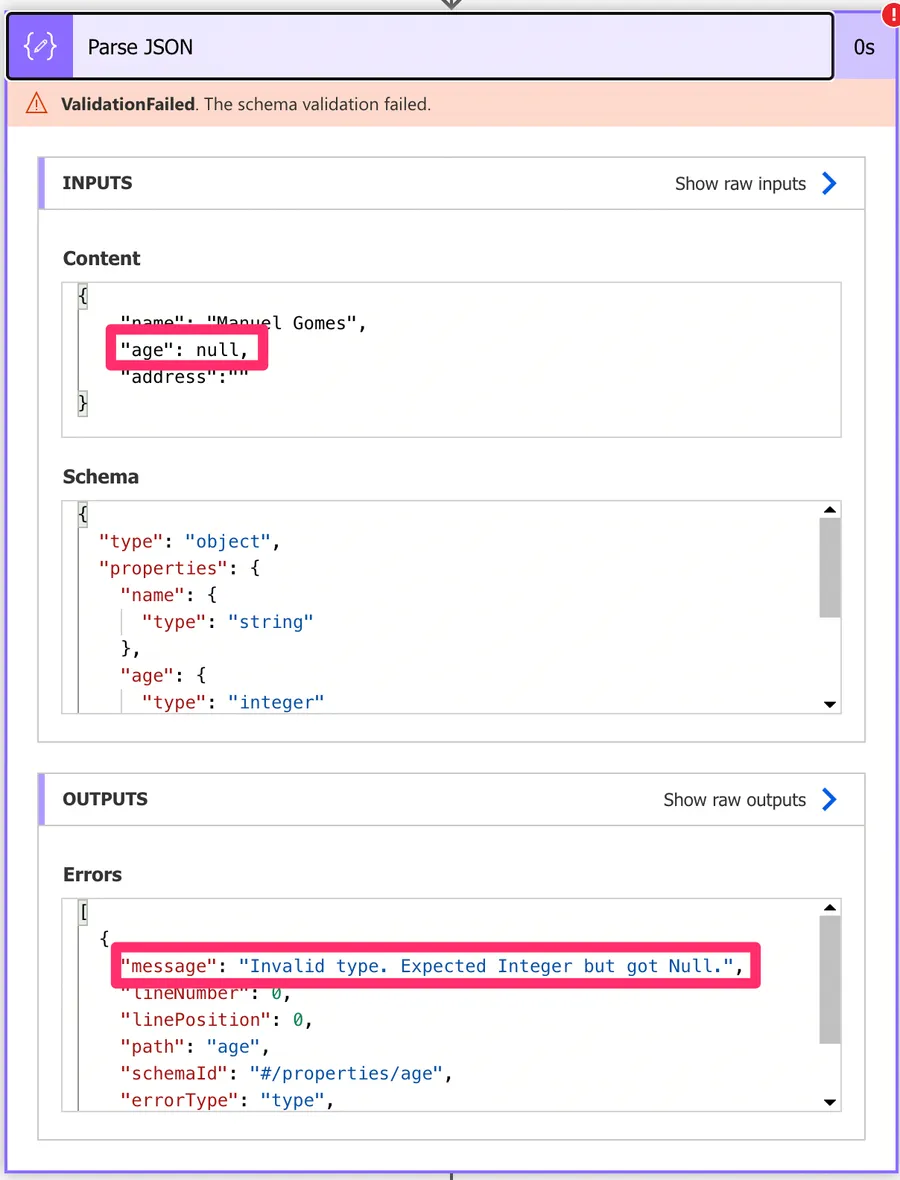
Power Automate provides a bit more information below with the error message.
"Invalid type. Expected Integer but got Null."
If the field were a string, then you would get the following:
"Invalid type. Expected String but got Null."
This applies to all types, not just integers and strings. You can also get "Expected Array but got Null", "Expected Boolean but got Null", or "Expected Object but got Null". The solution is the same regardless of the type.
This error commonly shows up when working with SharePoint columns that have empty values, external APIs with optional fields, or SQL queries that return NULLs.
So now that we have the error simulated, let's see how to fix it.
The solution
The solution is to tell Power Automate that it should be able to receive both integers and null values. This is because a "null" value differs entirely from an integer or a string. A "null" value is not the same as "empty" since an "empty" string is a string nevertheless. A "null" field indicates that the field doesn't have "anything" inside it. And since Power Automate doesn't know if "anything" is the same as a string or an integer, it defines it as a distinct type.
So let's add "null" as a possible value, but how do we know what field has issues? To find it is easy. Just look at the fields below the error message:
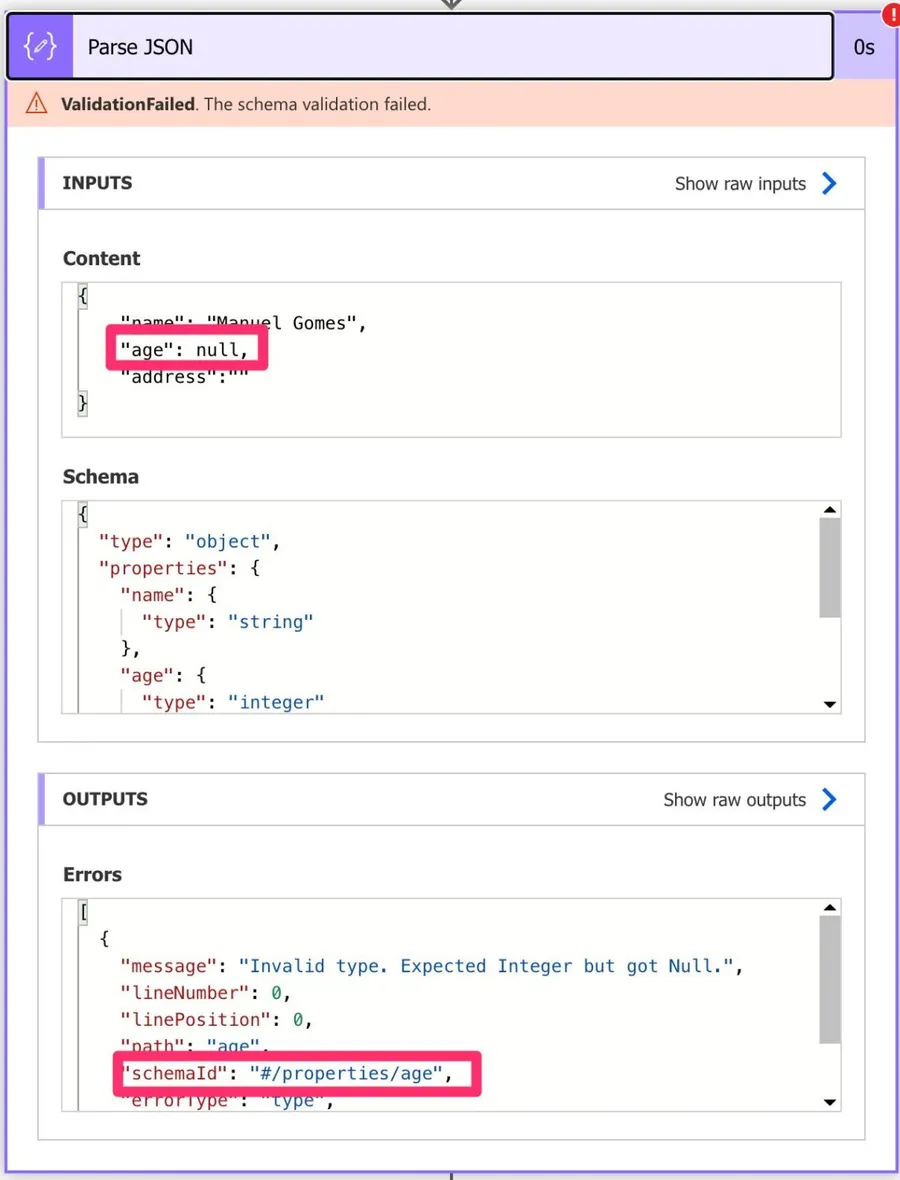
In this case, it's indicating that the "property" called "age" has the problem.
Now that we know where to fix it, let's look again at the schema:
{
    "type": "object",
    "properties": {
        "name": {
            "type": "string"
        },
        "age": {
            "type": "integer"
        },
        "address": {
            "type": "string"
        }
    }
}
Currently, the "type" for the "age" is only an integer, but we need to tell Power Automate to allow "null" as well. Since we want "multiple" types, we need to use an array of potential types of values, like:
["integer","null"]
Now we replace the type from only one value with a range of values.
{
    "type": "object",
    "properties": {
        "name": {
            "type": "string"
        },
        "age": {
            "type": ["integer","null"]
        },
        "address": {
            "type": "string"
        }
    }
}
And the Flow should run without issues. If you get this error again, please check the error message above and see the field's name. You may have multiple fields that need to be changed, so repeat the steps until your Flow runs without issues.
A note on the Dynamic content panel
Some people report that once you change the type to ["integer","null"], Power Automate stops showing that field in the Dynamic content panel of subsequent actions. I haven't been able to reproduce this consistently, so it may depend on the version or the connector, but it's worth knowing about in case you run into it.
If the field does disappear, it's still there in the parsed output, you just need to reference it by hand:
body('Parse_JSON')?['age']
The ?[] is the safe navigation syntax that returns null if the property is missing, instead of throwing an error. This pairs nicely with the schema change since both sides are now ready for null values.
Alternative: removing the required fields
When Power Automate generates a schema, it sometimes includes a "required" array at the top level listing the fields that must be present. If a field is optional and might not appear at all in the response, you can remove it from the "required" array instead of changing the type. For example:
{
    "type": "object",
    "properties": {
        "name": {
            "type": "string"
        },
        "age": {
            "type": "integer"
        }
    },
    "required": ["name"]
}
By removing "age" from the "required" array, Power Automate won't complain if the field is missing entirely. This is a good option when the field might not be returned at all, not just when it's null.
Alternative: using the anyOf keyword
Another way to allow null values is the anyOf keyword. It does the same thing as the array of types, just in a more explicit form:
"age": {
    "anyOf": [
        { "type": "integer" },
        { "type": "null" }
    ]
}
Both forms are valid and Power Automate accepts either one. I tend to use the array notation since it's shorter, but if you find anyOf easier to read, go with that.
Alternative: removing the type entirely
If a field can return anything, an integer one time, a string the next, and a null on top, you can drop the type altogether by setting the property to an empty object:
"age": {}
This tells Power Automate to accept any value without validation. It's a useful fallback when the source API is inconsistent, but use it sparingly. You lose the type check, so a field that should be a number can quietly arrive as a string and break things further down the Flow.
When the same field has different types
A close cousin of the null error is when the same field changes type between records. You'll see something like:
"Invalid type. Expected Integer but got String."
This happens when an API returns "age": 41 in one record and "age": "unknown" in another. The schema only allows integers, so the second record fails validation.
The fix is the same array-of-types approach we used for null, just with the two real types:
"age": {
    "type": ["integer","string"]
}
If you genuinely don't know what types to expect, fall back to the empty object trick mentioned above. Just be aware that you're trading safety for flexibility.
Preventing it in the first place
The "Generate from Sample" button is only as good as the sample you feed it. If your sample has every field populated, Power Automate has no way of knowing which ones can be null, so it builds a strict schema.
A small habit that saves a lot of debugging: when you grab a sample for "Generate from Sample", include records that have null values in the optional fields. Power Automate will pick up the variations and generate a schema with ["string","null"] (or the equivalent) baked in. You won't have to hand-edit the schema later.
If you're working with a SharePoint list or a SQL table, pull a few rows that have empty values in the columns you care about and use that as your sample.
Your Questions
How to save the Parse JSON error into a variable?
I got this question quite a few times: "How do I save the Parse JSON error into a variable instead of having the Flow fail?" This is useful when you want to handle the error gracefully, for example, by logging it or sending a notification.
The trick is to use "Configure run after" on the action that follows the Parse JSON. By default, actions only run when the previous action succeeds, but you can change this to run when it fails as well.
If you want a more robust error handling strategy, check out the "Try, Catch, Finally" article where I cover how to use Scopes to build a full error handling pattern.
Here's how to do it:
- Add an "Initialize variable" action before the Parse JSON action. Set it as a string and leave it empty.
- After the Parse JSON action, add a "Set variable" action.
- Click the three dots on the "Set variable" action and select "Configure run after".
- Check "has failed" (and uncheck "is successful" if you only want to capture failures).
- Set the variable value to the following expression:
outputs('Parse_JSON')?['errors']
Notice that we're using the "outputs" function and not the "body" function that we usually use. If you try to pick this from the dynamic content view and pick the "parse json" for example, you will get a body('Parse_JSON') and this won't work. You need to build the expression yourself by writing the name of the action in the "outputs" function.
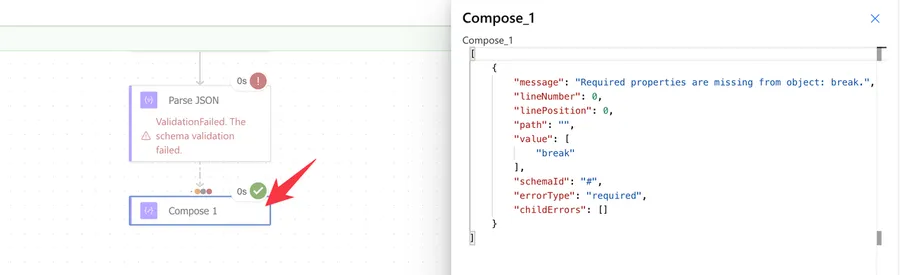
Keep in mind that the error returned is not a single message but an array with multiple items, one for each validation issue found. Here's an example of what you might get:
{
    "errors": [
        {
            "message": "Required properties are missing from object: break.",
            "lineNumber": 0,
            "linePosition": 0,
            "path": "",
            "value": [
                "break"
            ],
            "schemaId": "#",
            "errorType": "required",
            "childErrors": []
        }
    ]
}
This way, instead of your Flow failing, it continues running and you have the error details stored in a variable. You can then use it to send an email, log it, or handle it however you need.
Thanks to Lumi for the question...
Why does my field return null after parsing even though the data is there?
This one trips people up a lot. The Parse JSON action runs fine, no validation error, but when you try to use a field downstream, it comes back as null. The data is clearly in the input, so what's going on?
The most common cause is a property name mismatch between your schema and the actual JSON. JSON is case-sensitive, so "Name" and "name" are different properties. If your schema expects "Name" but the API returns "name", Parse JSON happily produces an object with no "Name" field, and your downstream action gets null.
A few things to check:
- Compare the property name in your schema against the raw JSON output from the previous action, character by character. Watch for typos and case differences.
- Use the safe navigation operator when you reference fields by expression:
body('Parse_JSON')?['Name']. The?returnsnullcleanly if the property is missing, instead of failing the Flow. - If the field is nested, walk the path one level at a time and inspect the output at each step.
It's almost always a small naming issue, but it can take a while to spot.
Final Thoughts
The solution to this issue is relatively easy once you understand where it comes from. Please be careful editing more complex schemas. You can always generate a new one and start over, but take your time and check if you're replacing the field with problems.
Photo by Michael Dziedzic on Unsplash


It solved my problem, thanks a lot!
Hi, do you know how to save the error of Parse Json function into a variable?
Awesome explanation. Saved me so much time. Thank you