
My first article about how to parse a CSV file was on August 3rd, 2020, and this is by far the one that gets the most questions, suggestions, and requests for improvement. Parsing CSV files is not intuitive in Power Automate, and people often give up, so I want to help. My objective with this second version of the template is to do all the work for you. You only need to import it, and you're good to go.
I built the template to parse a CSV file with no dependencies so that anyone could use it, and I'll keep it the "older" version in case it fits your needs. You can find it in my Cookbook section, where you can download it and give it a shot.
But as always, we need to improve, so let's improve the template:
The template now supports quotes, the configuration of separators, select the file that has headers, and more. It's a huge upgrade from the other template, and I think you will like it.
Before we go into the details, let me answer the question I get asked the most. Years later, Power Automate still doesn't have a native way to parse a CSV file. The Data Operations family gives us "Compose", "Join", "Select", "Filter array", "Create CSV table", "Create HTML table", and "Parse JSON", and that's it. The "Create CSV table" action only goes one way, turning JSON into CSV, and there's no expression function that goes the other way either. We get a "json" function and an "xml" function, but no "csv" function. So this template is still very much needed.
If you go looking, you'll find a "Parse a document" action in the documentation that mentions CSV files. It's tempting, but it belongs to Azure Logic Apps and not to Power Automate, and it's built to tokenize documents for AI scenarios, not to give you rows and columns. It's not the answer, so don't lose an afternoon to it like I nearly did.
What's new?
There are a few areas that are new so let's explore them.
Pick the options you want
I'll detail in the next sections, but I've added the possibility for you to select some of the options so that your Flow fits more different types of files.
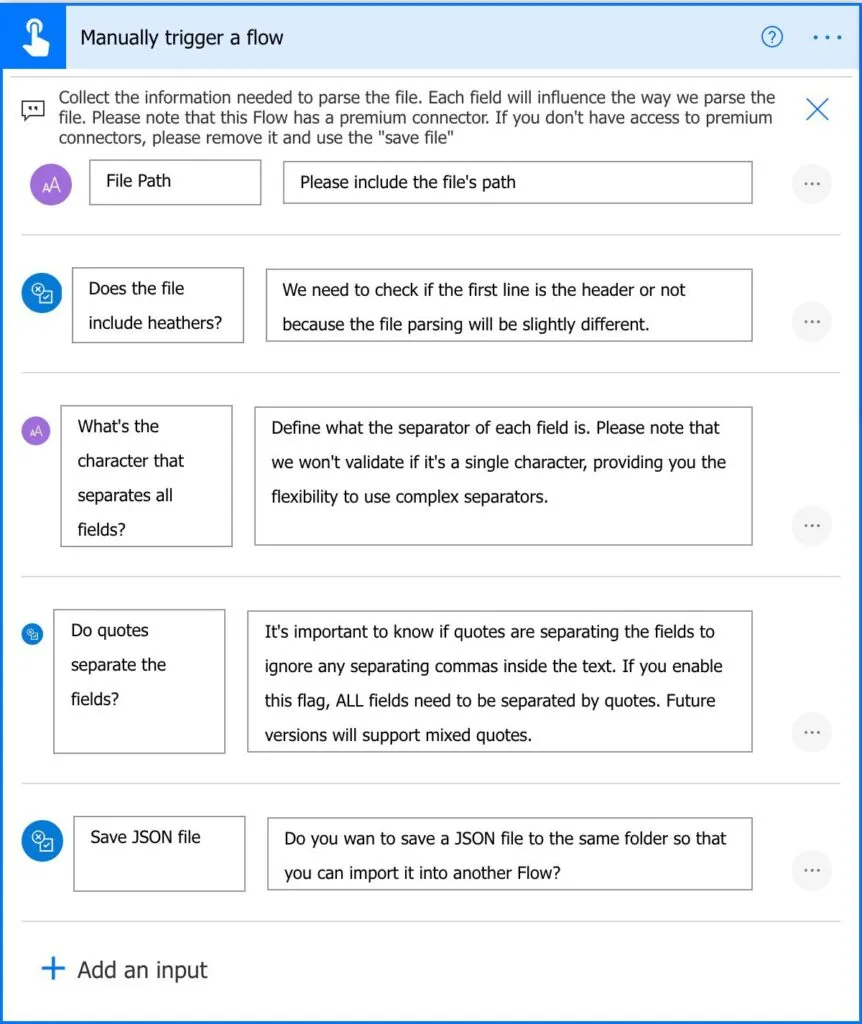
This way, there's more customization, and we can parse different types of CSV files using the same template.
Headers or not
You can now parse a CSV file that doesn't have headers. I provide customization so that you can indicate if there is one or not. This is important because I'll either consider the first line as the headers or data. If the file doesn't have headers, I'll generate sequential headers for you since JSON needs a key for each element.
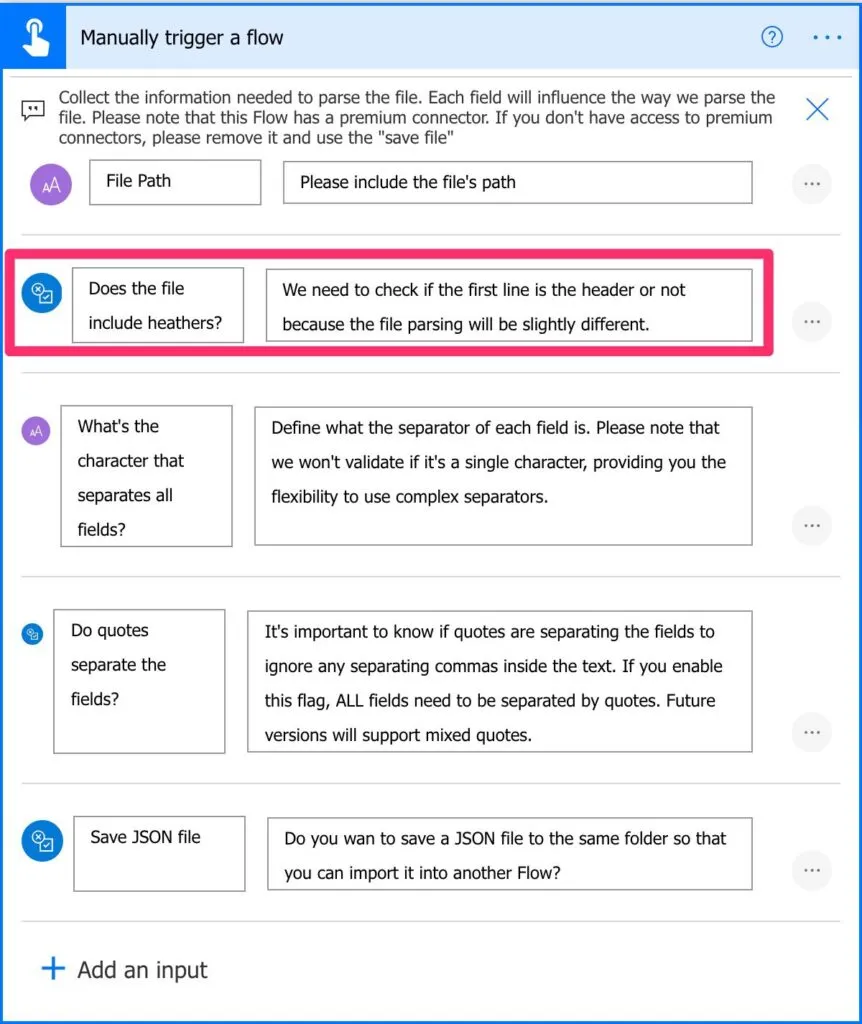
If you want to merge files, for example, then you can provide multiple files to the template, generate all JSON files and then read one by one and merge them into a new file.
Any character will do
You can add the character you want as a separator. Although it's called "Comma Separated Values," you can have files with other characters that separate the data. If you have a lot of text with commas in it, I would advise using another character.
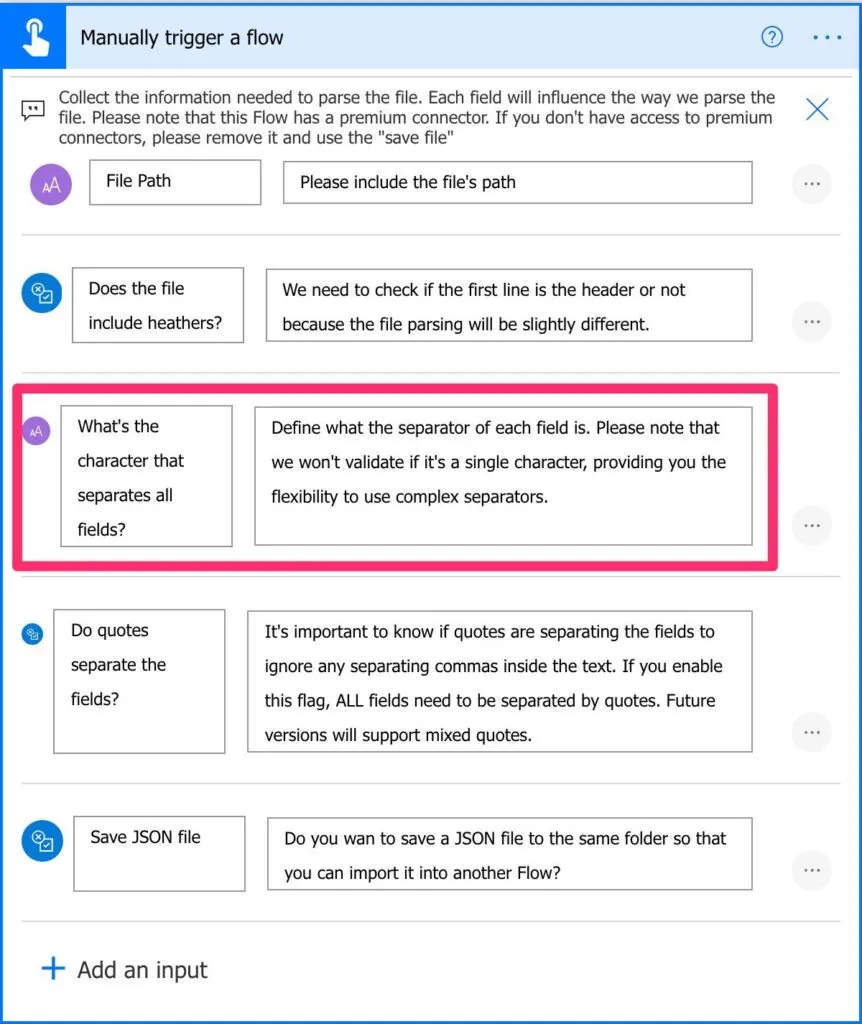
It doesn't need to be only one character. You can have the separator as "" for example.
I'm going a bit away from the "defined" CSV structure with this feature, but I want to provide flexibility for the most demanding cases.
Any file will do
The file doesn't need to have the extension CSV. You can provide any text file, and the Flow will parse it. Be aware that we're interested in the content of the file and not the type itself. The opposite also is true. If the file has the extension CSV, but it doesn't contain the "expected" format, the Flow will fail.
With or without quotes
Previously if the file had quotes separating the text fields, the Flow would consider the quote as a character and not separation.

By adding this feature, we can better parse description fields, for example, that may have commas in them. If this is the case, the field will be parsed and will not break in another column when it finds the comma.
One limitation is that you need all fields to have quotes. The Flow was complex enough, so I didn't include "mixed" files with and without quotes. I'll improve this in a future version.
What's better?
I need to do what I preach, so I started from scratch building this template with all the best practices that I publish here. In my opinion, this new template serves two purposes:
- It gives you a more robust template that can do the job for you without you necessarily need to understand how it works.
- If you want to explore and learn, I've added a lot of information to teach you the concepts. Please take a look at my Power Automate Action Reference to learn more detail about an action that you're not familiar with.
Scoped
I created scopes everywhere to break things into smaller chunks that are easier to debug and understand. I do this by using the Scope Action that serves as a big box to put other actions.
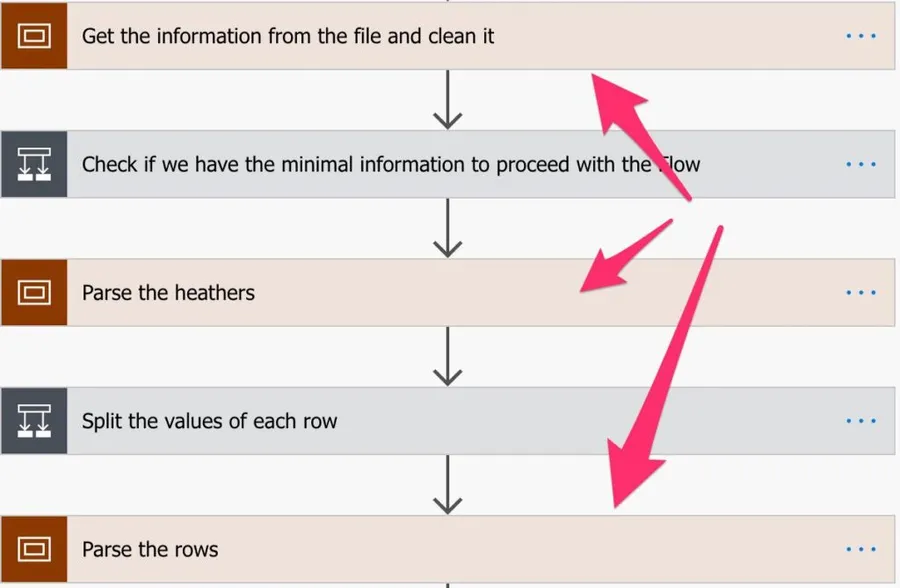
I strongly recommend that you use this strategy in your Flows. Breaking things into areas that "make sense" will make your Flow a lot more readable and hide complexity if you want to have a global overview of it.
Comments
I've added comments everywhere in the code so that you can understand why I'm using the action. It's also important to learn how something works or fix something that isn't correct.
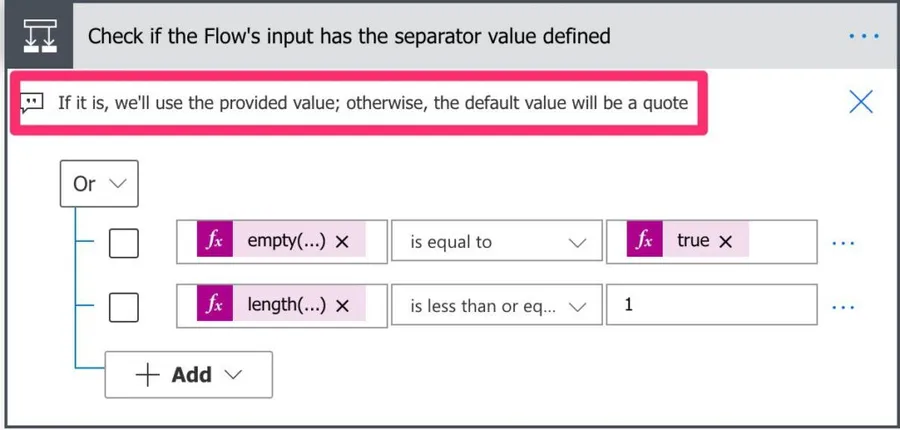
Nothing is perfect, so if you see a typo or some comment that doesn't make sense, please let me know. Also, if there's an action that is doing something different from its comment, please let me know. Let's improve this template together.
No Premium Connectors
This was an important requirement to me. There are many templates out there that work fine, but not many people can use them because they don't have access to premium connectors. There's no premium connector, and that was a challenge by itself, but at least everyone can use it.
Option to save JSON
JSON files are easier to parse, so I've added the possibility to save the JSON file with all the data converted.
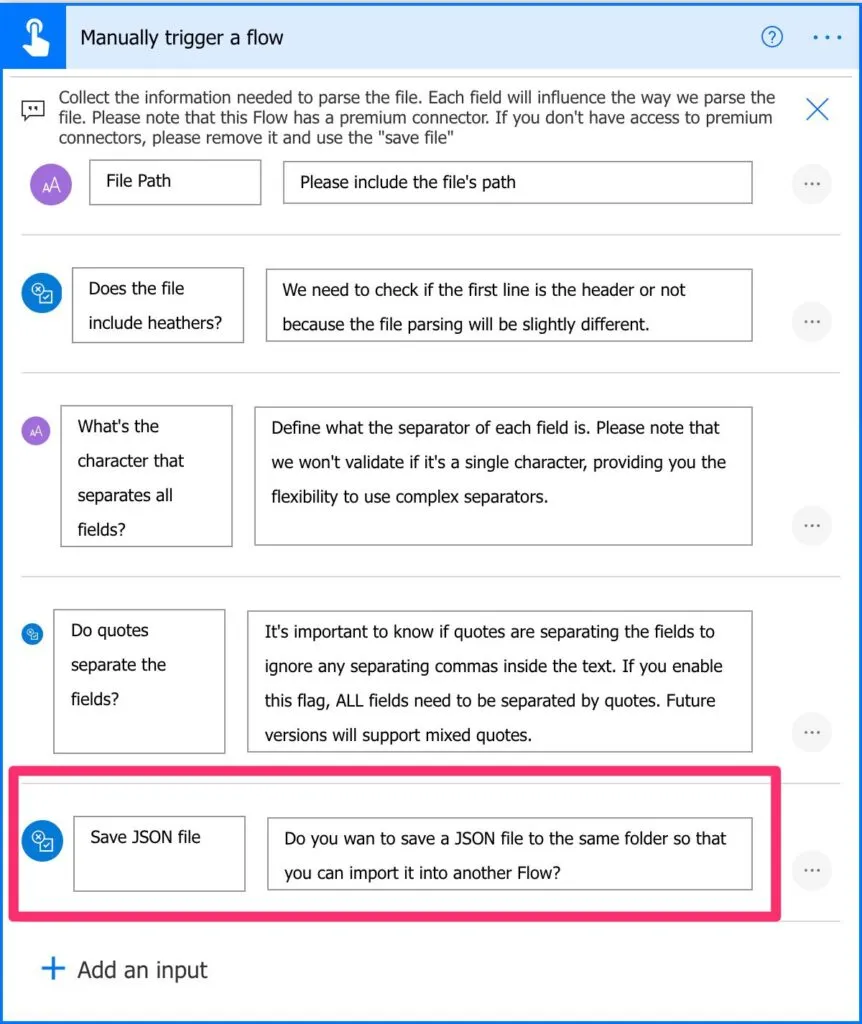
This will save the file in the same folder as the CSV file. In the future, I can add an option to pick another folder or, you can change the "Create the JSON file" action by adding your preferred folder.
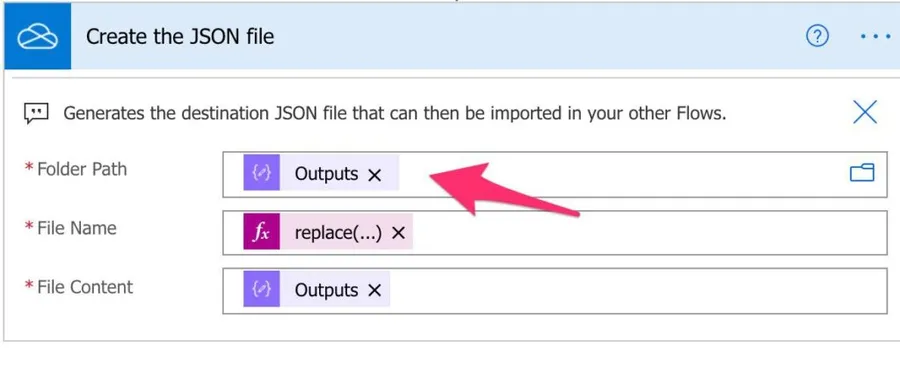
I didn't add the option to replace the file on purpose. If, for some reason, the file was not generated correctly it could replace a file that was correct so please be aware of this.
What can still be better?
There's always room for improvement, so let's put already some work on my to-do list for the next version.
Mixed quotes
You can have files with fields with quotes, like strings, and without quotes, like numeric values. This template is a little bit all or nothing. Either you have quotes or not. "Detecting" quotes is quite hard and something I need more time to work with.
I've spent a lot of time on this one since I first wrote it, and I owe you a straight answer. A quote isn't just decoration in a CSV file. It's what tells you that the comma inside "Gomes, Manuel" is part of the name and not a separator, and it's what allows a field to contain a line break of its own. To honor that, you need to walk the file character by character and keep track of whether you're currently inside a quoted field or outside one. The Power Automate expression language can't do that. It has no loop over characters and no state to keep, so every expression-only approach, mine included, ends up either deleting the quotes or splitting in the wrong place.
Microsoft hits exactly the same wall. Their own sample script for converting a CSV file carries this comment right above the split, and I find it oddly comforting:
// NOTE: This will split values that contain new line characters.
So the honest position in 2026 is this. If your files have quotes wrapped around every field, or no quotes at all, this template handles them. If your files have quoted fields that contain the separator or a line break inside them, the parsing has to happen somewhere that can actually tokenize text. That means an Office Script, a custom connector, an Azure Function, or a Power Query dataflow. I'd rather tell you that than sell you a template that quietly mangles one row in a thousand.
Faster
I still need to work on performance. Although I consider that it's not slow, it could be a lot faster, especially if you have huge CSV files. If you have a file that takes too long to parse and can provide me to test without any legal or privacy issues for both you and me, please send me an email. I'll delete the file and the email after testing and won't use the information in it for anything. This way, we're both sure that the information disappears.
The direction I want to take is to get rid of the loop entirely. The trick is to split the file into lines, build the headers from the first line, and then hand the rest to a single Select action using "skip" to drop the header row. No Apply to each, no variables, one action doing all the work.
I want to be careful here, because I've seen big speed claims for this pattern and I couldn't find anyone who actually published measurements for it, so I won't invent any. What I can tell you is that the "Select" action wins on correctness too, and that's the part nobody mentions. When you build your JSON by gluing strings together in a "Compose" action, a single quote or backslash inside one of your values corrupts the JSON and the "Parse JSON" action fails on you. When you use "Select" with key and value pairs, Power Automate builds the JSON itself and escapes those characters for you. So it's not only the faster road, it's the safer one.
If you do keep a loop, concurrency control will speed it up a lot, but please read the next section before you turn it on.
You tell me
You can always let me know if it's failing or if there's a specific case where it's not working as it should. Suggestions are all welcome, and I'm happy to keep on improving this template.
Non-intuitive behaviors
CSV files look simple, and that's the trap. Here are the things that catch people out, including me, and what to do about each one.
The invisible character at the start of your file
If your file was saved as UTF-8 with a byte order mark, it starts with three bytes you can't see. They stick to your very first header, so instead of a key called "ID" you get a key called something the eye reads as "ID" but the Flow doesn't. Every lookup on your first column then quietly returns null, and nothing errors, which is the worst kind of bug.
The fix is to strip those bytes from the content before you split it. Microsoft documents the same characters from the other direction, telling you to add them back with "concat" and "uriComponentToString" when you write a CSV file so that accented characters survive.
This one fails silently. If the first column of your parsed data is always empty and every other column is fine, the byte order mark is your culprit.
Windows and everyone else disagree on what a new line is
Windows ends a line with a carriage return followed by a line feed. Almost everything else uses just the line feed. If you split on the line feed alone, every row keeps a stray carriage return glued to its last field, so your final column comes back with an invisible character on the end and your comparisons stop matching.
The safe approach is to detect what the file actually uses before splitting, rather than assuming. Microsoft's own script solves it with a blunt instrument, stripping every carriage return from the content before it does anything else, which works perfectly well.
The phantom last row
Most tools end a CSV file with a trailing new line. Split on that and your last element is an empty string, so you get one extra record made of nothing, and the Flow usually falls over trying to read a column out of it.
The cleanest fix is a "Filter array" action on the lines, keeping only the ones with a length greater than zero. It handles the trailing new line and any blank line in the middle of the file at the same time.
Two columns with the same name, and one of them disappears
This is the one that genuinely worries me. If your file has two columns with the same header, both become the same key in the JSON object, and a JSON object can't hold the same key twice. The last one wins and the earlier column is gone. No error, no warning, just missing data.
Duplicate headers lose data silently. If you don't control the files you're parsing, it's worth checking the header row for duplicates before you trust the output.
Headers with spaces need bracket notation
Headers like "Total Usage (%)" are perfectly legal, and the "Parse JSON" action will accept them happily. What you can't do is reach them with dot notation. You need bracket notation with safe navigation instead:
outputs('Parse_JSON')?[0]?['Total Usage (%)']
The alternative, and the one I usually take, is to rename the headers to something simple before parsing and save yourself the trouble.
Limitations
These are the walls you'll hit with big files. They're platform limits rather than anything to do with my template, but they decide whether your Flow finishes or dies, so they're worth knowing.
Content throughput is the limit that actually bites
Everybody quotes the message size limit and almost nobody mentions this one. Power Automate caps how much content your flows can move in a window of time. On the Low performance profile, which is what you get with a Free licence or the plans included with Microsoft 365, that's 120 MB every 5 minutes and 200 MB every 24 hours. A flow reading a large CSV file a few times an hour can reach that ceiling far sooner than you'd expect.
How many rows you can loop over depends on your licence
An "Apply to each" action tops out at 5,000 items on the Low profile and 100,000 on the profiles above it. Note that licensing is now described in terms of performance profiles rather than plan names, and the SKUs you may remember as "per user" and "per flow" are now the legacy names for what Microsoft calls Power Automate Premium and Power Automate Process.
Expressions have a ceiling, so you can't build it all in one go
It's tempting to assemble the whole JSON array inside a single "Compose" action. That works beautifully on a small file and then falls apart, because an expression can be at most 8,192 characters long and the result of a "concat" is capped at 131,072 characters. Past that, your one clever expression stops being clever.
Concurrency is not free
Turning on concurrency in an "Apply to each" action makes it much faster, but the iterations no longer run in order, so your rows can come back shuffled. Worse, Microsoft is explicit that appending to a variable inside a concurrent loop "might return unpredictable results". This is precisely why the loop-free pattern uses "Compose" and "Select" and never appends to an array variable.
Concurrency on a trigger is irreversible. Once you turn it on you can't turn it off, and you have to build a new flow. That's documented for triggers specifically, so be sure before you flip that switch.
Runs don't live forever
A flow run can last up to 30 days, and the run history is kept for 30 days. You'll see 60 and 90 days quoted a lot online, but those are the Azure Logic Apps numbers, and they get copied across to Power Automate articles far too often.
About downloading the template
The template is a legacy package, the plain .zip you export and import outside of a solution. That format is alive and well, and it's not deprecated. Microsoft still documents it, and their own template gallery submission process still requires it, which tells you something about how permanent it is.
There are a few things that can trip you up on import, so let me save you the headache:
- In environments where cloud flows go into solutions by default, and that's now the default for new environments with a database, a legacy package may refuse to import.
- The import screen uses an embedded widget that needs third-party cookies. If your browser blocks them, and browsers increasingly do, the import fails in a way that doesn't explain itself.
- You'll need to map the connections yourself as part of the import.
- The flow arrives turned off. Remember to turn it on, or you'll be waiting a long time for something to happen.
What can you do with it?
Here are some different ways to use it.
Convert a CSV to a JSON
This template is not only to parse a CSV file. You can use it to convert CSV into JSON files. Since you're providing a CSV and getting a JSON file in return, this feature comes for "free." JSON files are a lot simpler to parse, so you can use this as a quick way to convert files.
Integrate it (or part of it) in your Flows
If you have a Flow that can benefit from it, you can copy the actions to your Flow. Although I always recommend separating responsibilities, sometimes it's not possible to do so. If there's a part of the Flow that could be useful to you, don't forget that you can "copy and paste" actions.
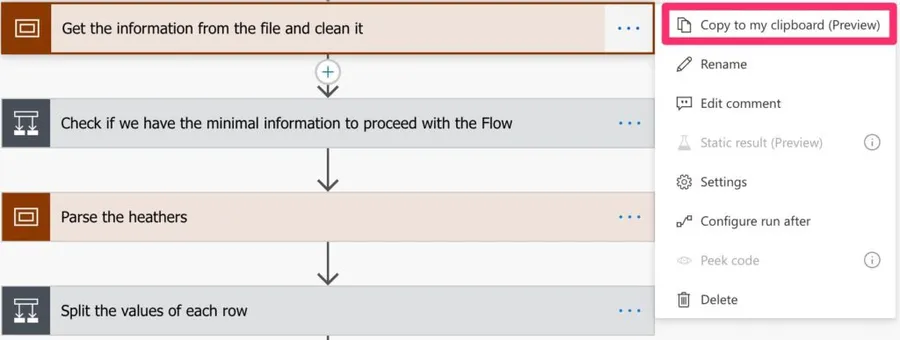
Another advantage of using scopes is that you can copy a great number of actions in one "go." Be sure to copy the dependencies, for example, any variable used inside the "block" you're copying.
Separated Responsibility
With this Flow, you can separate the responsibility of parsing CSV files away from all your other Flows. You can call it from other Flows (if it's in a solution, you can call it a child Flow).
If you have premium connectors
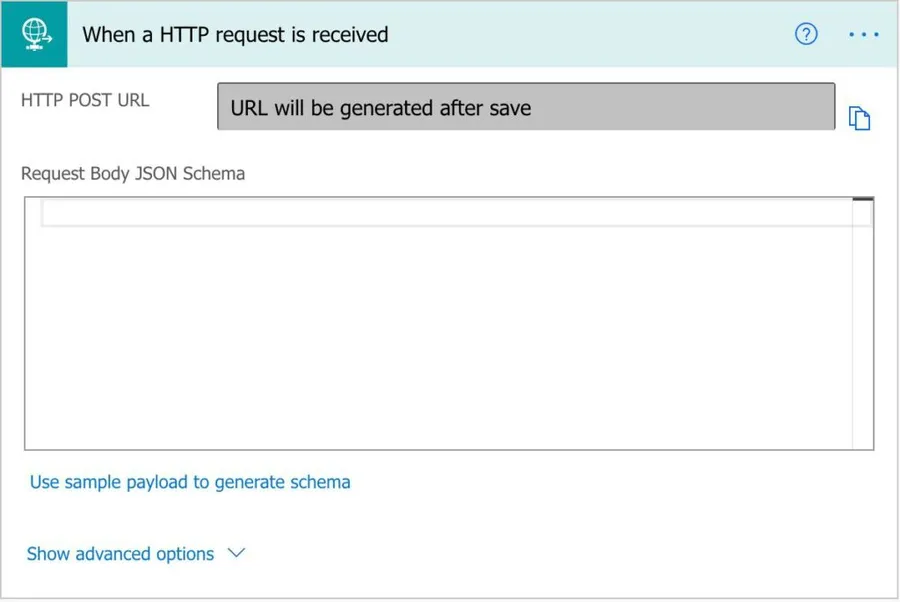
You can easily replace the "Manually trigger a Flow" trigger with a "When an HTTP request is received" trigger so that you can call it from anywhere (including outside Power Automate).
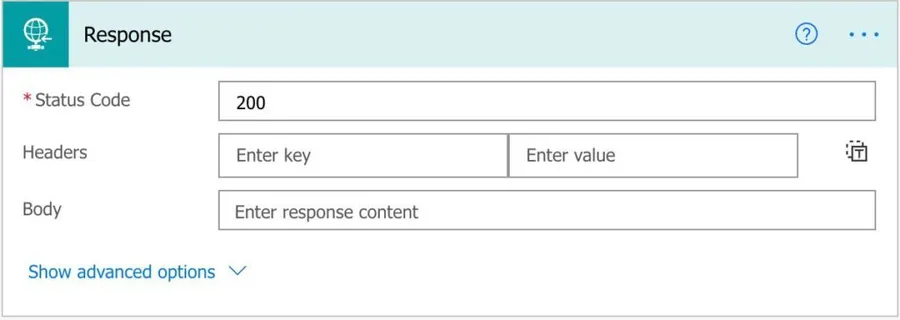
Once you're done, you can send the JSON file back as a "Response."
Improve it and send it back
If you have a better version of this template, please send it my way. I'll give you full attribution, and we'll all learn something new. Awesome right? But please check the rules to submit a Flow in my cookbook.
Final Thoughts
I want to thank all the feedback that arrived, both on email and in the comments. I'm very fortunate that the comments are usually super helpful so that we can all learn together.
I hope this template is useful to you, but I'm already working on the next version, so please let me know what features you would like.
Photo by Mike Petrucci on Unsplash



I'm looking to use this template and add a part to the start, and to the end. The part at the start needs to monitor an O365 inbox and look for specific emails with a csv attachment. This CSV attachment will then be fed into your template to create the JSON. The part at the end needs to add a row to an Excel table. These are very simple CSVs that I'm working with, only a few rows. Any pointers on how i can acheive this?
I have the exact same scenario and am struggling to implement this. Did you end up figuring it out?
Hi Manuel This doesn't look to be uploading at the moment, any idea why? Also, awesome work!! thank you in advance!
I have some rather large CSV files that I'm hoping to use this with. What obstacles do you think I'll run into, performance wise? Secondly, I noticed in your split, you're only specifying one argument. It's showing me this: split(outputs('Fetch_the_file_content_based_on_the_path_provided_in_the_trigger')?['body'], ' ') Am I missing something? I assumed that's where the SEPERATOR variable should go, but when I put that in, I get an invalid expression error.
This Flow is intended to be a workaround while there's no official way to deal with it. I'm working on a better solution to solve this, but it's not quite ready yet with a lot better performance for larger datasets :)
Hello Manuel, I'm getting an error on the Get the Information from the File and clean it Step. "'Fetch_the_file_content_based_on_the_path_provided_in_the_trigger' failed" I have the two csv files in a folder on my onedrive. is this how i should be entering the path? "C:\Users\xxxxxx\OneDrive - Company\tests\"
Hello Manuel, Care to provide any feedback on my template here? https://powerusers.microsoft.com/t5/Power-Automate-Cookbook/CSV-to-Dataset/td-p/1508191
Thank you for a new and improved version of your already useful flow. I have adapted the flow to run daily and to pick up a csv file from an sftp site. Unfortunately, this file contains mixed quotes, only appearing when there is are non-delimiting commas inside the fields. Do you happen to have a solution to this already? I'm planning to trial-and-error my way through it, and there are certainly resources out there to help, but I'm afraid it's going to come at the expense of a much longer runtime. For an 1800-2000 line csv file, that's going to be significant. Regardless, glad to have this as a starting point!
Hi Brian, I have a solution shared with me by a reader of this site. I'm checking it out, and it's incredible, but I want to check if they are interested in publishing here. Nevertheless, I'm building another solution, a lot more structured, to deal with this. I'm almost ready, but I need to test it before releasing it. What I can do is, when it's in beta, give you access so that you can check if it solves your issues. Would this work for you? So there are two solutions in the works, but to be honest, time is short with the holidays and everything else.
I'd absolutely be willing to try the beta version, but I am also a realist and understand your limited time right now. 😀 Enjoy the holidays and I'll see if I can put some sort of work-around in place until we can try out your new work. MANY thanks.
In action "Check if the Flow's input has the serparator value defined", the test don't allow to use a separator of one character, like semi-colon (";"). Solution : use "is less that" instead of "is less than or equal" in the second test. The performance of the Flow should be the next thing to improve, it take 15 to 30 seconds per row for 13 columns. That very slow and could lead to timeout if this Flow is called from other Flows. Maybe using parallel foreach loop could help (but it means getting rid of iterators). Great Flow nonetheless ! It's very useful.
Hi David, All amazing suggestions. I'll integrate them and generate a new template. The Flow indeed needs a performance boost. I'll work on improving certain areas so that it runs faster. Parallel will help but removing some "Apply To Each" will help a lot more. I need to check how to do it, but any suggestions are welcome. Cheers Manuel
Can I get a template without the OneDrive connection? I cannot import the template otherwise.
Hi Mark, Sure. Two quick questions: 1. Why are you not able to import with OneDrive connections? Is it because you don't use it? 2. Where do you keep your files to edit the template with the service you use. Cheers Manuel
Strict tenant policy (hybrid) does not allow OneDrive at this time. However, SharePoint documents is fair game. Modified by replacing OneDrive connection reference with "Get File Contents" <--SharePoint. Updated next variable to split outputs of those contents. Passing an object instead of a string throw errors. Please help. :)