
Picture a support log that never stops growing. One column holds the priority, another holds the agent who handled the ticket, another holds the date it was closed. Your team lead wants a single number: how many high-priority tickets Maria closed this week. You could filter the table by hand every Monday, or you could write one formula that answers the question and keeps answering it as new rows arrive.
That is exactly what the "Countifs" function does. It counts the rows in a range, but only the ones that satisfy every condition you hand it. If you have used the "Count" function in Excel to tally a whole column, think of the "Countifs" function as the same idea with a set of filters attached, so you count only the rows that matter.
Where to find it?
You type the "Countifs" function straight into a cell. Start with an equals sign, type COUNTIFS, and Excel shows the signature in its formula AutoComplete as you fill in each argument. You can also reach it through the Formulas tab and the "Insert Function" dialog if you prefer a guided experience.
It works the same way in Excel for Windows, Excel for Mac, and Excel for the web, and it has shipped in every version since Excel 2007, so you can rely on it in almost any workbook you open.
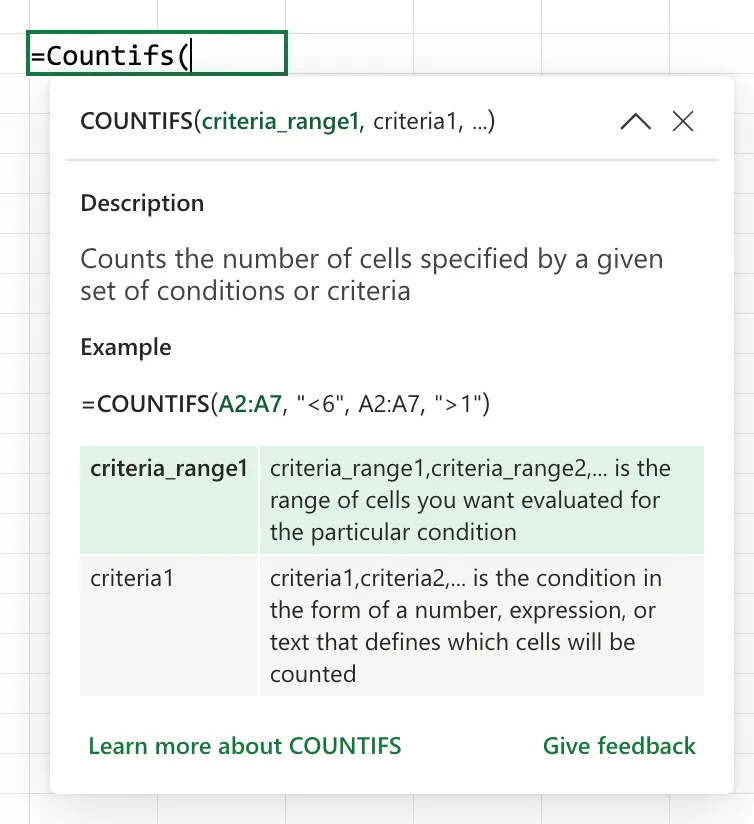
The "Countif" function handles a single condition and takes just two arguments: =COUNTIF(range, criteria). The "Countifs" function handles several conditions and takes them in pairs: =COUNTIFS(criteria_range1, criteria1, ...). The plural version can do everything the singular one can, so when in doubt, reach for the "Countifs" function and you will never have to rewrite the formula just to add a second condition later.
Usage
We give the "Countifs" function one or more pairs of a criteria range and the criteria it must meet. A row is counted only when every condition is true for that row at the same time.
=COUNTIFS(criteria_range1, criteria1, [criteria_range2, criteria2], ...)
| Parameter | Required | Type | Description |
|---|---|---|---|
| criteria_range1 | Yes | Range | The first range to test against the first condition |
| criteria1 | Yes | Value or expression | The condition applied to criteria_range1 |
| criteria_range2, criteria2 | No | Range and condition | Additional pairs, up to 127 range and criteria pairs in total |
A single condition
At its simplest, the "Countifs" function behaves like the "Countif" function. Count the rows where the priority is "High".
Column A (Priority)   Column B (Agent)
High                  Maria
Low                   Manuel
High                  Maria

=COUNTIFS(A2:A4, "High")

will return

2
Several conditions at once
Add a second pair and the conditions combine with AND logic. A row is counted only when it satisfies all of them. Here we count the high-priority tickets, but only the ones handled by Maria.
Column A (Priority)   Column B (Agent)
High                  Maria
High                  Manuel
High                  Maria

=COUNTIFS(A2:A4, "High", B2:B4, "Maria")

will return

2
Comparison operators and cell references
Criteria are not limited to exact matches. Wrap an operator and a value in quotation marks to compare, and join an operator to a cell reference with the & symbol when the threshold lives in another cell. The first formula counts the amounts greater than 500, and the second compares against the value in E1.
=COUNTIFS(C2:C100, ">500")

=COUNTIFS(C2:C100, ">"&E1)
Wildcards for partial text
Text criteria accept ? to match any single character and * to match any run of characters. This counts every agent whose name starts with "Man".
=COUNTIFS(B2:B100, "Man*")
Counting blanks and non-blanks
Two special criteria come in handy often. Use "=" to count the cells that are empty, and "<>" to count the cells that hold anything at all. If a criterion points at an empty cell rather than a text value, the "Countifs" function treats that empty cell as the number 0.
=COUNTIFS(A2:A100, "<>")
The way a criterion matches depends on the kind of value in the range. Numbers match numeric conditions, dates match by their underlying serial number rather than the text you see on screen, and logical values match TRUE or FALSE. Text that looks like a number is the one that surprises people. For an exact match, Excel reads it as a number, so the text "0123" counts toward the criterion 123. Comparison criteria such as ">100" skip those text values instead.
The function family
The "Countifs" function sits in a small group of counting and conditional aggregate functions that readers constantly mix up. Only some of these have a dedicated article yet, so keep this table handy while you pick the right one.
| Function | What it does |
|---|---|
| Count | Counts the cells that contain numbers |
| Counta | Counts the cells that are not empty |
| Countblank | Counts the cells that are empty |
| Countif | Counts the cells that meet one condition |
| Countifs | Counts the rows that meet several conditions |
| Sumifs | Adds the values that meet several conditions |
| Averageifs | Averages the values that meet several conditions |
If you need to total or average the matching rows instead of counting them, the "Sumifs" function uses the exact same criteria pattern, so anything you learn here transfers straight across.
Real-world examples
A dashboard tile that filters itself
Manuel keeps a running sheet of orders and wants a single cell that shows how many orders shipped late this month. With the status in column C and the ship date in column D, and the month start in F1, one formula does the whole job and updates as new rows arrive.
=COUNTIFS(C2:C1000, "Late", D2:D1000, ">="&F1)
Counting inside a date window
Two date conditions on the same range give you a window. This counts the tickets closed during a single month, with F1 holding the first day and F2 holding the last.
=COUNTIFS(D2:D500, ">="&F1, D2:D500, "<="&F2)
Every row whose date falls inside that range gets counted, and nothing outside it does.
A quick data validation helper
Before you trust a column of email addresses, count how many are blank so you know how much cleanup is waiting. Pair it with a count of the filled cells and you have a tiny quality dashboard for the sheet.
=COUNTIFS(B2:B500, "")
Edge Cases
The ranges must be the same shape
Every criteria range has to have the same number of rows and columns as criteria_range1. If they differ, the "Countifs" function returns a #VALUE! error rather than a partial answer. This happens most often when one range is A2:A100 and another is B2:B101, an off-by-one slip that is easy to miss in a long formula.
Text criteria do not ignore trailing spaces
If a criterion looks correct but the count comes back lower than expected, the culprit is often invisible spaces in the source data, usually left behind by a copy from a web page or another system. The value in the cell reads "Maria " with a trailing space, so it never matches "Maria". Cleaning the column with the "Trim" function fixes it, though "Trim" cannot be applied inside the criteria range itself.
Numbers stored as text are matched by value
For an exact match, the "Countifs" function reads text that looks like a number as a number. The criterion 123 counts the number 123, the text "123", and the text "0123", because the leading zero disappears once Excel reads them all as 123. Comparison criteria such as ">100" work differently and skip the text values, so a mixed column can return a count that feels too low. Convert everything to one type in a helper column with the "Value" function.
An error in the range does not stop the count
Unlike the "Sumifs" function, which returns an error if a single cell in the range it adds holds one, the "Countifs" function simply fails to match an error cell against a normal criterion, so that cell is left out of the count instead of poisoning the whole result. You can even count errors on purpose by using them as the criterion, for example "#N/A" to count that specific error or "<>#N/A" to count everything else.
Microsoft's reference page does not spell out how the "Countifs" function treats error values sitting in a criteria range. The behavior above is consistent in current versions, but test it against your own data before you build a report on it.
Limitations
Conditions are always AND, never OR
Every criteria pair you add narrows the result further, because they combine with AND logic. There is no built-in way to say "priority is High OR Critical" inside a single "Countifs" function. For an OR across conditions, add two "Countifs" functions together, one per branch.
=COUNTIFS(A2:A100, "High") + COUNTIFS(A2:A100, "Critical")
A maximum of 127 criteria pairs
You can supply up to 127 range and criteria pairs to a single "Countifs" function. In real workbooks you rarely pass more than two or three, so this ceiling almost never matters, but it exists.
Criteria ranges cannot be a formula result
The criteria range must point at real cells on a sheet. You cannot feed it an array built by another function, such as the result of a "Trim" or "Left" function wrapped around a column, because the "Countifs" function expects a plain range reference, not a calculated array. When you need that kind of preprocessing, add a helper column that does the cleanup and point the "Countifs" function at it.
Localization
The separator between arguments changes with your regional and list separator settings. With some settings it is a comma, with others, such as Portugal, it is a semicolon.
// Comma-based regional settings
=COUNTIFS(A2:A100, "High", B2:B100, "Maria")

// Semicolon-based regional settings (for example, Portugal)
=COUNTIFS(A2:A100; "High"; B2:B100; "Maria")
Troubleshooting Common Errors
The formula returns 0 when you expected a count
Cause: No row satisfies every condition at once, or the criteria do not match the data. Common reasons are trailing spaces in the source text, numbers stored as text when you use a comparison such as ">500", or a date criterion written as a string instead of a real date.
Solution: Loosen the formula to one condition at a time to see which one filters everything out, then clean the offending column. The "Trim" function removes stray spaces in a helper column, and the "Value" function converts text that should be a number.
=COUNTIFS(A2:A100, "High")
The formula returns #VALUE!
Cause: One of the criteria ranges is a different size from the others, or the formula references a range in a workbook that is currently closed. Both situations produce this error.
Solution: Check that every criteria range starts and ends on the same rows, and keep any workbook you reference open. Fixing an off-by-one range usually clears the error immediately.
=COUNTIFS(A2:A100, "High", B2:B100, "Maria")
A partial text search counts nothing
Cause: The criterion was written as an exact value when you meant to match part of a string, so "Man" matches only cells that hold exactly "Man" and nothing longer.
Solution: Add wildcards. Use * for any run of characters and ? for a single character.
=COUNTIFS(B2:B100, "Man*")
Recommendations
Let's look at some things to keep in mind.
Point every range at the same rows
Because all criteria ranges must share the same shape, decide on your row span once and reuse it for every argument. Named ranges make this almost automatic and keep a long formula readable.
=COUNTIFS(Priority, "High", Agent, "Maria")
Keep thresholds in cells, not inside the formula
When a condition is a moving target, such as a cut-off amount or a start date, put it in its own cell and reference it with &. You change one cell instead of editing the formula, and the intent stays obvious to whoever opens the workbook next.
=COUNTIFS(C2:C100, ">="&E1)
Build partial matches with wildcards on purpose
Wildcards are a feature, not an accident, so use them when you mean a partial match and avoid them when you do not. If your data can legitimately contain an asterisk or a question mark, escape it with a tilde, for example "~*", so the "Countifs" function treats it as a literal character.
Always deal with errors
A mismatched range makes the "Countifs" function return a #VALUE! error, and that error then cascades into any cell that references the count. Wrap the formula in the "Iferror" function so one bad range does not break the dashboard that depends on it. If you branch on the result elsewhere, the "If" function pairs naturally with this pattern.
=IFERROR(COUNTIFS(A2:A100, "High", B2:B100, "Maria"), 0)
Final Thoughts
The "Countifs" function turns a filter-and-count chore into a single formula that keeps working as your data grows. Remember that every criteria range has to line up on the same rows, that all your conditions combine with AND rather than OR, and that text criteria are fussy about spaces and stored types. Get those three right and it becomes one of the most dependable tools in your workbook.
Sources
- COUNTIFS function on Microsoft Support
- How to correct a #VALUE! error in the COUNTIF/COUNTIFS function
- Overview of formulas in Excel
Back to the Excel Function Reference
Photo by Crissy Jarvis on Unsplash


No comments yet
Be the first to share your thoughts on this article!