
Most Microsoft Teams triggers watch a place, like a channel or a message. This one watches for a word or more accurately a set of "keywords" to trigger.
The "When keywords are mentioned" trigger sits in the Microsoft Teams connector in Power Automate. You give it a list of words and a place to watch, which is either a channel in a team or a group chat. Whenever somebody posts a message containing one of those words, your flow runs.
That makes it a neat way to build front end commands. Someone types #incident in the team channel and a ticket appears. Someone types #roadmap and the flow posts back the latest release notes. Nobody has to leave the conversation to start the process.
It is a webhook trigger rather than a polling one, so it fires within seconds of the message being posted. Its operation ID is WebhookKeywordTrigger, and an operation ID is the internal name Microsoft gives a connector operation.
There are two things to know before you build on it. The keyword search covers more of the message than you expect, and the trigger hands you identifiers rather than the message itself. Both have straightforward answers, and both are below.
Where to find it?
Search for "keywords" in the trigger picker and pick the Microsoft Teams result.
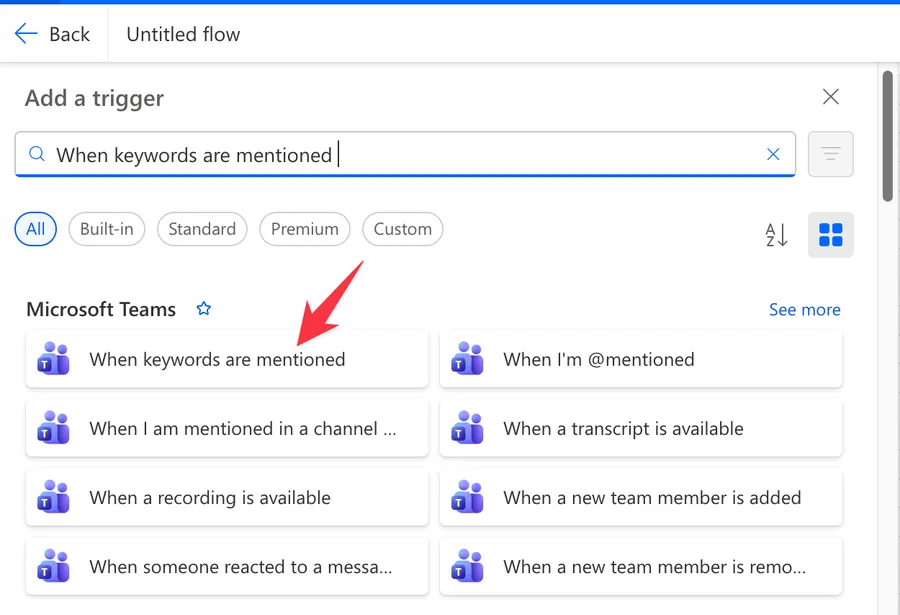
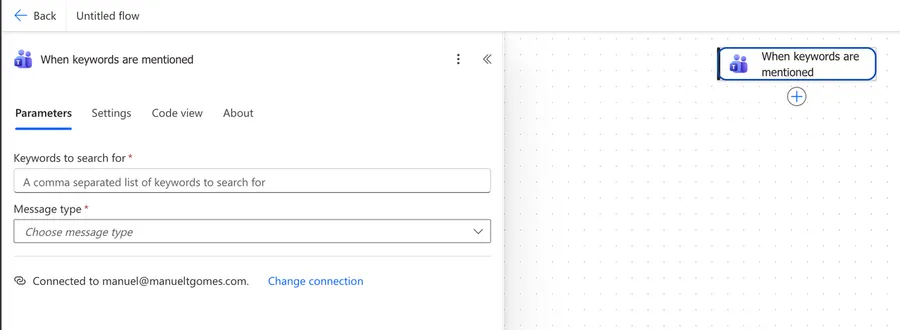
Here's what it looks like.
The Microsoft Teams connector has a small family of triggers that all react to somebody posting. Picking the wrong one means the flow either never fires or fires far too often, so check the table before you commit.
| Trigger | Fires when | Gives you the message body |
|---|---|---|
| When keywords are mentioned | A message in the watched channel or group chat contains one of your keywords | No, you fetch it afterwards |
| When a new channel message is added | Any root message is posted to the watched channel | Yes |
| When I am mentioned in a channel message | A message in the watched channel @mentions the connected user | Yes |
| When a new chat message is added | Any message is posted to a chat the connected user is part of | Yes |
If the word is what matters, this trigger is the right one. If you want every message and plan to filter them yourself, "When a new channel message is added" is simpler to work with because the body arrives with the trigger.
Now that we know how to find it let's understand how to use it.
Usage
Message type
This is the only field that changes the shape of the rest of the trigger, so set it first.
Its key is threadType and it is required. You pick either a channel inside a team or a group chat. A group chat is a conversation with three or more people that is not attached to any team.
Choosing "Channel" adds a Team field and a Channel field below. Choosing a group chat swaps those for a single chat picker.
Keywords to search for
Its key is $search and it is required. Microsoft describes it as "a comma separated list of keywords to search for", so deploy,release,rollback watches for three separate words.
Each entry has to be a single word. Microsoft documents that the trigger will not fire for phrases longer than one word, so "code freeze" never matches. Use one distinctive token instead, such as codefreeze or #codefreeze, and tell people to type that.
A word that people already use in normal conversation will fire the flow constantly. Prefixing your keywords with # keeps them deliberate and easy to spot in the transcript.
Team and Channel
These two appear once Message type is set to a channel. Both are dropdowns populated from the teams and channels the connected user belongs to.
The Channel field also accepts a custom value, which is useful when the dropdown does not list a channel you know exists. That value has to be the channel ID and not the channel name. A channel ID looks like 19:<insertChannelId>@thread.tacv2, and you get it from the channel's "Get link to channel" option or from the address bar when you open the channel in a browser.
Typing the display name here saves without complaint and the trigger simply never fires. If your flow is silent, check this field first.
There is no polling interval to set
Polling triggers ask Teams for new messages on a schedule. This one does not, because Teams calls Power Automate when the message arrives.
The practical result is that the flow starts within seconds of somebody posting, and there is no interval field to tune.
Outputs
Microsoft documents the return value of this trigger as "The outputs of this operation are dynamic", which means the connector does not publish a fixed schema for it.
In practice the trigger gives you the identifiers for the message plus a link to it, and not the text of the message. If you switch an existing flow from a message trigger to this one, the message body token disappears from the dynamic content list, which is the same thing seen from the other side.
That is not a dead end. It just means the message arrives one action later.
Fetch the message with "Get message details"
The "Get message details" action takes an identifier and returns the full message. Add it directly after the trigger.
It has two required parameters plus the location fields.
| Parameter | Key | Required | What to put in it |
|---|---|---|---|
| Message | messageId |
Yes | The message ID from the trigger's dynamic content |
| Message type | threadType |
Yes | The same choice you made in the trigger, so channel or group chat |
| Team and Channel, or Group chat | dynamic | Yes | The same location the trigger is watching |
The action returns a ChatMessage, which is the standard shape Teams uses for every message. These are the fields worth knowing.
| Field | Path | Type | Description |
|---|---|---|---|
| Message ID | id |
string | Unique ID of the message |
| Content | body.content |
string | The content of the message |
| Content type | body.contentType |
string | Either text or html |
| Sender display name | from.user.displayName |
string | The name of the person who posted |
| Sender ID | from.user.id |
string | The poster's user identifier |
| Created timestamp | createdDateTime |
date-time | When the message was created |
| Last modified timestamp | lastModifiedDateTime |
string | When it was created or last changed, including reactions |
| Reply to ID | replyToId |
string | ID of the parent message of the thread |
| Subject | subject |
string | The subject line, optional and usually empty |
| Importance | importance |
string | normal, high, or urgent |
| Mentions | mentions |
array of object | Users, bots, teams, and channels mentioned in the message |
| Reactions | reactions |
array of object | Reactions on the message, such as Like |
Reading the message text in an expression looks like this.
body('Get_message_details')?['body']?['content']
Breaking that down:
body('Get_message_details')gets the output of the action, using the action's name with spaces replaced by underscores?['body']safely reaches the message body object?['content']safely reads the text of the message
The ? before each bracket is safe navigation. It returns nothing instead of failing when a field is absent, which keeps the flow alive when a message does not have everything you expected.
Because the trigger's outputs are dynamic, the surest way to know what you have is to run the flow once, open the run in the run history, and expand the trigger. The JSON there is the real shape, and it beats guessing.
Non-intuitive behaviors
Here are the behaviors that catch people off guard.
The search covers more than the message text
Microsoft documents that the trigger "fires for all message-related data", and that this data includes the message sender and the text carrying the time the message was sent.
So a keyword such as mark fires on any message posted by a person called Marques, and a keyword that looks like part of a timestamp fires on messages that never contained it. The flow runs, the message looks innocent, and nothing explains why.
Re-check the keyword yourself after fetching the message, and stop the run when it is a false positive.
contains(toLower(body('Get_message_details')?['body']?['content']), '#codefreeze')
Breaking that down:
- The "contains" function checks whether the first value holds the second one
- The "toLower" function lowercases the message so casing does not matter
body('Get_message_details')?['body']?['content']is the message text'#codefreeze'is the keyword, written in lower case to match
Put that in a Condition action and send the false branch to a Terminate action with a status of Succeeded. The run ends cleanly and your run history stays readable.
Editing a message does not fire it
Microsoft states this in the trigger description. The trigger reacts to a message being posted, so adding a keyword to a message that is already there changes nothing.
Ask people to post a new message rather than edit an old one. If the process genuinely needs to react to edits, watch lastModifiedDateTime from a scheduled flow instead, since that value moves whenever a message changes.
The message body arrives as HTML
body.content is the message as Teams stores it, and body.contentType tells you which form you got. A message typed with any formatting at all comes back as HTML, tags included.
Run it through the "HTML to Text" action before you store it or email it.
Keyword checks in particular should run on the converted text, because a tag can sit between the letters of the word you are looking for.
Your own flow's messages can fire it again
A message your flow posts into the watched channel is a message like any other. If it contains the keyword, the trigger fires and the flow starts over.
Keep the keyword out of anything the flow posts back. Where the confirmation has to quote the original message, compare the sender ID against the connection owner first and stop the run when they match.
It sees replies too
The trigger watches messages in the channel, and a reply inside a thread is one of them. This is the opposite of "When a new channel message is added", which fires only for root messages.
That is usually what you want, since people reply far more often than they start threads. When you only care about new threads, check replyToId from the fetched message. It holds the ID of the parent message, and it is empty for a root message.
Limitations
Here are the constraints to keep in mind.
Keywords are single words only
Microsoft documents that the trigger will not fire for phrases longer than one word, so multi word triggers are out.
Match one distinctive word and check the rest of the phrase in the flow with the "contains" function, or agree on a single token such as #outofhours with the people who will type it.
The message text costs an extra action
Every run needs a "Get message details" call before it can read the message, including the runs that turn out to be false positives.
Keep the keyword list tight so fewer runs start, and put the "Get message details" call first so a Condition can end the run quickly when the keyword is not really there.
It runs as the connection owner
The trigger uses one Microsoft Teams connection, and it sees only what that account sees. If the account leaves the team or loses access to the channel, the trigger stops firing and the flow reports no error.
Use an account that will stay in the team, such as a service account, and note in the flow description which account the connection belongs to.
Connector throttling
The Microsoft Teams connector allows 100 API calls per connection every 60 seconds. Non-GET requests are capped separately at 300 per connection every 300 seconds, dropping to 25 for Flow bot operations such as posting an adaptive card as the Flow bot.
A busy channel with a common keyword reaches those numbers faster than you would think, because each run spends at least one call fetching the message. Give high volume flows their own connection so they do not throttle the rest of your work.
Service side delays happen
There have been periods where the trigger fired minutes late or stopped firing altogether, and Microsoft traced at least one of them to an issue in the underlying Microsoft Graph service rather than to anything in the flow.
Build so a late run is still a correct run. Read the timestamp from the message rather than using the current time, and where the process is time critical, add a scheduled flow that sweeps the channel and catches anything the trigger missed.
Recommendations
Here are some things to keep in mind.
Pick a keyword nobody types by accident
The best keywords look deliberate. #deploy reads as a command, while deploy is a word people use in ordinary sentences all day.
Write the chosen keywords in the channel description so newcomers can see them without asking.
Always re-check the keyword in the flow
The trigger's match is broader than the message text, so treat every run as a candidate rather than a certainty. One Condition near the top of the flow removes an entire class of confusing runs.
Fetch the message once and reuse it
Put the "Get message details" call directly after the trigger and store the fields you need in Compose actions named after them.
The flow reads better, and changing a path later means editing one action instead of hunting through the whole flow.
Reply where the message was posted
People who type a keyword expect something to happen where they typed it. Post the result back to the same channel or chat, with a link to whatever the flow created.
It closes the loop and it stops people typing the keyword twice because they were not sure it worked.
Watch one place per flow
Give each channel or group chat its own flow rather than trying to cover the whole tenant. The run history stays meaningful, throttling stays contained, and turning off one noisy channel does not stop the rest.
Name it correctly
Always build the name so others can understand the trigger's purpose without opening it and checking the details.
Always add a comment
Adding a comment will also help avoid mistakes. Indicate what conditions trigger the flow and any assumptions about the data. It's essential to enable faster debugging when something goes wrong.
Final Thoughts
"When keywords are mentioned" turns a Teams conversation into a command line. People type a word they already agreed on, and the automation starts without anybody opening another tool.
Two habits make it dependable. Fetch the message with "Get message details" so you are working with the real text, and re-check the keyword before you act on it. Do those two things and the trigger is one of the friendliest entry points the Teams connector has.
Sources
- Microsoft Teams connector reference
- Known issues and limitations with Microsoft Teams triggers
- Trigger Flows when Keywords are used in Microsoft Teams, Serverless Notes
Back to the Power Automate Trigger Reference.
Photo by Glen Carrie on Unsplash

No comments yet
Be the first to share your thoughts on this article!