
Most of the work we do in Power Automate is to get data from one place and send it to another place, but sometimes we want to send information aggregated and that's where the "Join" action helps.
For example, you use the SharePoint "Get items" action to get a list of people and then the "Send an email notification" action to send an email to everyone. If you iterate through all of them, you send one email per person. Aggregating the addresses into a single string lets you send one email instead.
It's a built-in standard action, so it works with any license, and since it runs inside the workflow engine, it doesn't even need a connection.
Let's see how to use it.
Where to find it?
Search for "Join" in the action picker, and you'll find it under the "Data Operation" group.
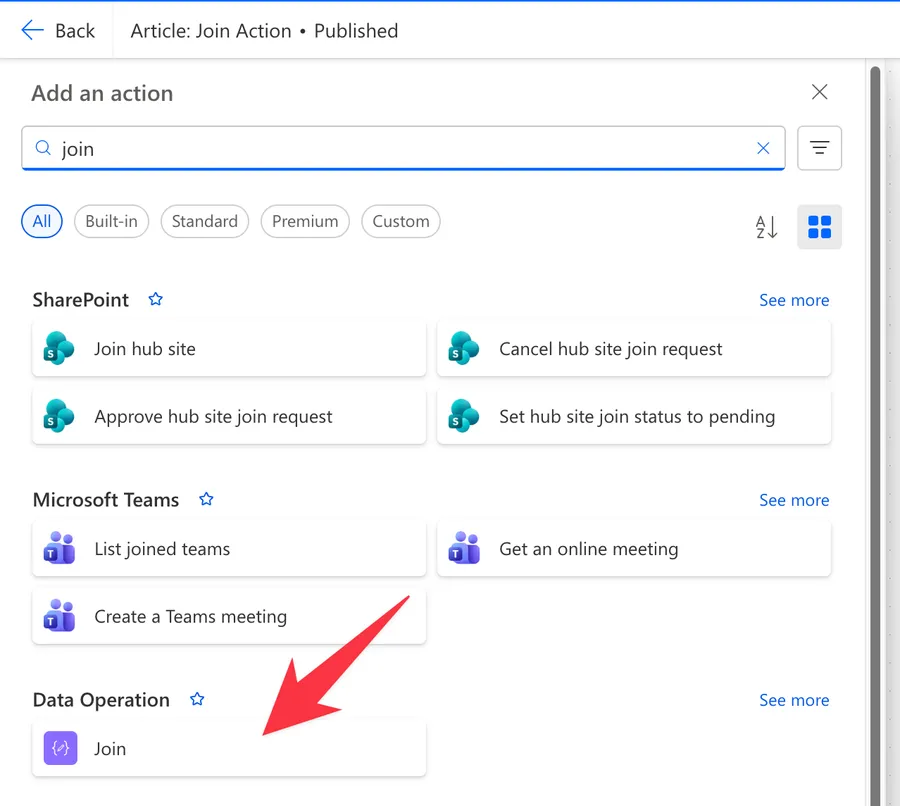
Here's what it looks like.
The "join" function does precisely the same thing inside an expression, without spending an action card. If you're already writing an expression, the function is the lighter choice. The action wins when you want the result visible in the run history or when you prefer building flows without expressions.
Now that we know how to find it, let's understand how to use it.
Usage
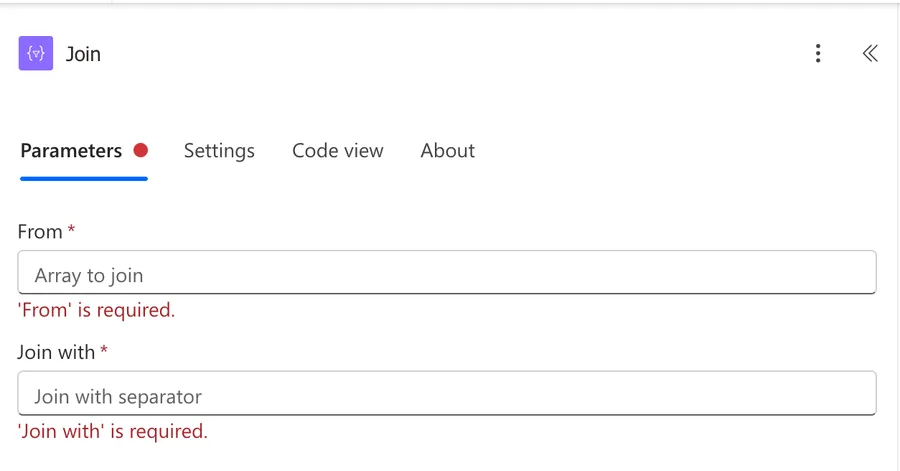
The action could not be simpler. It has two parameters, and both are required.
From
The array you want to join. You can pick dynamic content from a previous action, like the value list from SharePoint's "Get items" action, or type an array yourself. The items can be strings or numbers, and Power Automate converts them as needed, but they need to be contained inside an array. You can use the "createArray" function to generate one if needed.
Join with
The delimiter that goes between the items. You can use one or multiple characters. In the example above of the email we would use ;, but if you want a list of objects you can use , for example. Notice that if you use multiple characters then all of them will be applied. Take this array:
["João", "Maria", "Sofia"]
with "; " as the delimiter produces:
João; Maria; Sofia
Settings
Since the action runs inside the workflow engine and makes no external calls, there's no retry policy to worry about.
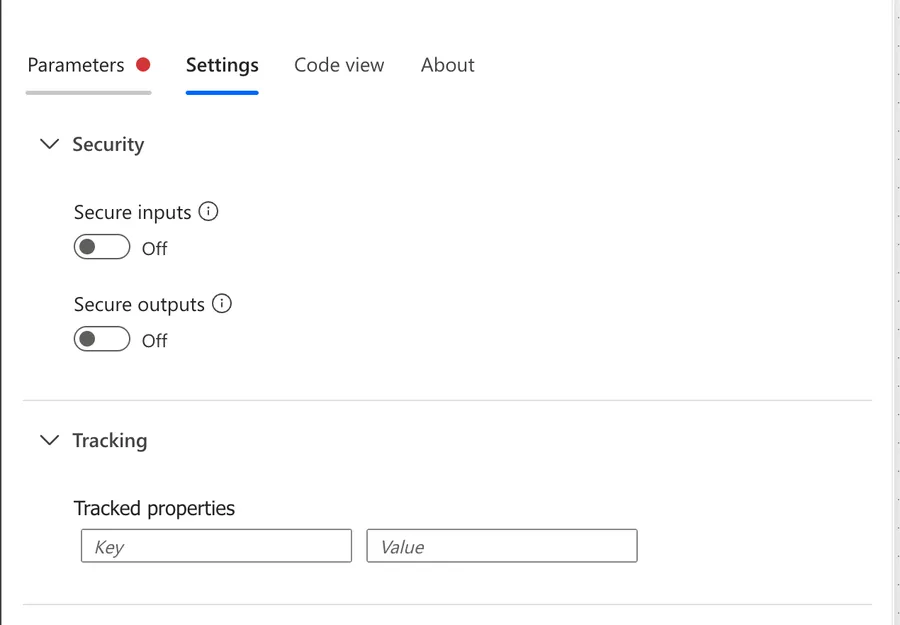
The settings you do get are "Secure Inputs" and "Secure Outputs", which hide the array and the resulting string from the run history. Turn them on if the array carries personal data, like email addresses, that shouldn't be readable by everyone who can open the run.
Using the action's outputs
The action returns a string with the output. You'll usually pick it from the dynamic content list, but in an expression, you can get it with the "body" function:
body('Join')
Here's the breakdown:
- The "body" function returns the body of the action you name.
'Join'is the name of the action. If you renamed it (and you should, see the recommendations below), use the new name with spaces replaced by underscores.
The equivalent with the "outputs" function is:
outputs('Join')?['body']
- The "outputs" function gets everything the "Join" action returned.
?['body']safely navigates to the body. The question mark returns null instead of crashing the flow if the property doesn't exist. I explain why you need the question mark operator in detail in another article.
Non-intuitive behaviors
An empty array doesn't fail
If the array comes in empty, the action succeeds and returns an empty string. I like this behavior because it removes a whole set of potential problems, but you should always check the result to see if it's useful.
Going back to the previous example, sending an email without email addresses doesn't make sense. If an empty result matters, check the array first with the "empty" function or the "length" function inside a "Condition" action.
Arrays of objects don't fail either, but the result is not useful
Let's say that you have a SharePoint list and use the "Get items" action to get a list of items and provide that information to the "Join" action.
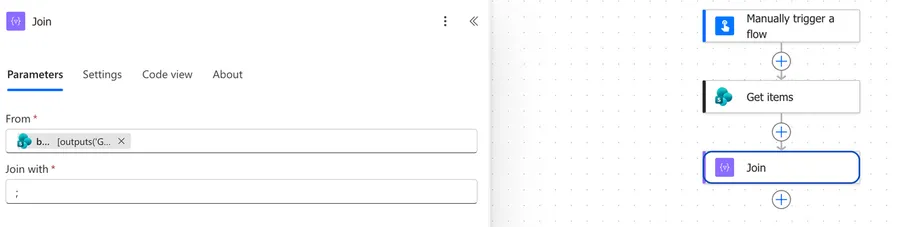
The Flow will succeed, but the result won't be useful. It will be a string of values.

So be careful in this case and be sure that you're providing an array of strings, for example, not objects.
The delimiter field can't be empty, but it can be null
The designer treats "Join with" as required, so you can't leave the value blank. If you simply want to join the items together, you can use the "null" that is part of Power Automate's special values.
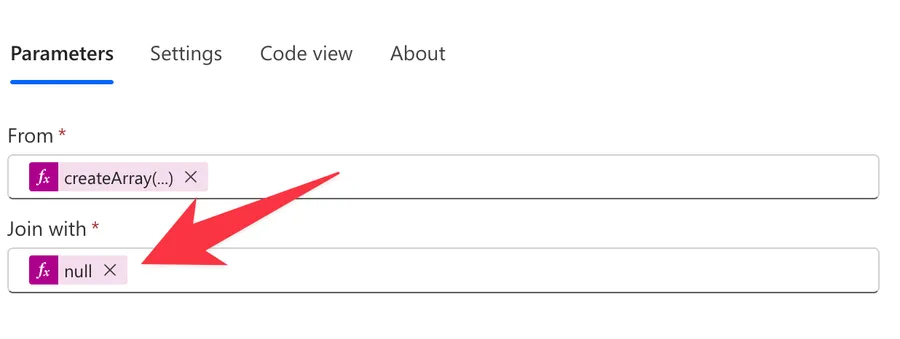
Here's the result.
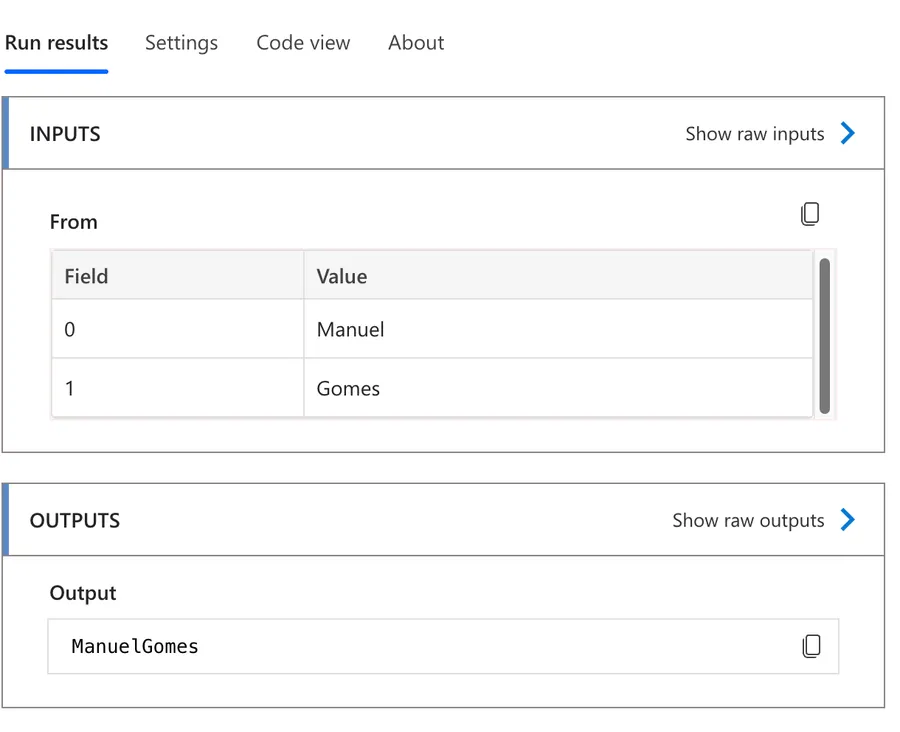
This could be a great way to quickly merge the data together.
Limitations
The input must be an array
A string, a number, or a single object in the "From" field fails the action at runtime. If you have a single value that you need treated as a list, wrap it with the "createArray" function first.
One delimiter for everything
The same delimiter goes between every pair of items. There's no built-in way to produce "João, Maria, and Sofia" with a different separator before the last item. For that, you need to build it yourself with the "concat" function or post-processing of the joined string.
It's a one-way trip
The action turns an array into a string, never the reverse. To go back, use the "split" function, which is the exact mirror operation.
Troubleshooting Common Errors
The 'from' property value must be of type array
The action fails with an error saying the from property is of type String or Object and must be of type Array.
Cause: The dynamic content you picked isn't an array. A frequent case is selecting the whole body of an action instead of the array property inside it.
Solution: Pick the property that holds the array, for example, ?['value'] on SharePoint results. If the array arrives as JSON text, convert it first with the "json" function. If it's genuinely a single value, wrap it with the "createArray" function.
The output is full of curly braces
The result looks like {"Email":"joao@manueltgomes.com"};{"Email":"maria@manueltgomes.com"}.
Cause: The input is an array of objects, so each object gets serialized into the string.
Solution: Add a "Select" action before the "Join" action and map only the property you want, as described above.
The action fails when a previous step returns null
The flow works most of the time but fails when the source has no data and returns null instead of an empty array.
Cause: Null is not an array, so the "From" validation rejects it.
Solution: Wrap the input with the "coalesce" function:
coalesce(outputs('Get_items')?['body/value'], json('[]'))
- The "coalesce" function returns the first argument that isn't null.
outputs('Get_items')?['body/value']safely gets the array from the source action.json('[]')builds an empty array as the fallback, so the "Join" action receives a valid input and returns an empty string.
Recommendations
Here are some things to keep in mind.
Pair it with the "Select" action
The "Select" action plus "Join" combination is one of the most useful patterns in Power Automate. "Select" extracts one property from each object, "Join" turns the result into a string, and you've formatted a whole dataset in two actions.
Skip the loop
Using an "Apply to each" action with an "Append to string variable" action inside, just to build a delimited string works, but it's slow. It also burns a lot more action runs, because every action inside the loop counts towards your limit. One action that runs hundreds of times faster is worth the swap.
Name it correctly
A flow with actions called "Join" and "Join 2" tells you nothing. Always rename the action to say what it builds, for example, "Join, Approver emails with semicolons".
Always add a comment
Adding a comment will also help avoid mistakes. Note where the array comes from and why you chose that delimiter. It's essential to enable faster debugging when something goes wrong.
Always deal with errors
Have your Flow fail gracefully and notify someone that something failed. A Flow that fails silently in Power Automate can go unnoticed for a long time and cause worse errors later. I have a template that you can use to help you make your Flow resistant to issues. You can check all details here.
Final Thoughts
I use the "Join" action all the time because of the advantages that I mentioned. It's fast, uses only one action, and it's simple to use. It's the kind of action that does what it's supposed to do without a lot of edge cases to worry about.
Back to the Power Automate Action Reference.
Photo by Claudio Schwarz on Unsplash


No comments yet
Be the first to share your thoughts on this article!