
The "chunk" function does one thing, and it does it without asking you for a loop, a counter, or a variable. You hand it a collection and a size, and it hands you back that collection sliced into pieces of that size. Twelve items chunked by five come back as three groups. Twenty-six characters chunked by ten come back as three strings. It is the batching tool that Power Automate took years to give us, and once you have it, the old "Do Until with an index variable" pattern starts to look like a lot of work for very little.
It works on both strings and arrays, and that dual nature is where most of the surprises live. Let's look at the signature, the examples that earn their keep, and the places where it quietly does something you didn't plan for.
Where to find it?
The "chunk" function lives in the Collection functions group of the expression picker, and it also shows up under String functions, because it accepts either type. You can use it anywhere an expression is supported, though in practice you'll reach for it inside a "Compose" action, an "Initialize variable" action, or a "Select" action right before an "Apply to each" action picks up the batches.
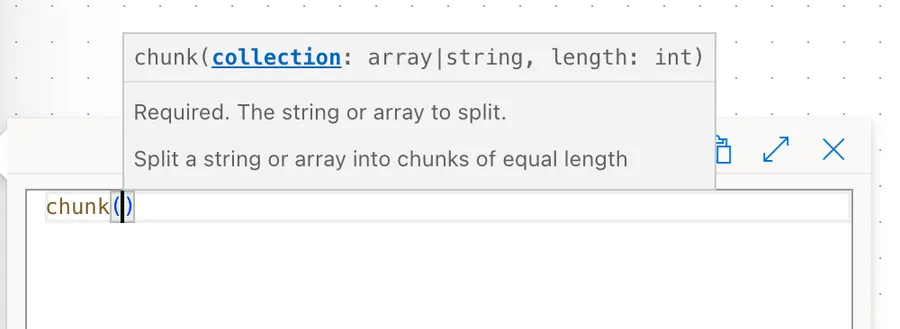
It sits next to three functions that sound like they do the same job. The "take" function gives you the first N items and throws the rest away, the "skip" function does the opposite, and the "split" function cuts a string wherever it finds a delimiter, so the pieces come out at whatever size the text decides. Only "chunk" keeps everything and cuts by size.
Usage
The function takes two parameters, and both are required:
chunk(<collection>, <length>)
| Parameter | Required | Type | Description |
|---|---|---|---|
| collection | Yes | String or Array | The string or array you want to split |
| length | Yes | Integer | The size of each chunk |
The return value is always an array of chunks, no matter what you fed in.
Microsoft's published signature writes the second parameter in quotes, as chunk('<collection>', '<length>'), while the parameter table on the same page leaves its type blank and both official examples pass it unquoted. Follow the examples and pass a number.
Chunking a string
Give it text and a size, and you get an array of shorter strings:
chunk('abcdefghijklmnopqrstuvwxyz', 10)
That returns ['abcdefghij', 'klmnopqrst', 'uvwxyz']. The alphabet is 26 characters, so you get two full chunks of ten and a final one holding the leftover six. Notice that the pieces are strings, not arrays of characters.
Spaces are characters too, and the function counts them like everything else:
chunk('Power Automate', 3)
That returns ['Pow', 'er ', 'Aut', 'oma', 'te']. The space rides along inside the second chunk, and nothing waits for a word boundary.
Chunking an array
Give it an array and the pieces come back as arrays:
chunk(createArray(1, 2, 3, 4, 5, 6, 7, 8, 9, 10, 11, 12), 5)
That returns [ [1,2,3,4,5], [6,7,8,9,10], [11,12] ]. Twelve items, chunked by five, give you two full groups and a short one. The "createArray" function is only there to build the sample, since in a real Flow the collection comes from an action.
Chunking data from an action
This is the shape you'll write most often. Take what a "SharePoint Get Items" action returned and cut it into batches of a hundred:
chunk(body('Get_items')?['value'], 100)
Let's break that down:
body('Get_items')reads the output of the action.?['value']safely reaches the array of records, and returns null instead of failing if the action gave you nothing back.chunk(..., 100)slices that array into groups of a hundred.
If you want to know how many batches you ended up with, wrap the whole thing in the "length" function:
length(chunk(body('Get_items')?['value'], 100))
A list of 250 records gives you 3, because the last batch holds the remaining fifty.
Real-world examples
Batching records into a single API call
Maria's Flow has to create 400 items in a list, and one "SharePoint Create Item" action per record is 400 calls waiting to be throttled. Chunk the source array into hundreds, loop the batches, and send each batch as one request through the "Send an HTTP request to SharePoint" action:
chunk(variables('RecordsToCreate'), 100)
Four requests instead of 400. If that pattern is new to you, Batch Operations and Throttling Mitigation in Power Automate covers the request side of it.
Formatting a reference code for people to read
João's system issues codes like ABCD1234EFGH5678, and nobody can read that out loud. Chunk it into fours and glue it back together with the "join" function:
join(chunk(triggerOutputs()?['body/ReferenceCode'], 4), '-')
That gives you ABCD-1234-EFGH-5678, and it only works because chunking a string returns strings, which is exactly what the "join" function wants.
Splitting a long message into sendable pieces
A notification body has to go out in pieces of 160 characters:
chunk(triggerBody()?['text'], 160)
Each element is a ready-to-send message. The cut is on character count, so it will land mid-word. If that matters, this is the wrong tool, and the "split" function on a space is the starting point for a word-aware version.
Non-intuitive behaviors
Here are the behaviors that catch people off guard with the "chunk" function.
The chunks are not all the same size
The function is often described as splitting a collection into equal parts, and that is only true when the size divides cleanly. When it doesn't, the remainder becomes a final, shorter chunk. Nothing is padded, and nothing is dropped.
That last short chunk is the reason so many batching Flows work perfectly on 200 records and break on 237. If your downstream logic assumes every batch is full, it will be wrong exactly once per run, on the batch you didn't test.
The output type mirrors the input type
Chunking an array gives you an array of arrays. Chunking a string gives you an array of strings. Both are arrays at the top level, so an "Apply to each" action iterates either one, but what you get inside the loop is completely different. With an array you get a batch and need a second loop. With a string you get a piece of text and you're done.
One chunk is still wrapped in an array
If the chunk size is greater than or equal to the number of items in the collection, you get back a single chunk, and that chunk is still inside an array. chunk(createArray(1, 2, 3), 10) returns [[1,2,3]], not [1,2,3]. Feeding that into something expecting a flat array gives you a confusing error about types, so reach in with the "first" function when you know there's only one batch.
It counts characters, not words or lines
There is no notion of a boundary. A chunk of 10 on a paragraph slices through the middle of words, and a chunk of 100 on a CSV cuts a row in half. Anything that needs to respect structure has to be split first with the "split" function and chunked afterwards.
It doesn't make the data smaller
Chunking a 5,000 record array does not reduce what the Flow is carrying. You now hold the original array and a chunked copy of it, so you're carrying more, not less. The win is in how many calls you make downstream, not in how much data sits in the run history.
Limitations
It only accepts strings and arrays
An object is not a collection as far as this function is concerned, so you cannot chunk the body of a "Parse JSON" action directly. You have to reach the array inside it first, which usually means a property like ?['value'].
The chunk size is fixed for the whole collection
Every chunk except the last one is exactly the length you asked for. There is no way to vary the size, no overlap between chunks, and no way to say "cut here but not there". If your batching rule depends on the content rather than the count, you need a "Filter array" action or a "Condition" action instead.
The whole collection still has to fit
The function works on data already loaded into the run, so it cannot help you get past the paging limits of the action that fetched it. If a "SharePoint Get Items" action only gave you 100 records, chunking those 100 changes nothing. Sort the retrieval out first, and Power Automate: What is Pagination? explains how.
Expression size limits
As with every Power Automate expression, you have a ceiling of 8,192 characters. Nesting "chunk" inside a "join" function inside a longer mapping expression eats into that faster than you'd expect, so break long expressions into "Compose" actions and reference them.
Troubleshooting Common Errors
The function complains that its parameter is not a string or an array
Cause: You passed an object. This almost always happens when the expression points at the body of an action rather than at the array inside that body, or when a field you expected to be a list came back as a single record.
Solution: Reach the array explicitly, and keep the safe navigation so a missing property returns null rather than blowing up mid-expression.
chunk(body('Get_items')?['value'], 100)
The expression fails when the collection is empty or missing
Cause: ?['value'] returned null because the source action found nothing, and null is neither a string nor an array.
Solution: Default to an empty array with the "coalesce" function before chunking, so the function always receives one of the two types it accepts rather than null.
chunk(coalesce(body('Get_items')?['value'], json('[]')), 100)
The loop iterates over characters instead of batches
Cause: The collection was a string when you thought it was an array. A value that arrived from a query parameter, a text column, or an HTTP response often looks like an array and is really text, so "chunk" applies its string behavior.
Solution: Convert it first with the "json" function so you're chunking a real array.
chunk(json(triggerBody()?['items']), 100)
The size parameter is rejected
Cause: The length arrived as text. A number typed into a Flow input, read from a variable, or pulled from a column is a string, and the second parameter wants an integer.
Solution: Wrap it in the "int" function, and drop the quotes when the value is a literal.
chunk(variables('Records'), int(triggerBody()?['BatchSize']))
Recommendations
Here are some things to keep in mind when using the "chunk" function.
Chunk once into a Compose action
Work the batches out a single time in a "Compose" action and point everything else at that output. You get one place to look when the batching goes wrong, and the run history shows you exactly what the split produced instead of making you guess.
Pick the size for the receiving system, not for the math
A round number feels tidy, and the system on the other end doesn't care about tidy. Batch sizes near a hundred keep you comfortably inside most API limits while still cutting the call count dramatically, and if you're seeing throttling, API Rate Limits and Throttling in Power Automate is the place to start.
Expect the short batch
Write the inner logic so it handles a batch of three the same way it handles a batch of a hundred, and use the "length" function to read what you actually have rather than assuming the size you asked for.
Reach for it before you reach for a loop
If you're about to build a "Do Until" action with an index variable, a "Set variable" action, and a pair of "skip" function and "take" function calls, stop. That pattern exists because "chunk" didn't, and one expression now replaces the whole thing.
Always add a comment
Adding a comment will help others understand your expression. Say why the batch size is what it is, because 100 in the code never explains whether it came from an API limit, a performance test, or a coin toss.
Final Thoughts
The "chunk" function is small, and it removes a whole pattern. Batching used to mean a loop, a counter, and a stack of expressions that nobody wanted to touch six months later, and now it means one line. Keep the two rules in your head. The last chunk is usually shorter than the rest, and what comes out of each chunk depends entirely on what went in. Respect those, and it will slice exactly the way you asked, every time.
Sources
- chunk function, Reference for functions in workflow expressions, Azure Logic Apps and Power Automate
- Reference for functions in workflow expressions, Azure Logic Apps and Power Automate
- Limits and configuration reference for Azure Logic Apps
Back to the Power Automate Function Reference
Photo by Claudiu Constantin on Unsplash


No comments yet
Be the first to share your thoughts on this article!