
Some people don't like that Power Automate requires us to use a "Get X" action, like the "Get message details" action. So we get an ID from one place and then fetch the details. For example the "When a new chat message is added" trigger will give you an ID and that's it.
This is important because it separates responsibilities quite nicely and allows actions and/or triggers to evolve independently. So one step's "job" is to get the message and the other one is to get its details. Nice and separate.
In this case, the "Get message details" action will give you the real message with its body, its author, its mentions, and everything else Microsoft Teams knows about it, allowing Microsoft to add more information over time when it exists.
Let's explore how it works.
Where to find it?
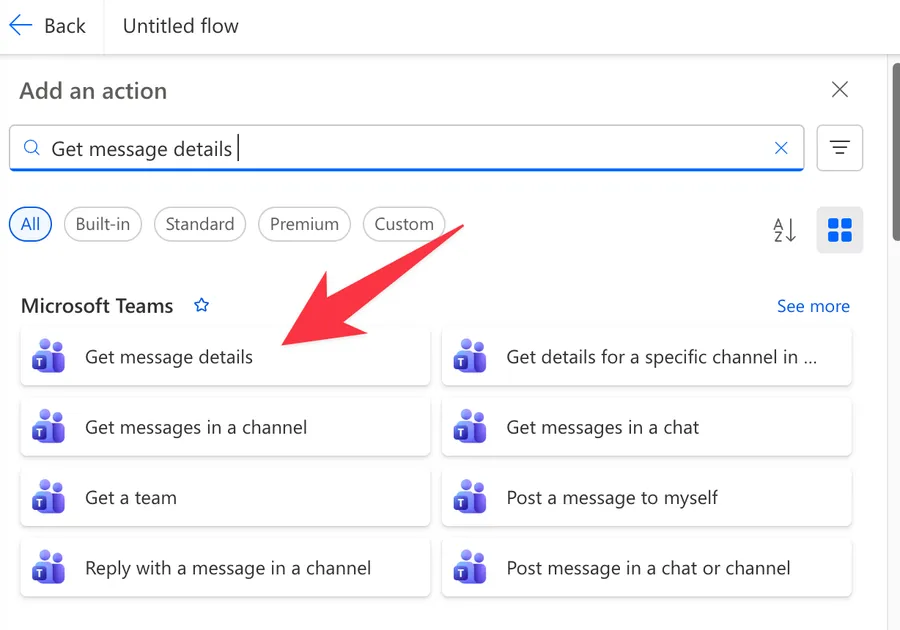
Add a new step, type "get message details" in the action picker, and choose the "Get message details" action under the Microsoft Teams connector.
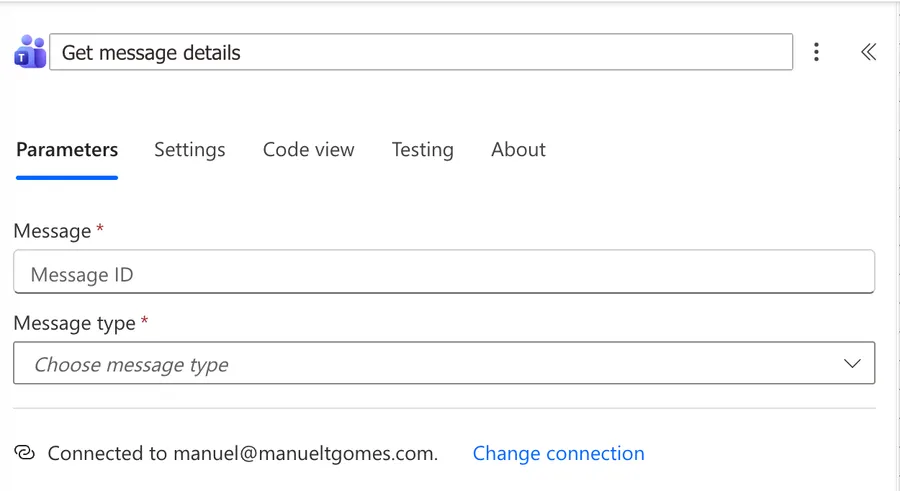
Here's what it looks like once it lands on the canvas, before you pick a message type.
The picker puts three similar names next to each other. "Get messages in a channel" and "Get messages in a chat" are list operations that return a batch of recent messages and take no message ID. "Get message details" is the singular one, and it needs an ID you already have. To hunt for a message rather than expand one you were handed, use the plural actions.
Now that we know how to find it, let's understand how to use it.
Usage
The action takes three inputs, and the third one changes shape depending on the second. Fill them in from the top down, because picking the message type late will clear whatever you already typed underneath.
Message
This is the message ID, and it is the field people get wrong most often. A Microsoft Teams message ID looks like a millisecond timestamp, for example 1755012345678. That makes it easy to mistake for a value you can calculate. You cannot calculate it, so it has to come from a real message.
There are three usual sources.
- A Microsoft Teams trigger output. Every message trigger hands you a
messageId, and this field is what it exists for. - The output of "Get messages in a channel" or "Get messages in a chat", when you are looping over a batch.
- The tail of a message deep link. A URL like
https://teams.microsoft.com/l/message/19:<insertConversationId>@thread.v2/1755012345678ends with the message ID, which is handy when you are testing by hand.
Message type
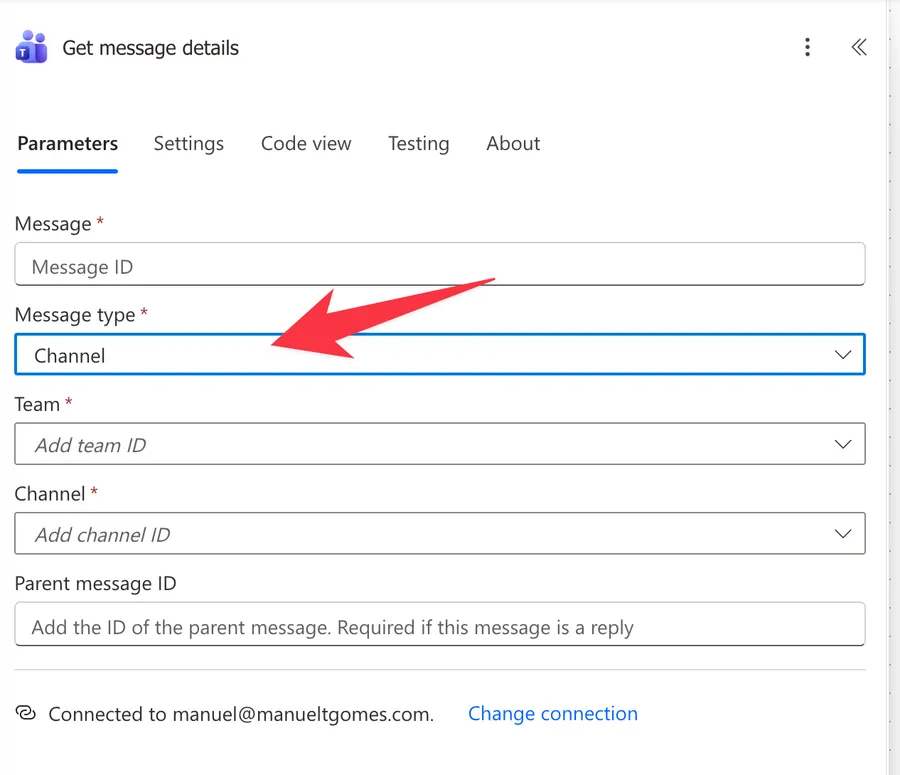
This dropdown tells the connector where to go looking, and it reshapes the rest of the action. The values you get are Channel, Chat, Group chat, and Meeting chat.
Please note that the connector reference documents this parameter only as "Choose message type" without publishing the list of accepted values, so treat the four above as what the designer shows today rather than a contract. Open the dropdown in your own tenant before you build around a specific one.
The third parameter, which is not always the same field
The connector reference calls the third input a dynamic "Get message details request", which is its way of saying the designer swaps the field based on your message type.
When the message type is Channel, two dropdowns appear. Pick the Team first, then the Channel list populates with that team's channels. Either can be switched to a custom value if the team and channel arrive from an earlier step.
When the message type is Chat, Group chat, or Meeting chat, you get a single Conversation picker instead. A conversation ID identifies one chat, and it looks like 19:<insertConversationId>@thread.v2. Microsoft Teams triggers return it in their output as conversationId, so take it from there rather than choosing from the list.
Using the action's outputs
The connector reference states that the outputs of this operation are dynamic, so the designer cannot promise you a schema up front. What comes back is a ChatMessage object, the structure Microsoft Teams uses for a single message. These are the fields worth knowing about.
| Field | Description | Example value |
|---|---|---|
body.content |
The content of the message | <p>Deploy finished</p> |
body.contentType |
The type of the content, either text or html | html |
from.user.displayName |
Display name of the sender | Joana Ferreira |
from.user.id |
The sender's identifier | 8f1a2b3c-4d5e-6f70-8901-234567890abc |
createdDateTime |
When the message was created | 2026-08-12T09:41:07.882Z |
lastModifiedDateTime |
When it was created or last changed, including reactions | 2026-08-12T09:44:15.104Z |
importance |
Normal, high, or urgent | normal |
subject |
The subject line, present on channel posts | Weekly deploy |
mentions |
Entities mentioned in the message | An array of user, bot, team, or channel entries |
attachments |
Attachments carried by the message | An array, empty for a plain message |
reactions |
Reactions on the message | An array, usually empty |
replyToId |
ID of the parent message when this is a reply | 1755012300000 |
deleted |
Whether the message was deleted | false |
Because the outputs are dynamic, reach them with the "outputs" function and safe navigation. The dynamic content picker, which is the lightning bolt list the designer offers you, does not surface every field here, so write the path yourself.
outputs('Get_message_details')?['body']?['body']?['content']
outputs('Get_message_details')?['body']?['from']?['user']?['displayName']
- The "outputs" function returns everything the action produced.
- The first
?['body']is the action's response body, which is the envelope every connector call returns. - The second
?['body']is the message's own body object, and?['content']is the text inside it. - Each question mark returns null instead of failing the run when a property is missing, and I cover why you need the question mark operator in its own article.
- Note the underscores. Power Automate replaces the spaces in the action's name when you reference it in an expression.
Non-intuitive behaviors
The doubled body is not a typo
outputs('Get_message_details')?['body']?['body']?['content'] looks like a copy and paste accident, and it is the single most common reason an expression here returns null. The outer body belongs to the connector response. The inner one belongs to the message. Drop either and you get nothing, and no error tells you which half is missing. Check the real structure in the run history before you write the path.
The content is HTML even when the message looked like plain text
A colleague types a sentence in Microsoft Teams with no formatting at all, and body.content still arrives wrapped in <p> tags. Anything with a link, a bullet, or a bold word arrives with the full markup. If you push that value straight into a SharePoint column or an email body, the reader sees the tags. Run it through the "HTML to Text" action first.
The message type has to match where the message actually lives
The message ID alone does not tell the connector which conversation to search. If you pass a channel message ID with the message type set to Chat, the action reports that the message was not found. The ID looks valid in the run history, so check the message type against the trigger that produced it.
Mentions are in there, they just hide
The mentions array is populated, but it does not surface in the dynamic content picker, so people conclude the action does not return mentions. It does. You loop over it with an "Apply to each" and read the display name from inside.
outputs('Get_message_details')?['body']?['mentions']
Inside the loop, this reads each mention, falling back to the raw text when the mentioned entity is not a user.
coalesce(items('Apply_to_each')?['mentioned']?['user']?['displayName'], items('Apply_to_each')?['mentionText'])
The "coalesce" function returns the first value that is not null, so a channel or team mention still gives you something readable.
Reactions are usually empty when the flow reads them
The reactions array is real, but a flow usually calls this action within seconds of the message being posted, before anybody has reacted. You get an empty array, which looks like a bug and is really just timing. Reactions accumulate after your flow has finished, so read them from a second flow that runs later, or call the Graph API.
Older messages are less reliable than recent ones
Community reports describe message IDs that resolve happily for recent posts and fail for anything from a previous day, even when the ID was pulled from a valid source.
Microsoft does not document any age limit on the messages this action can retrieve, and I was unable to reproduce the failure consistently. Please treat it as a community observation. If your flow reaches back in time rather than reacting to something that just happened, test with genuinely old messages before you rely on it.
Limitations
One message per call, and no replies
The action returns exactly the message you asked for. It does not return the thread that message started, and it does not return the message it was a reply to. You get replyToId, which is a pointer rather than content, so fetching the parent means another call. No connector action returns a whole thread, so use the Graph API for that, as described in the Recommendations below.
It cannot find a message, only expand one
There is no search here, so this action needs an ID you already have. The list actions only reach so far, since "Get messages in a channel" returns the latest 50. For anything older in a busy channel, call the Graph API instead.
Throttling arrives faster than you expect
The Microsoft Teams connector allows 100 API calls per connection every 60 seconds. This action is almost always the second call for every message, so a flow processing a busy channel spends that budget at double speed. Requests that write rather than read have their own ceiling of 300 per connection every 300 seconds, dropping to 25 for Flow bot operations. Filter before you fetch to stay under it, as described in the troubleshooting section below.
Private channels stay out of reach
The connector does not support posting a message or an adaptive card to a private channel, and private channel content sits outside what these Microsoft Teams actions can address in general. Plan around standard channels.
The connection decides what you can see
The action runs as the account behind the connection. A message in a chat or team that account does not belong to is not found, regardless of who owns the flow. Swapping the connection later silently changes which messages resolve.
Troubleshooting Common Errors
The action reports that the message was not found
Cause: Three things produce this, and they look identical in the run history. The message type does not match where the message lives, the conversation ID or the team and channel pair points somewhere other than the message's home, or the message ID arrived empty because an upstream expression returned null.
Solution: Open the failed run and read the action's raw inputs. An empty message ID is obvious there. If the ID is present, confirm the message type against the trigger that produced it. A channel trigger needs Channel, a chat trigger needs Chat or Group chat. Then confirm the conversation, because a hard-coded team and channel pair goes stale when a channel is recreated.
The output expression returns null but the run succeeded
Cause: Almost always the missing second body in the path. The action succeeded and returned the message. Your expression walked into a property that does not exist, and the question mark operator returned null.
Solution: Drop a "Compose" action after this step containing outputs('Get_message_details') on its own, run the flow, and read the real structure in the run history. Build your path from what you see rather than from memory.
The designer wraps the action in an Apply to each
Cause: The message ID you selected came from an array in the trigger output. Several Microsoft Teams triggers deliver their payload inside a value array, so the moment you pick messageId from the dynamic content picker, Power Automate adds the loop for you.
Solution: Leave the loop alone. The array genuinely can carry more than one message, and removing the loop to make the design tidier will drop messages during a busy minute. Reference the fields with items('Apply_to_each')?['messageId'] inside it.
A forbidden error on a message you can read in Teams yourself
Cause: The connection is not the account you are thinking of, or the Power Automate app has not been added to the team.
Solution: Open the connection on the action card and confirm which account it uses. If the account is right, add the Power Automate app to the team from the Microsoft Teams client, then re-run. Connections stuck in a bad state show a "Fix connection" prompt under Data, Connections.
The flow slows down and starts failing in bursts
Cause: Connector throttling. The failures cluster rather than spreading evenly, which is the signature of a rate limit rather than a data problem.
Solution: Reduce how often you call the action. Filter before you fetch, so you only expand messages you care about. Split high volume flows across separate connections. The retry policy on the action's Settings tab handles short bursts, and anything beyond that needs the call count brought down.
Recommendations
Here are some things to keep in mind.
Set the message type from the trigger, not from habit
Decide the message type by looking at which trigger feeds the action, and write that decision into the action's name or comment. If a single flow handles both channels and chats, branch with a Condition and use two separate instances of the action rather than trying to make one instance cover both.
Convert the HTML before you do anything with it
Send body.content through the "HTML to Text" action before you store it, email it, or search it. Keyword checks in particular are unreliable against raw markup, because a tag can sit in the middle of the word you are looking for. Once it is clean, the "toLower" function and the "contains" function behave the way you expect.
Guard against an empty result
The action can succeed and still leave you with nothing useful, so check before you use the value.
@empty(outputs('Get_message_details')?['body']?['body']?['content'])
The "empty" function returns true for a null or blank value, which gives you a clean branch for the case where the message was deleted between the trigger firing and this action running.
Go to Graph when you need the thread
The connector has no thread action, so use Graph when you need the replies under a message. Calling the Graph endpoint for channel message replies with an HTTP request gets you the whole thread in one call, and I walk through how to call Microsoft Graph API from Power Automate separately. Parse the response with a "Parse JSON" action so the rest of your flow keeps working with named fields.
Name it correctly
The name is important here because a flow often fetches more than one message, and the action's default name tells you nothing about which. Build the name so others understand what is being fetched without opening it, for example "Get message details, channel post that triggered the flow".
Always add a comment
Adding a comment will also help avoid mistakes. Note where the message ID and the conversation come from, since both are opaque identifiers that nobody can interpret at a glance. It's essential to enable faster debugging when something goes wrong.
Always deal with errors
Have your Flow fail gracefully and notify someone that something failed. A failing Flow in Power Automate can go unnoticed for a while and generate worse errors downstream, so build the handling in from the start. I have a template that you can use to help you make your Flow resistant to issues. You can check all details here.
Final Thoughts
"Get message details" is the action that turns a Microsoft Teams message ID into the message itself, which is exactly what most Teams triggers need next. Three habits cover almost everything: match the message type to the trigger that fed it, keep the doubled body in your expressions, and convert the HTML before you use it. For threads and reactions, reach for the Graph API from the start.
If you are building out Microsoft Teams automation more broadly, the When a new channel message is added trigger and the When I am mentioned in a channel message trigger are the two that most often sit above this action, and the "List chat or channel members" action pairs with it when you need to work out who else should hear about the message.
Sources
- Microsoft Teams connector reference
- How to get all mentions from a Teams message
- Get a specific Teams message using ID
- Teams get message and replies by id
Back to the Power Automate Action Reference.
Photo by Maksim Shutov on Unsplash


No comments yet
Be the first to share your thoughts on this article!